
Sales, certificates, showcase & programmes
Reports
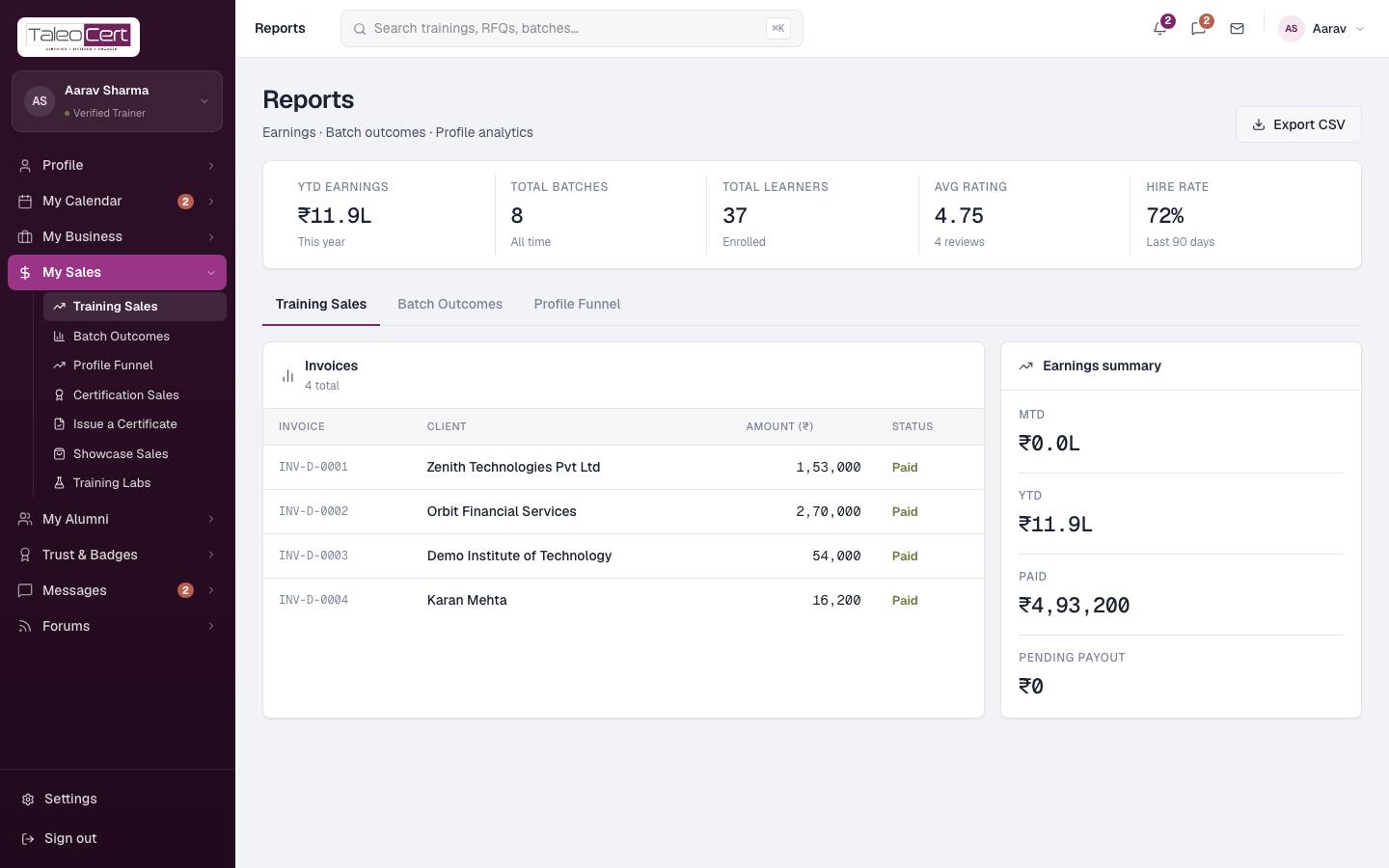
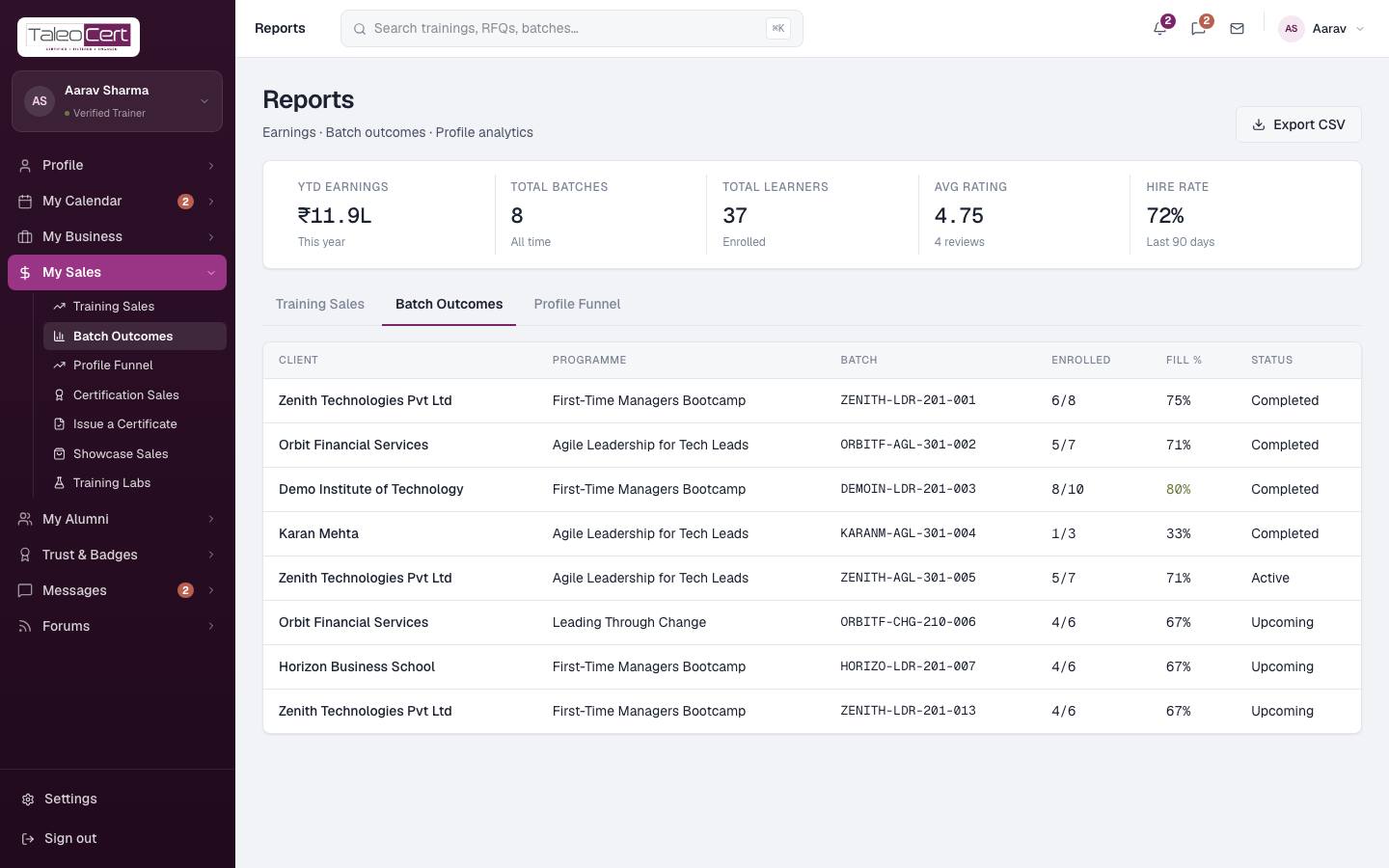
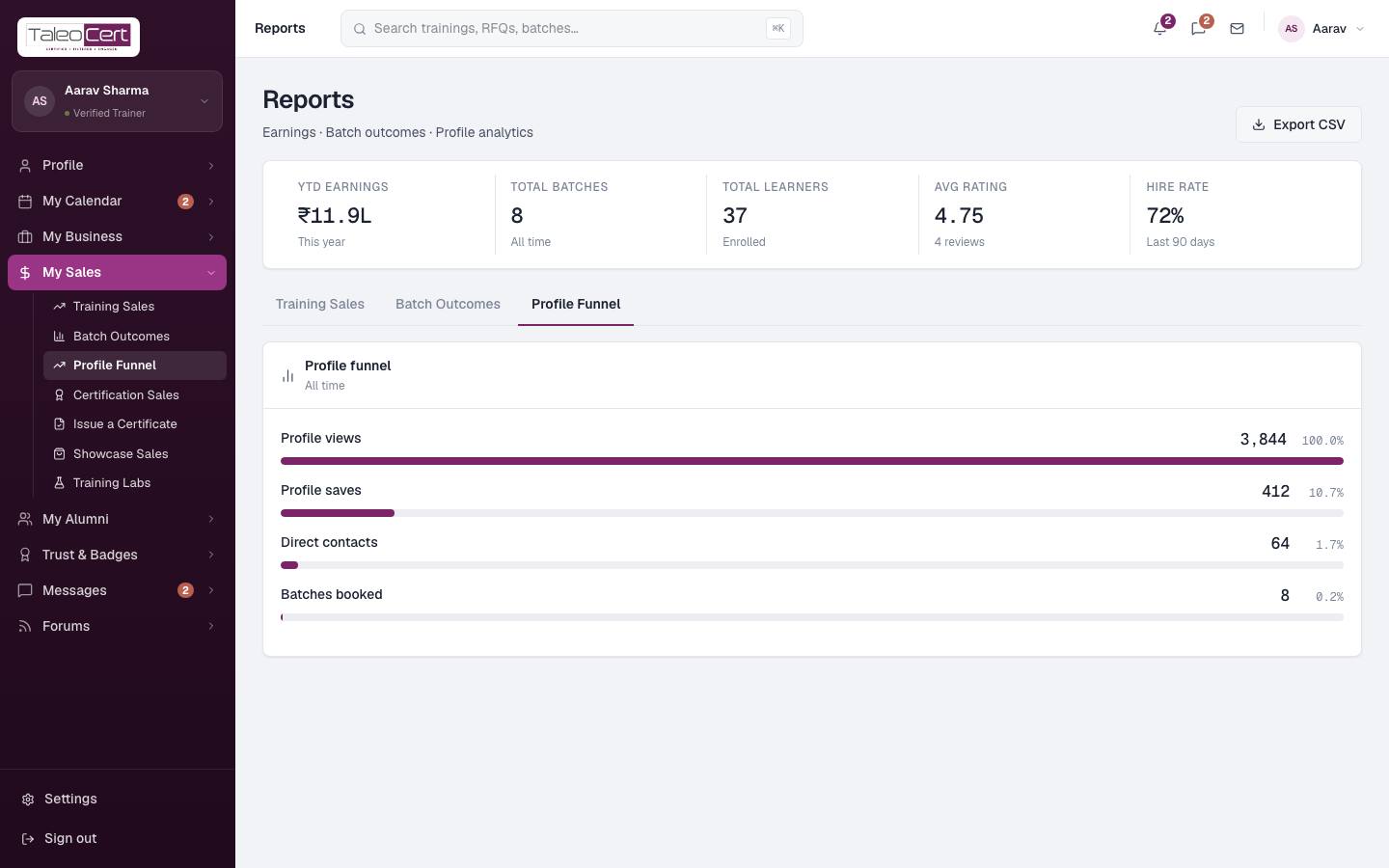
The headline numbers (YTD earnings, total batches, total learners, average rating and hire rate) and three tabs. Export CSV downloads the current view.
Certification Sales
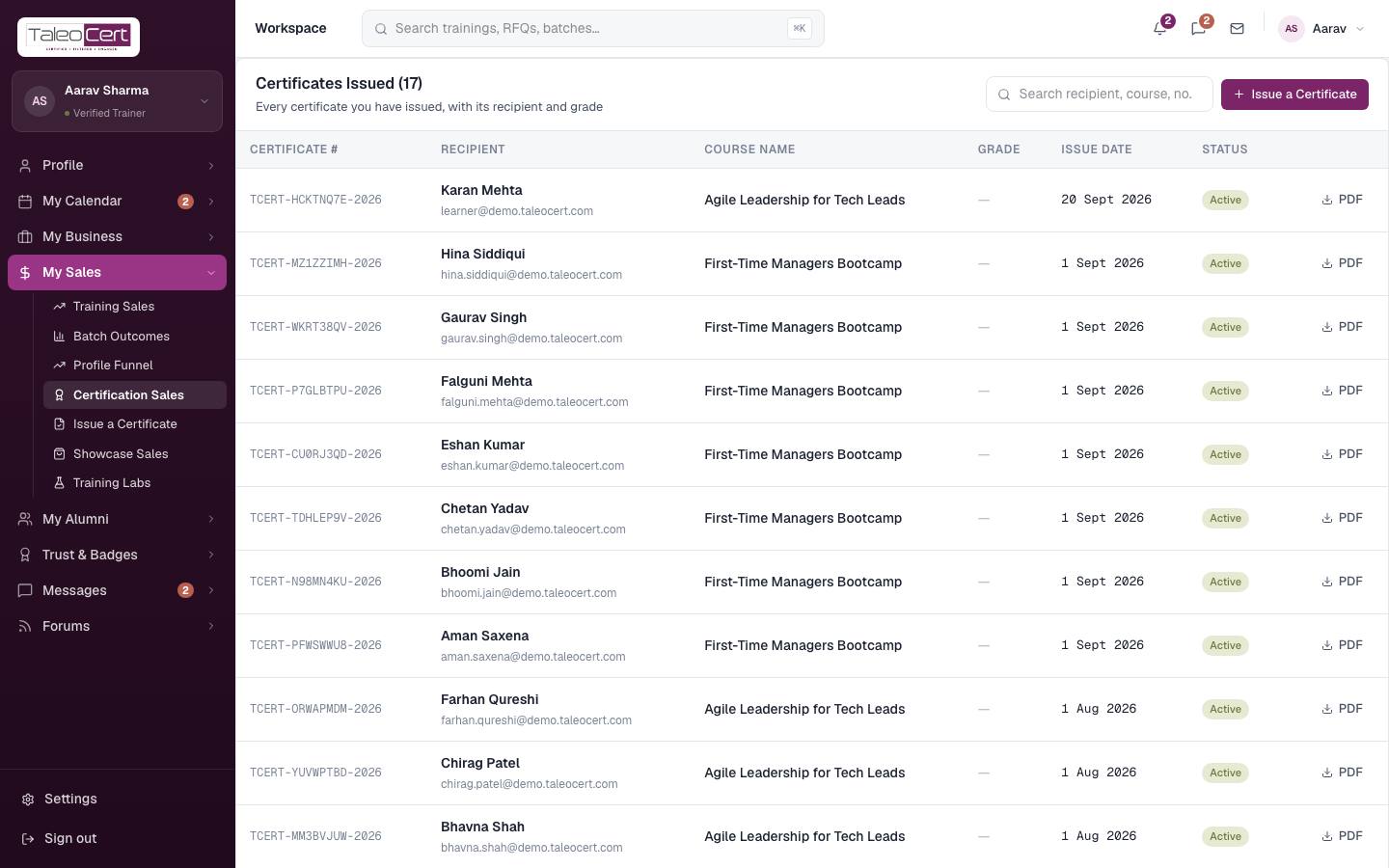
Every certificate you have issued: number, recipient, course, grade, issue date and status, with a PDF download. Search by recipient, course or number. Issue a Certificate opens the form.
Issue a certificate
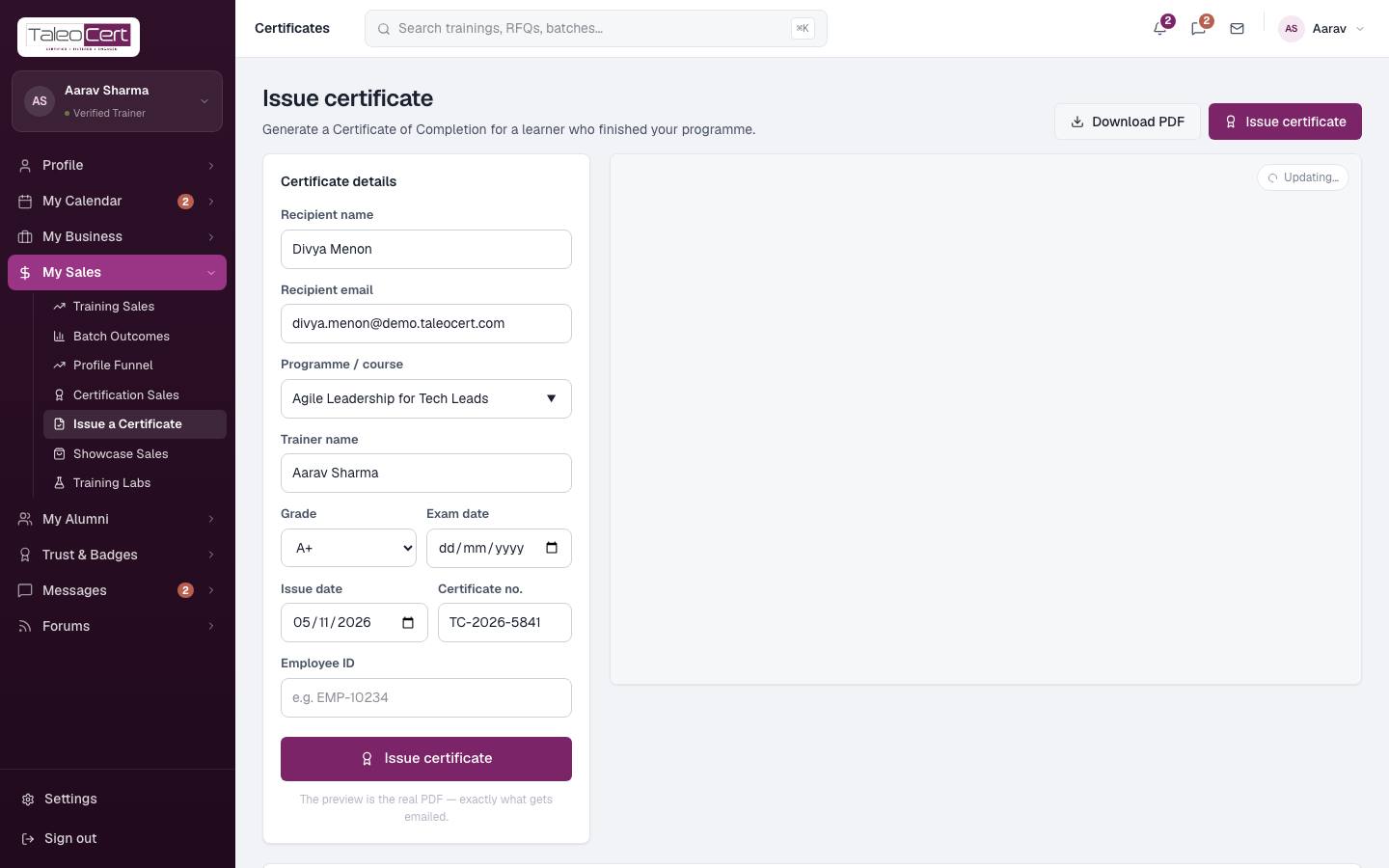
- 1Fill in the detailsRecipient name and email, programme/course, trainer name, grade, exam date, issue date, certificate number (auto-generated) and an optional employee ID.
- 2Check the previewThe certificate on the right updates as you type. It is exactly the PDF the recipient will get. Download PDF saves a copy.
- 3Issue certificateThe certificate is recorded and emailed to the recipient as a PDF attachment.
Issuing a certificate, with the live preview.
Showcase: sell or share your materials
Upload course decks, documents, videos and labs. Free items can be downloaded by any client; paid items are bought through Razorpay. Buyers only ever get a secure download link, never the file location.
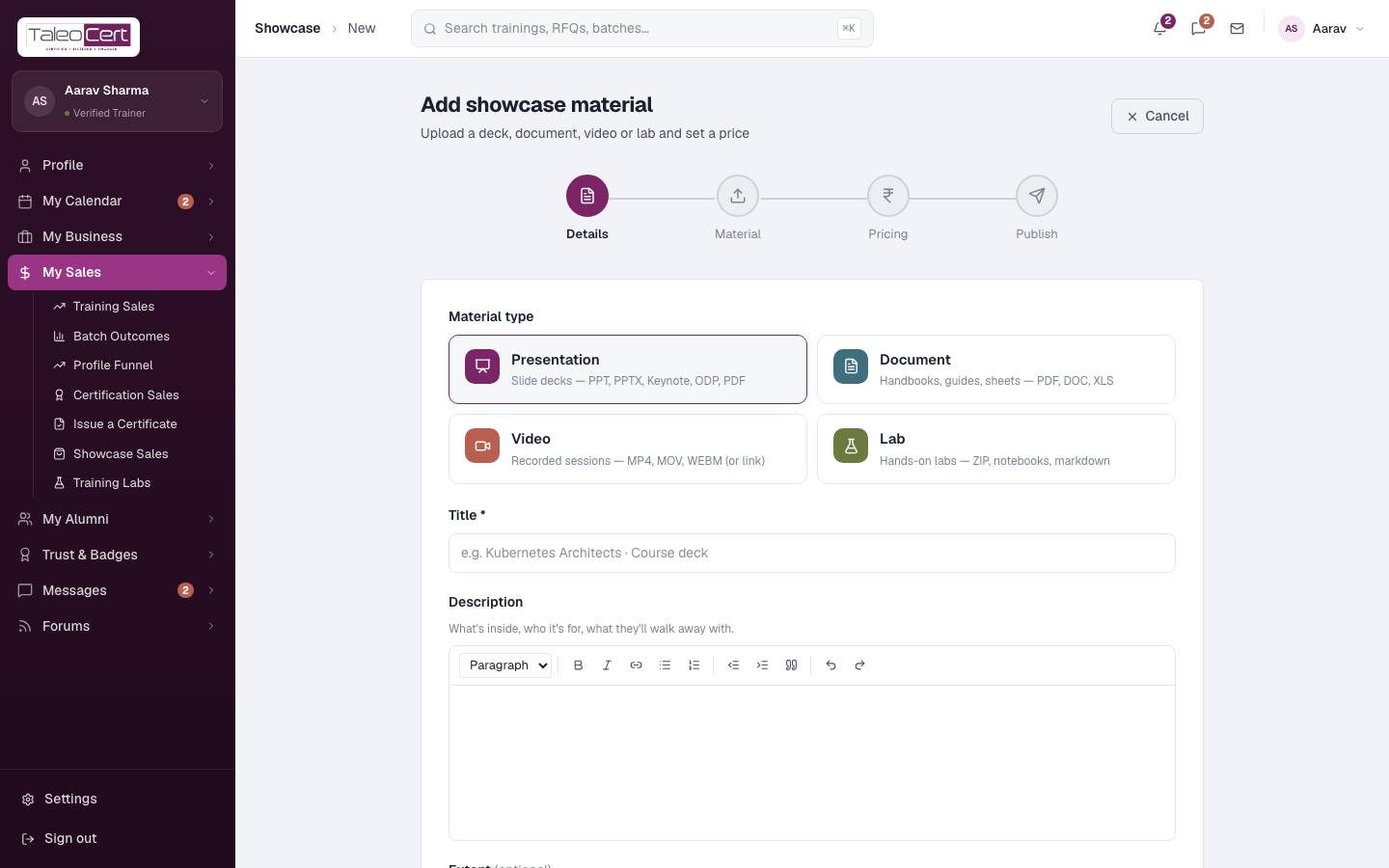
- 1Add materialClick Add material (or the Add new material tile).
- 2DetailsPick a type (Presentation, Document, Video or Lab) and add a title, description and extent (e.g. 86 slides).
Add showcase material: Details, Material, Pricing, Publish. - 3MaterialUpload the file or give a link.
- 4PricingLeave it free, or set a price in INR.
- 5PublishPublished items appear on your public profile and in clients' Materials pages.
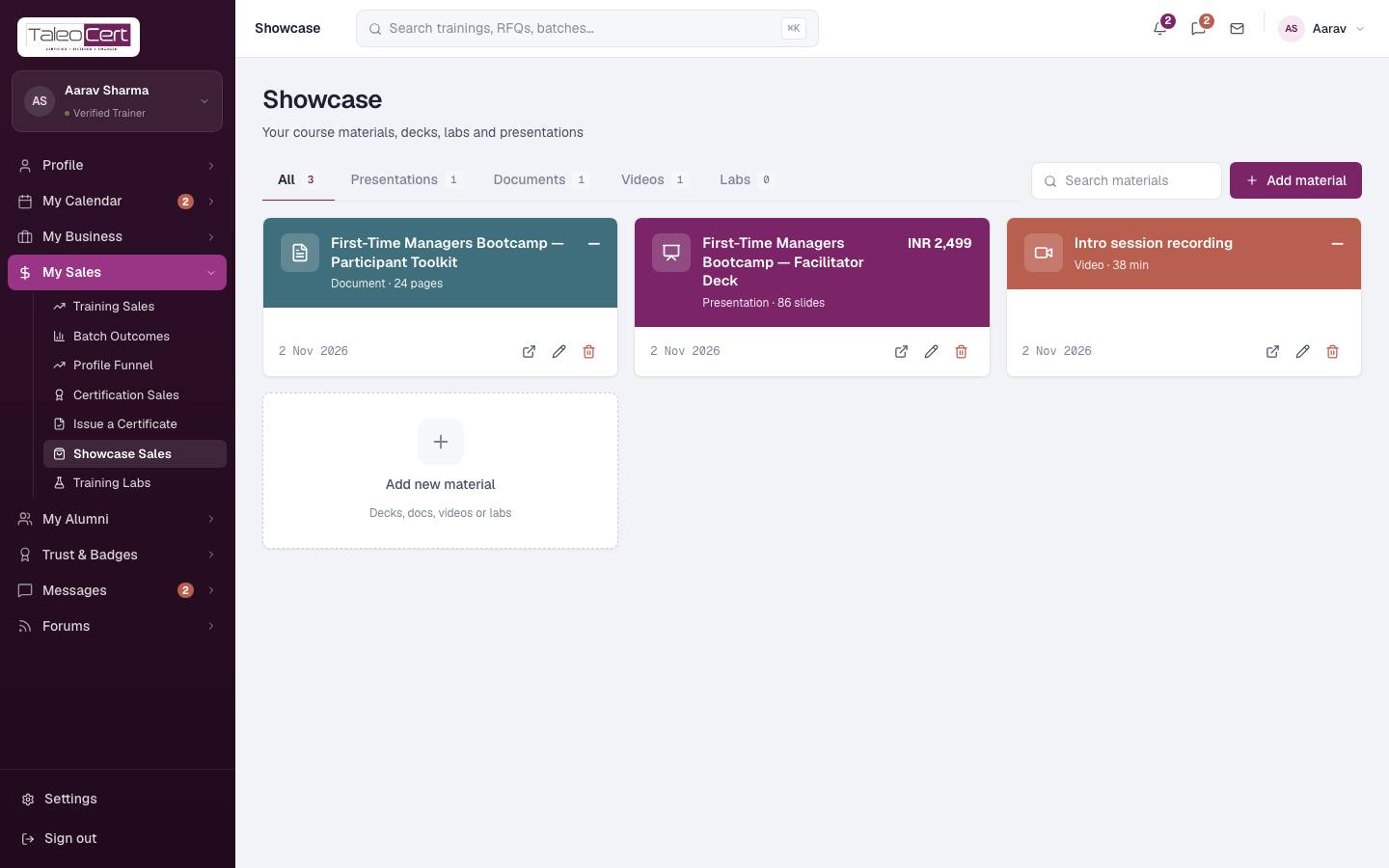
Training Labs is the same library filtered to hands-on labs.
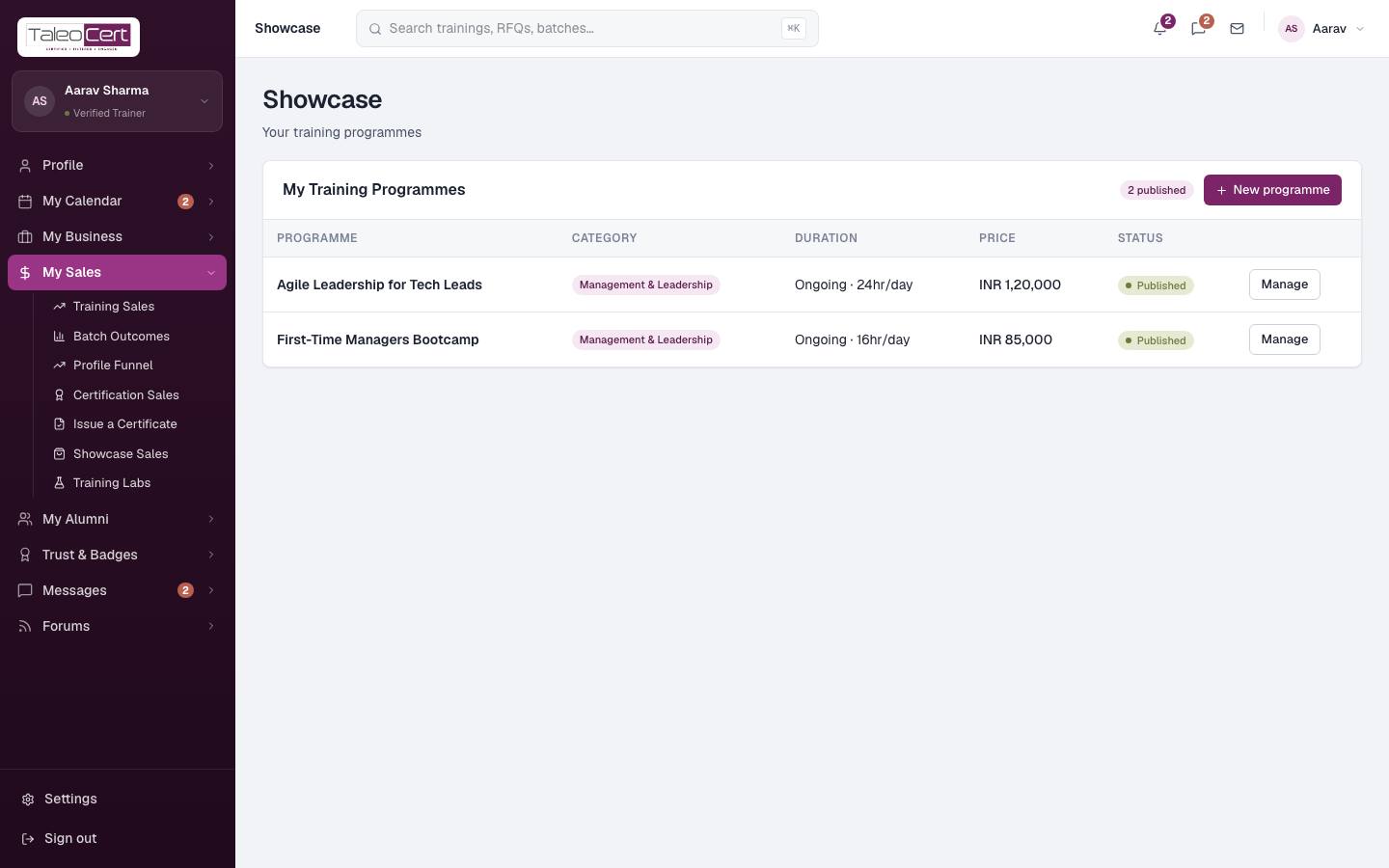
Training programmes
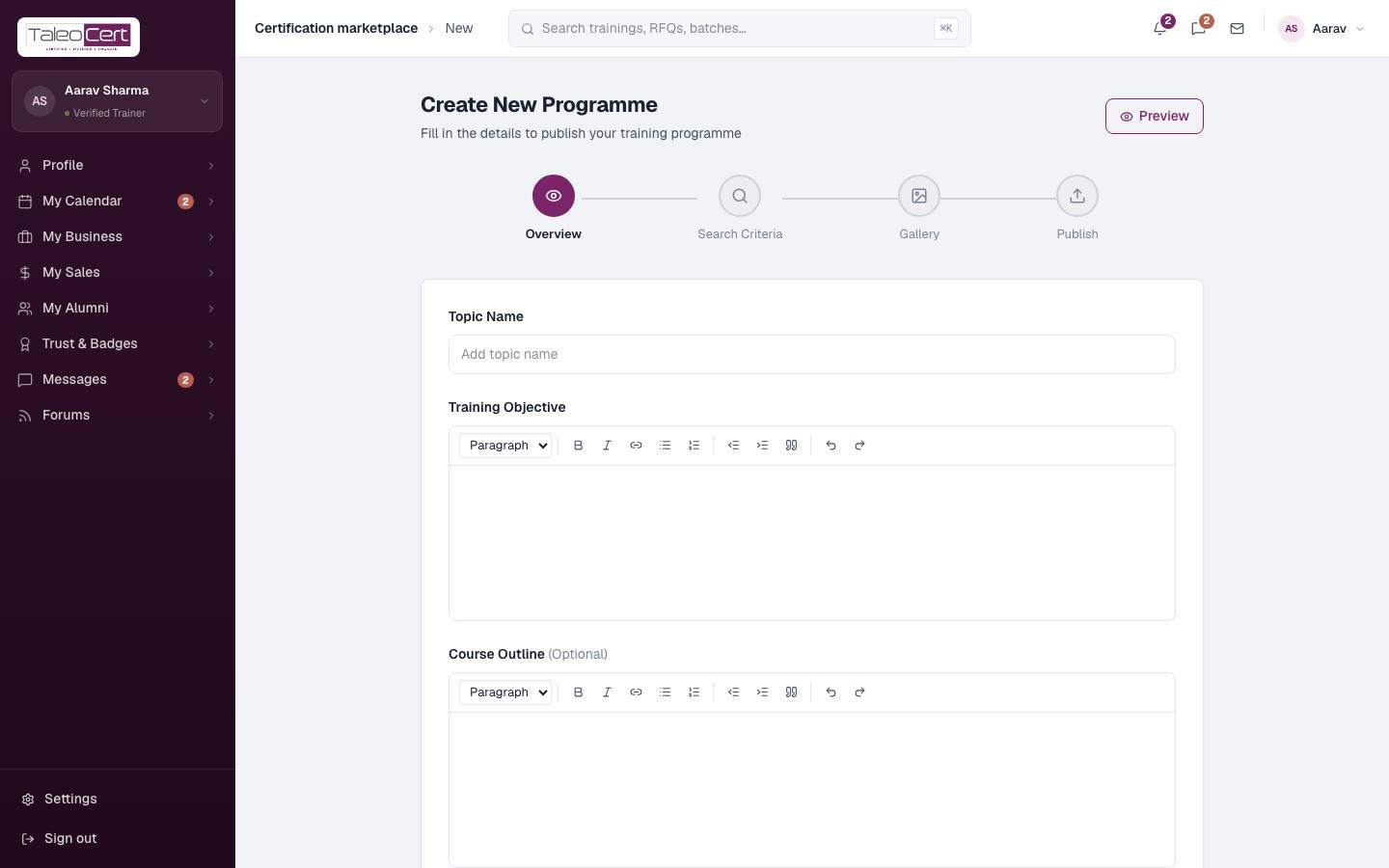
A programme is a training you offer: shown on your public profile with its price and bookable by clients. Click New programme and work through four steps:
- 1OverviewTopic name, training objective and course outline (rich text).
- 2Search criteriaCategory and sub-category (from the platform's training categories), tags, audience, availability (dates, or never expires), duration in hours, currency and price.
- 3GalleryImages and YouTube videos.
- 4PublishReview everything and publish. Use Manage on a programme to edit it later, and Preview to see the public page.
Create New Programme: Overview, Search Criteria, Gallery, Publish.
Something not covered? Talk to us or open a ticket from Help & support in your portal.