
Docs Corporate portal
Training requests, agreements & payment
For CompaniesTrack every request, sign the agreement, pay, send your participants, and handle changes.
WhereTraining requests
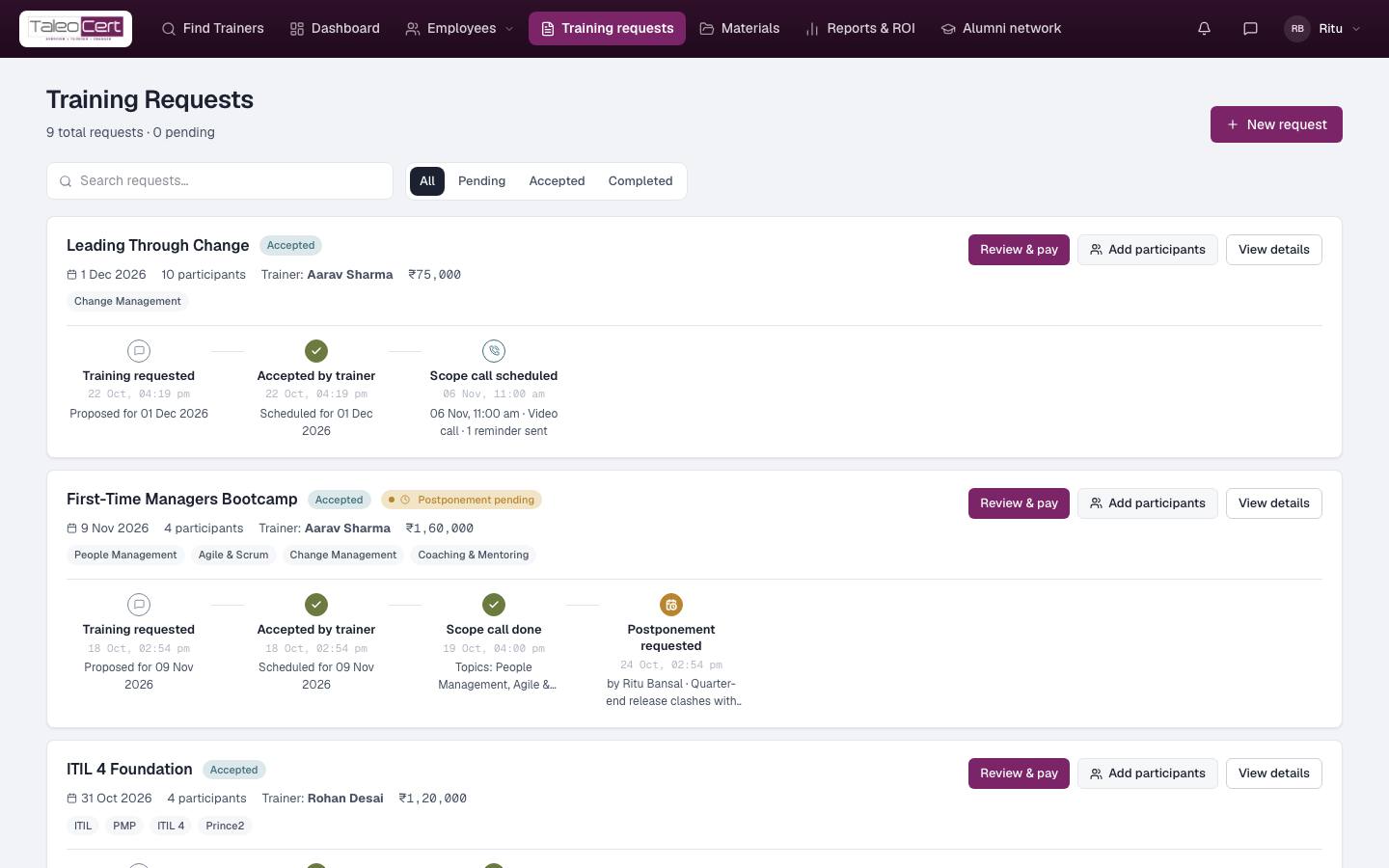
The request card
- Filter All, Pending, Accepted, Completed, or search.
- Each card shows the date, participants, trainer, price, the topics agreed, and the timeline: requested, accepted, scope call scheduled or done, change requests, completed.
- Actions: Review & pay, Add participants and View details. Clicking a booking in Messages, an email or your Alumni page opens it straight here.
Sign the training agreement
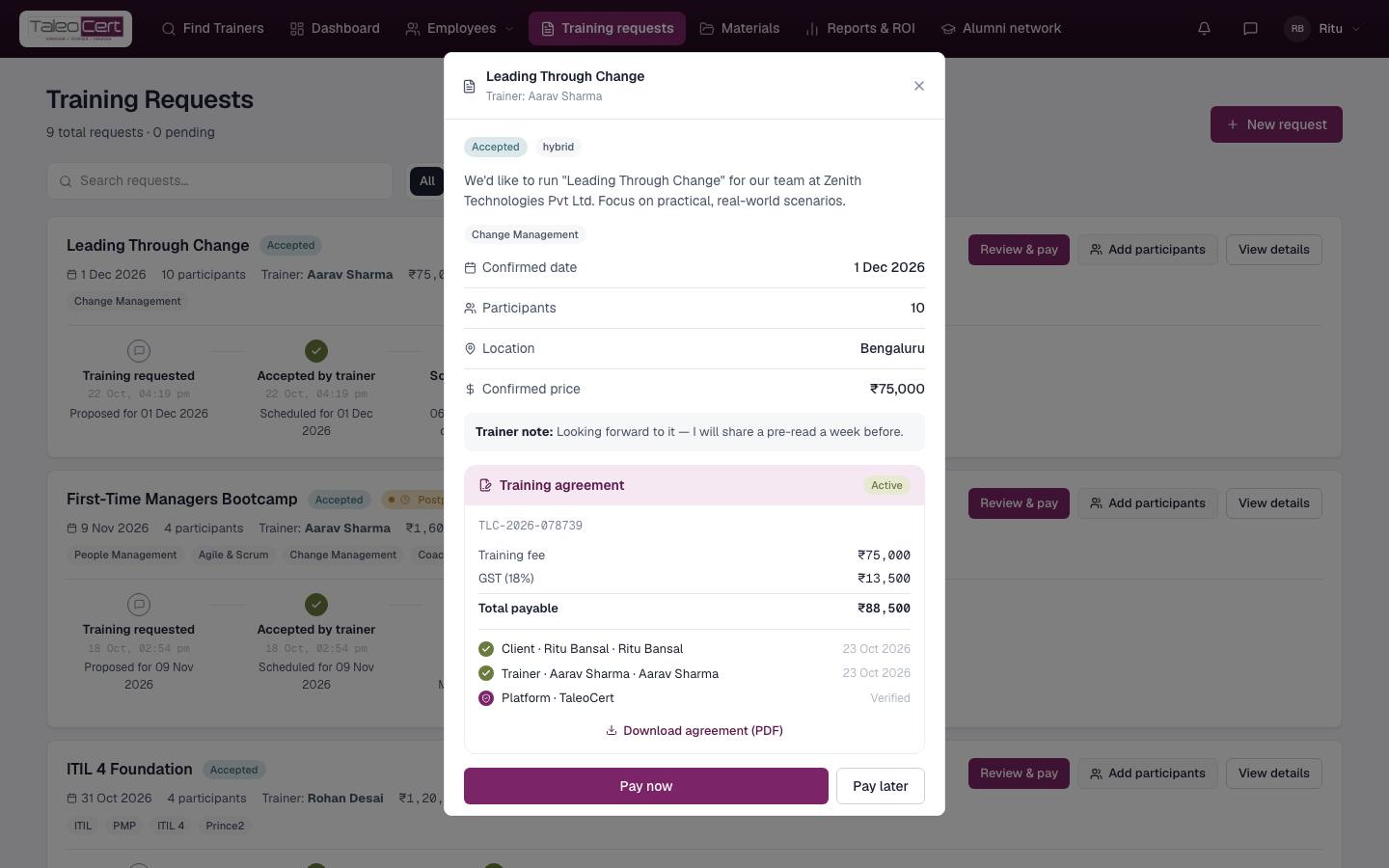
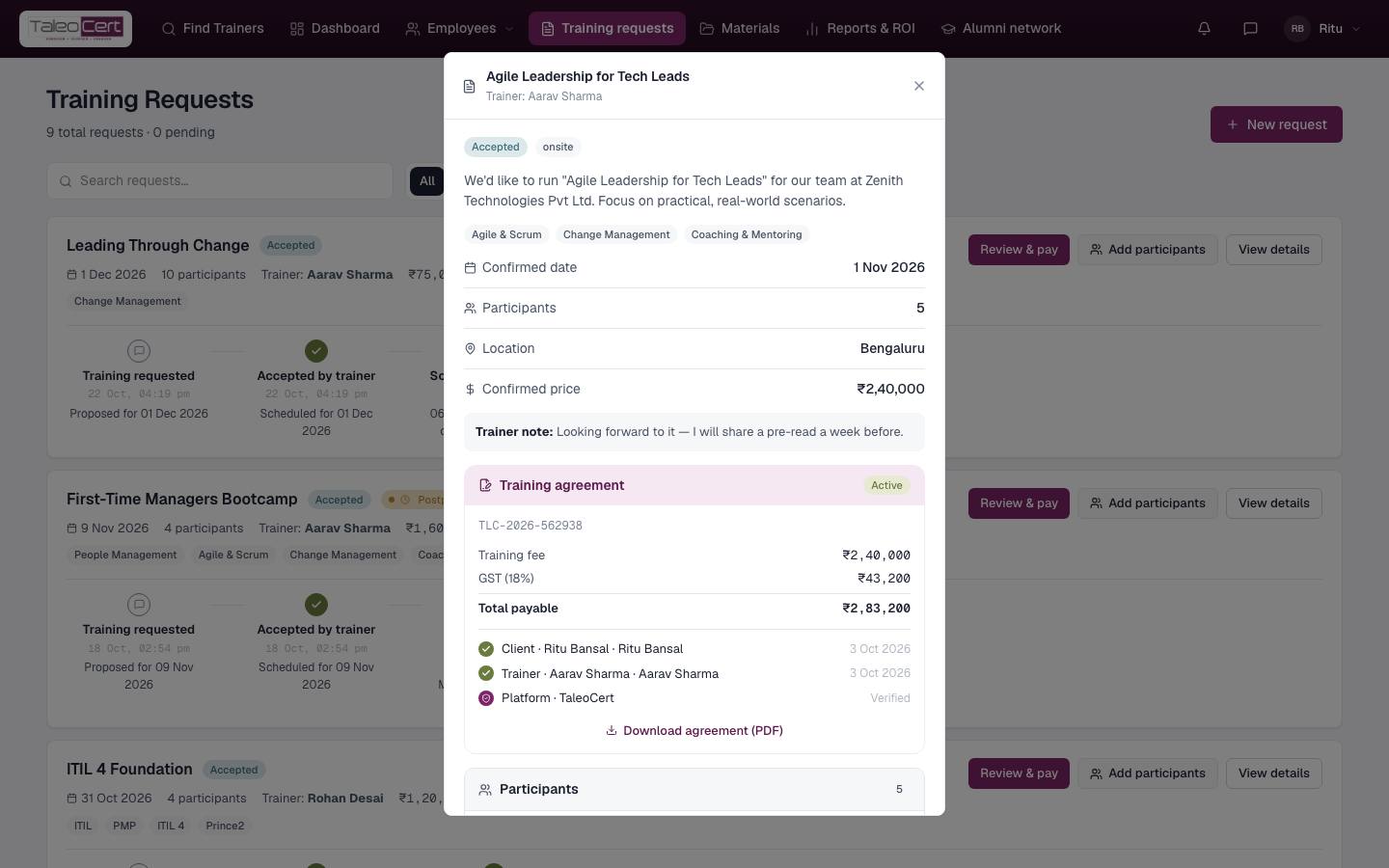
- 1Open the bookingClick View details (or Review & pay). The Training agreement panel shows its number, the training fee, 18% GST, the total payable and who has signed.
- 2Review & sign as clientType your full legal name, tick the declaration (scope, fees, cancellation policy, NDA and IP terms) and click Sign agreement.
- 3Wait for the trainer"You've signed. Waiting on the other party." When the trainer signs, TaleoCert counter-signs and the agreement becomes Active. You're emailed.
- 4DownloadDownload agreement (PDF) at any time.
Pay
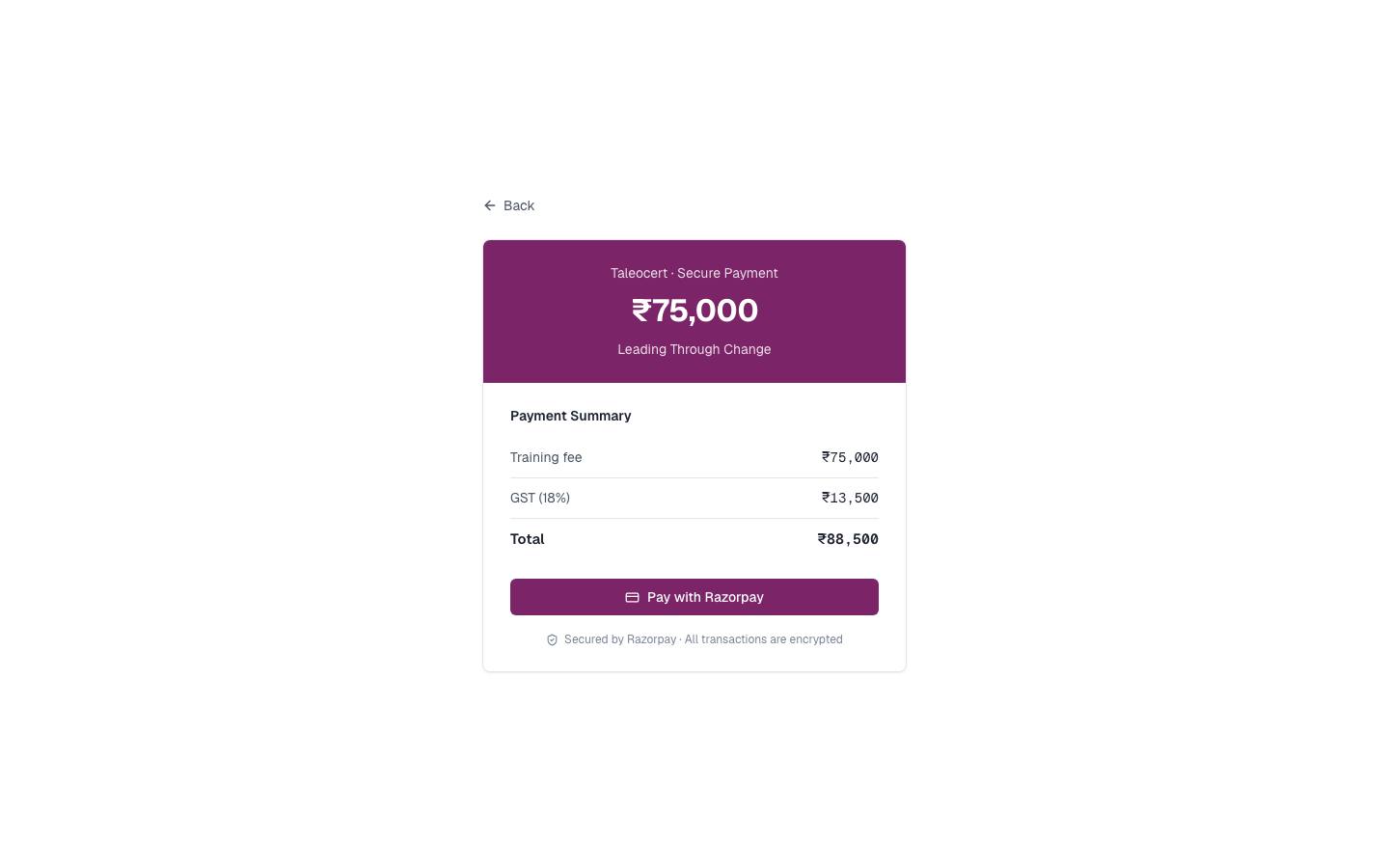
- 1Pay nowOn an active agreement click Pay now. Checkout shows the fee, GST and total.
TaleoCert secure payment. - 2Pay with RazorpayPay by card, UPI, net-banking or wallet. Card and bank details are handled by Razorpay and never reach TaleoCert.
- 3ReceiptYou're emailed a receipt; the trainer is told you've paid; the booking shows Paid.
Note.If you've agreed to pay after delivery, choose Pay later instead. The training can go ahead and both sides are emailed about the arrangement.
Send your participants
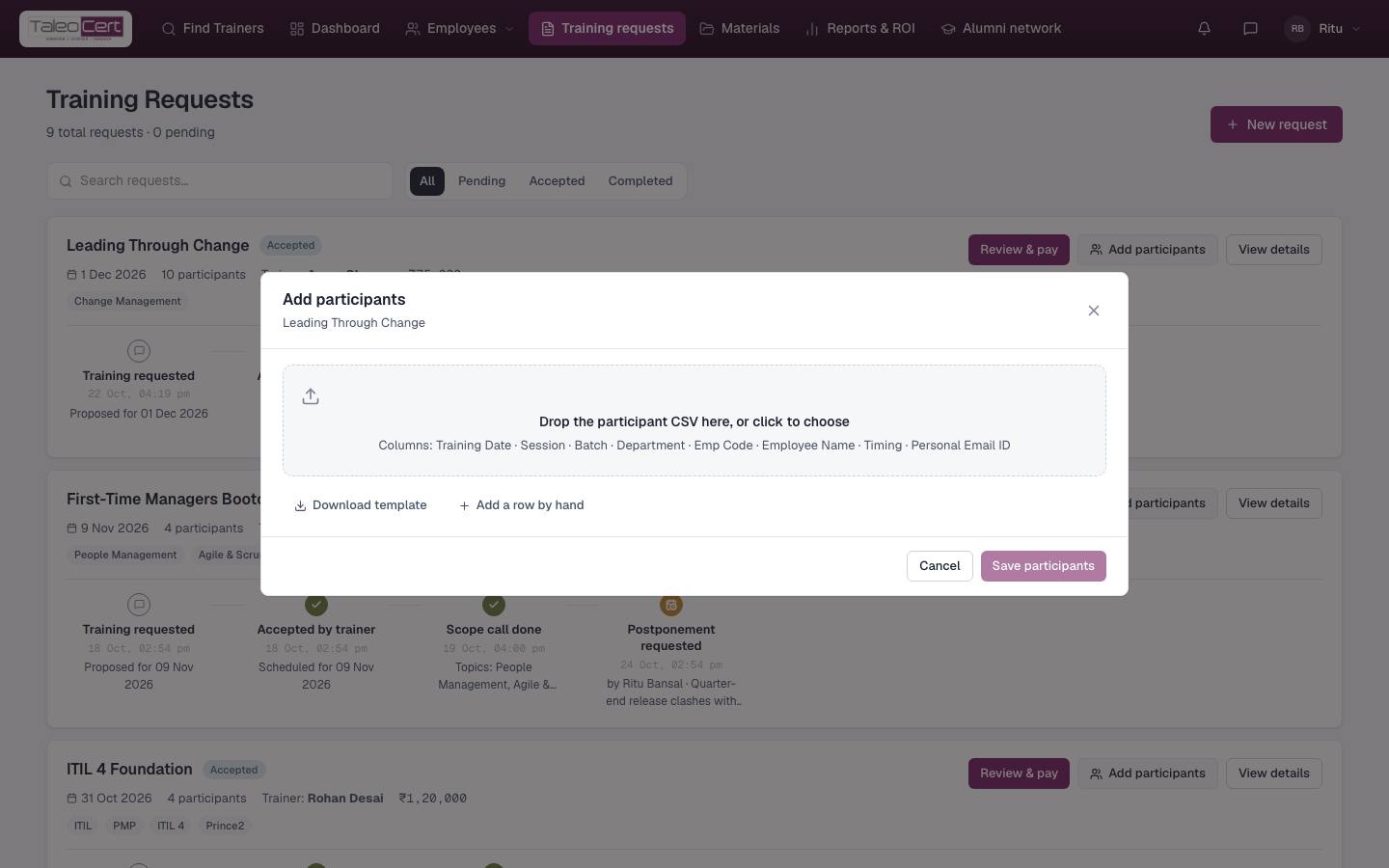
- 1Add participantsClick Add participants on the card (the trainer may also email you a request).
- 2Upload or typeDrop a CSV (use Download template; columns are training date, session, batch, department, employee code, employee name, timing and personal email), or Add a row by hand.
Add participants for "Leading Through Change". - 3Save participantsThe trainer is emailed the roster, and can send everyone a briefing. Use Edit participants for changes.
Postpone or cancel
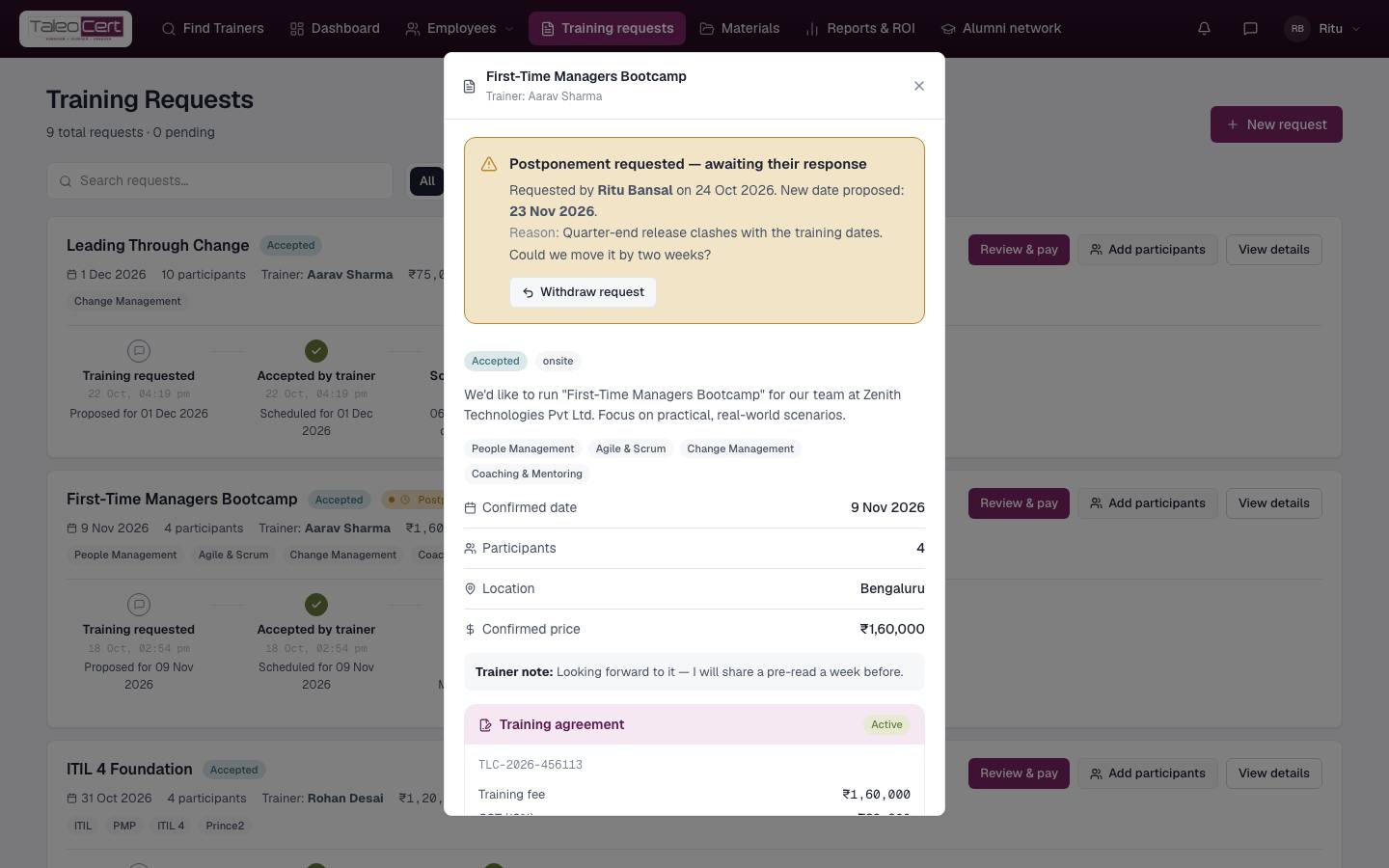
Open the booking and click Request cancellation or postponement. Pick Postpone (with a new date) or Cancel, add a reason and submit. The trainer must approve. Until then the training stays as it is, and you can Withdraw request. If the trainer raises one, you'll see a banner to Accept or Decline.
After the training
- The trainer marks it complete and issues certificates. Each participant is emailed their PDF, and they appear in Employees ▾ › Certificates.
- You're asked for a review of the trainer and a short platform survey.
Something not covered? Talk to us or open a ticket from Help & support in your portal.