
Scope calls
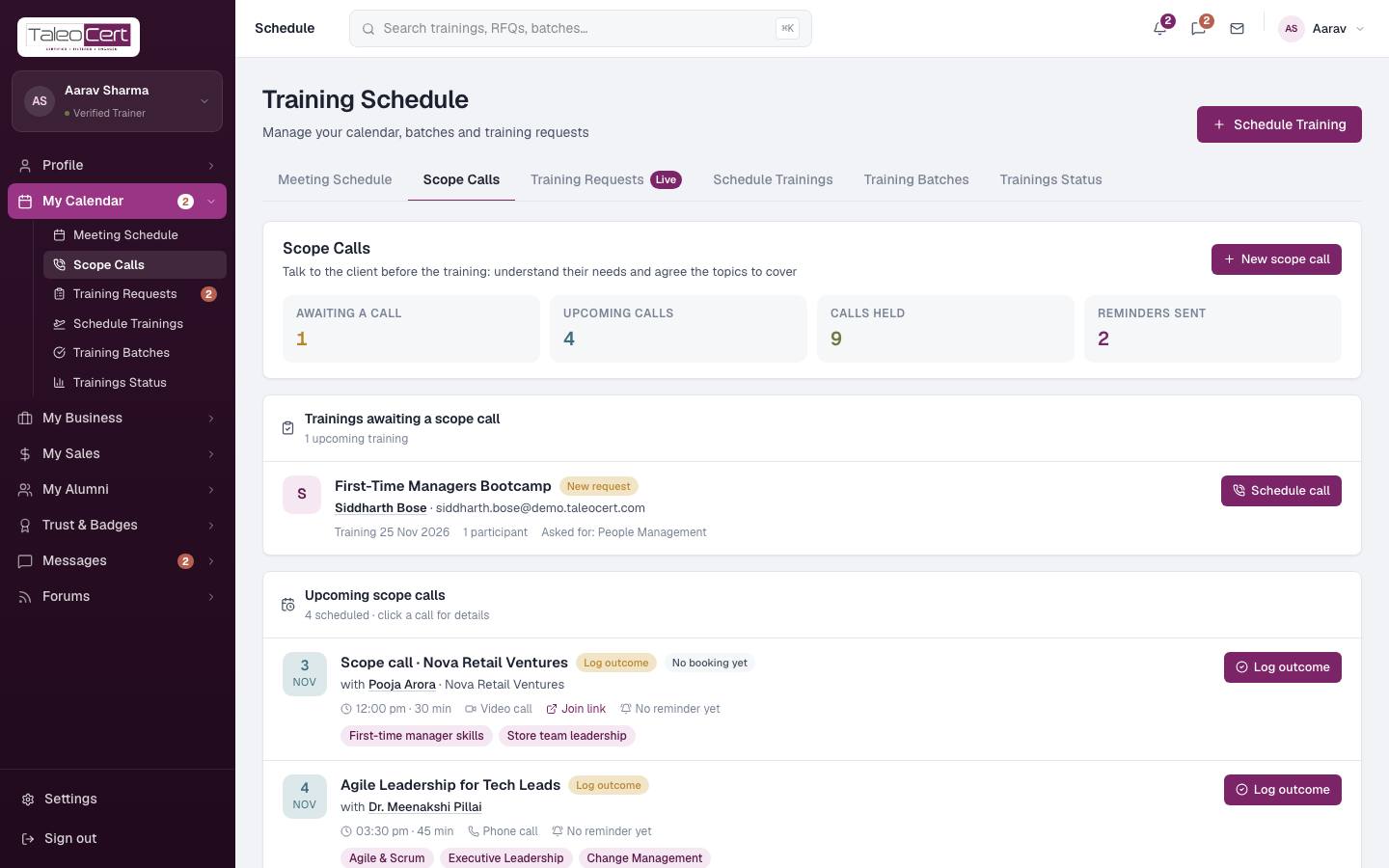
A scope call is a short discovery call you hold with the client before the training, a bit like an interview. You learn what the team needs, their current level and constraints, and agree exactly which topics the training will cover. It can be tied to a training request or held with any client, including someone who hasn't booked yet.
Why use scope calls
- Fewer surprises on the day: the content matches the team's real level.
- The agreed topics are written onto the booking, so the client, the agreement and your certificates all show what was promised.
- The client gets a proper calendar invite by email, plus reminders you can send in one click, so fewer calls are missed.
- Every call is recorded on the training's timeline and in your chat with the client.
What's on the page
Schedule a scope call for a training
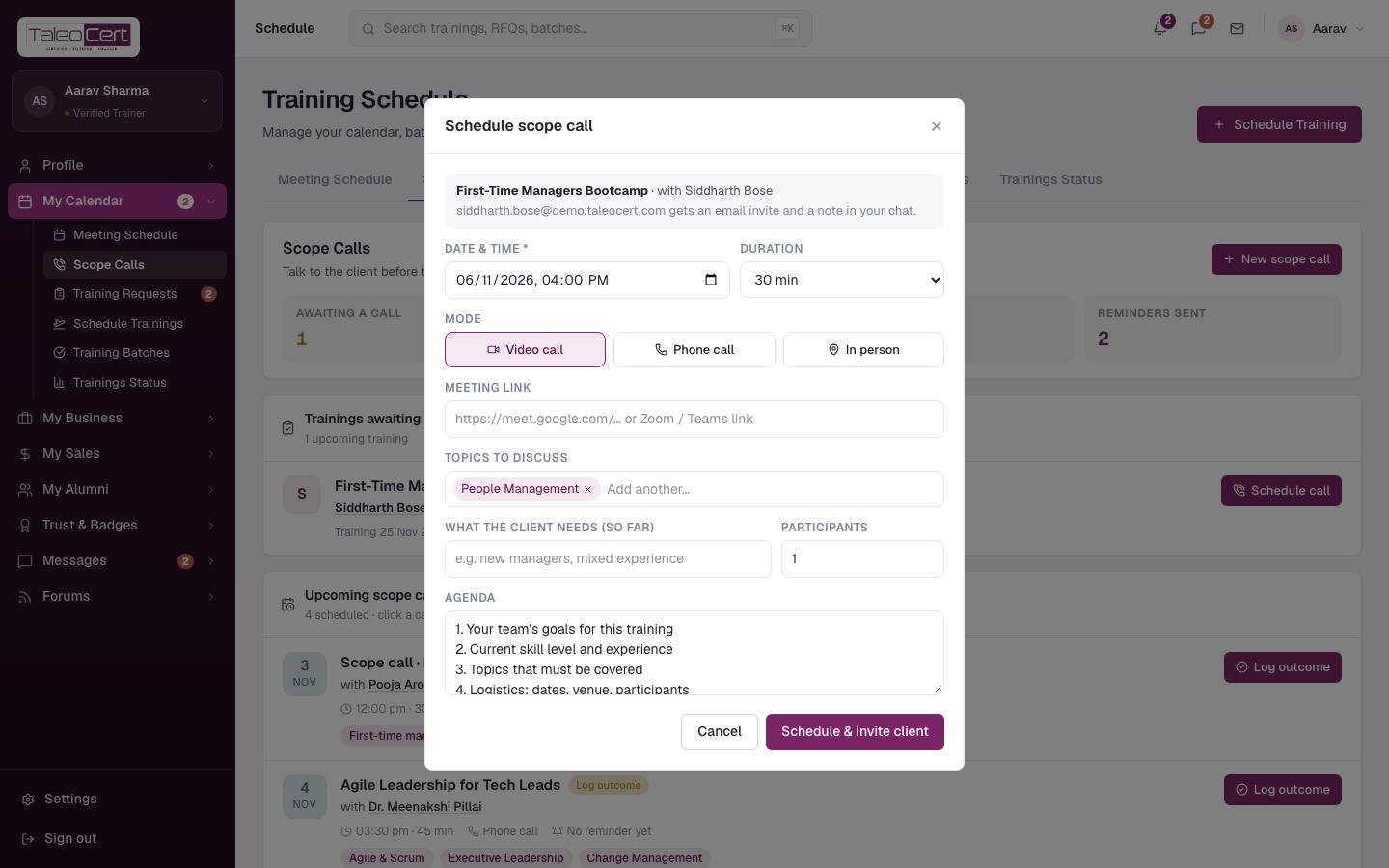
- 1Pick the trainingIn Trainings awaiting a scope call click Schedule call, or click Scope call on the request card in Training Requests.
- 2Set the time and modeChoose date & time and duration (15–90 minutes), then Video call, Phone call or In person. For video, paste your Google Meet, Zoom or Teams link.
- 3Topics and needsTopics start from what the client asked for. Add or remove chips (type and press Enter). Note what you know so far about their needs and the expected participants.
- 4AgendaA sensible agenda is pre-filled: the team's goals, current skill level, topics that must be covered, and logistics. Edit it freely.
- 5Schedule & invite clientThe client is emailed an invite with the time (in IST), mode, link, topics and agenda, and a line appears in your chat with them and on the training's timeline.
Scheduling a scope call for Siddharth Bose's request.
Schedule a call with any client
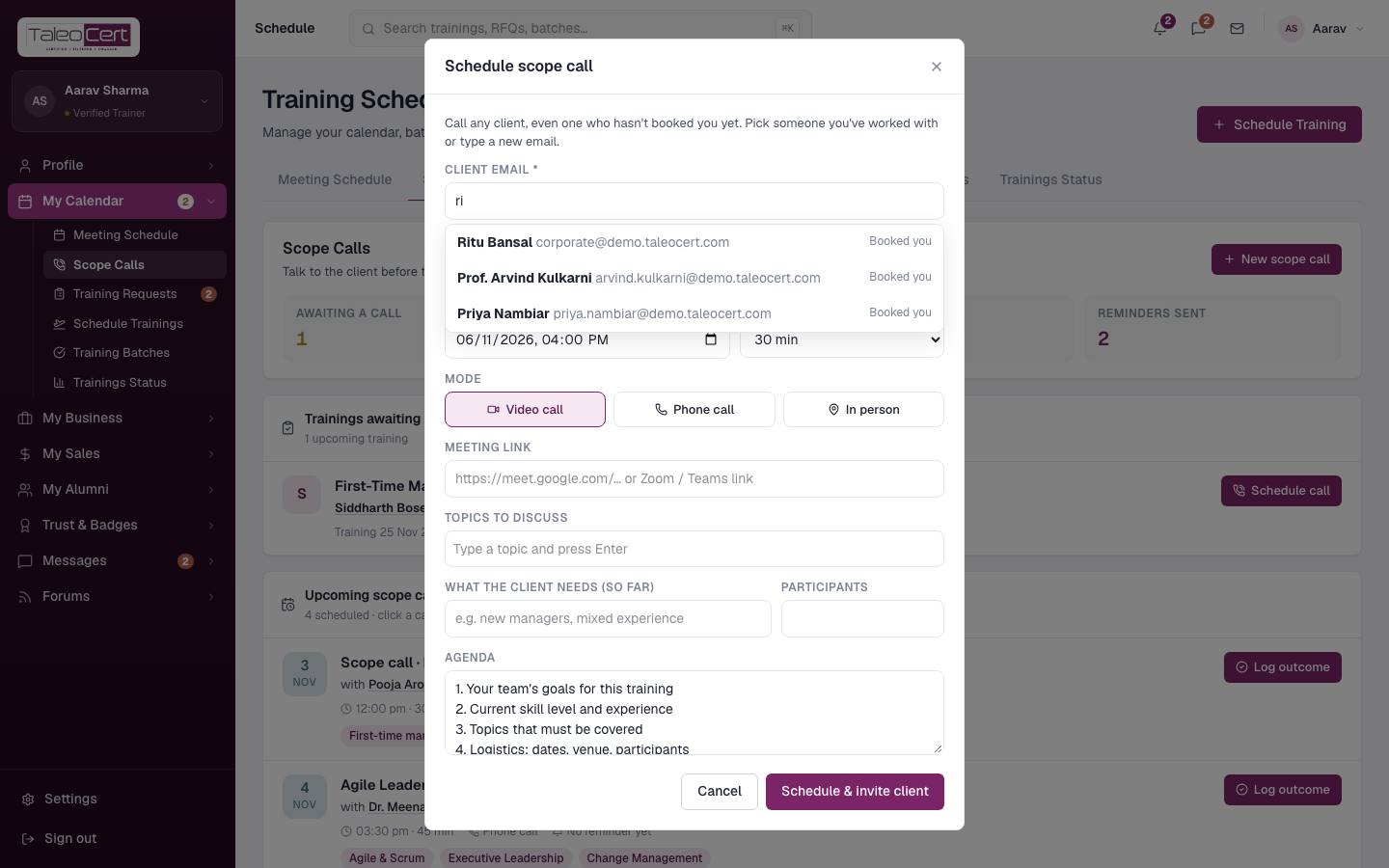
Click New scope call at the top of the page. Start typing a name or email and pick from people who have booked you or are in your contacts, or enter a brand-new email for a prospect. Add their name and organisation, then fill in the call exactly as above.
Send the client a reminder
- 1Click Send reminderOn the call in Scope Calls, in the call's detail view, or on the training's request card.
- 2Add a note (optional)For example "Please bring your team's skills matrix." Then confirm.
- 3DoneThe client gets a reminder email showing how long until the call, with the join link, and the reminder is posted in your chat. The call shows how many reminders you've sent and when. To avoid spamming, a reminder can't be sent again within 15 minutes.
After the call: log the outcome
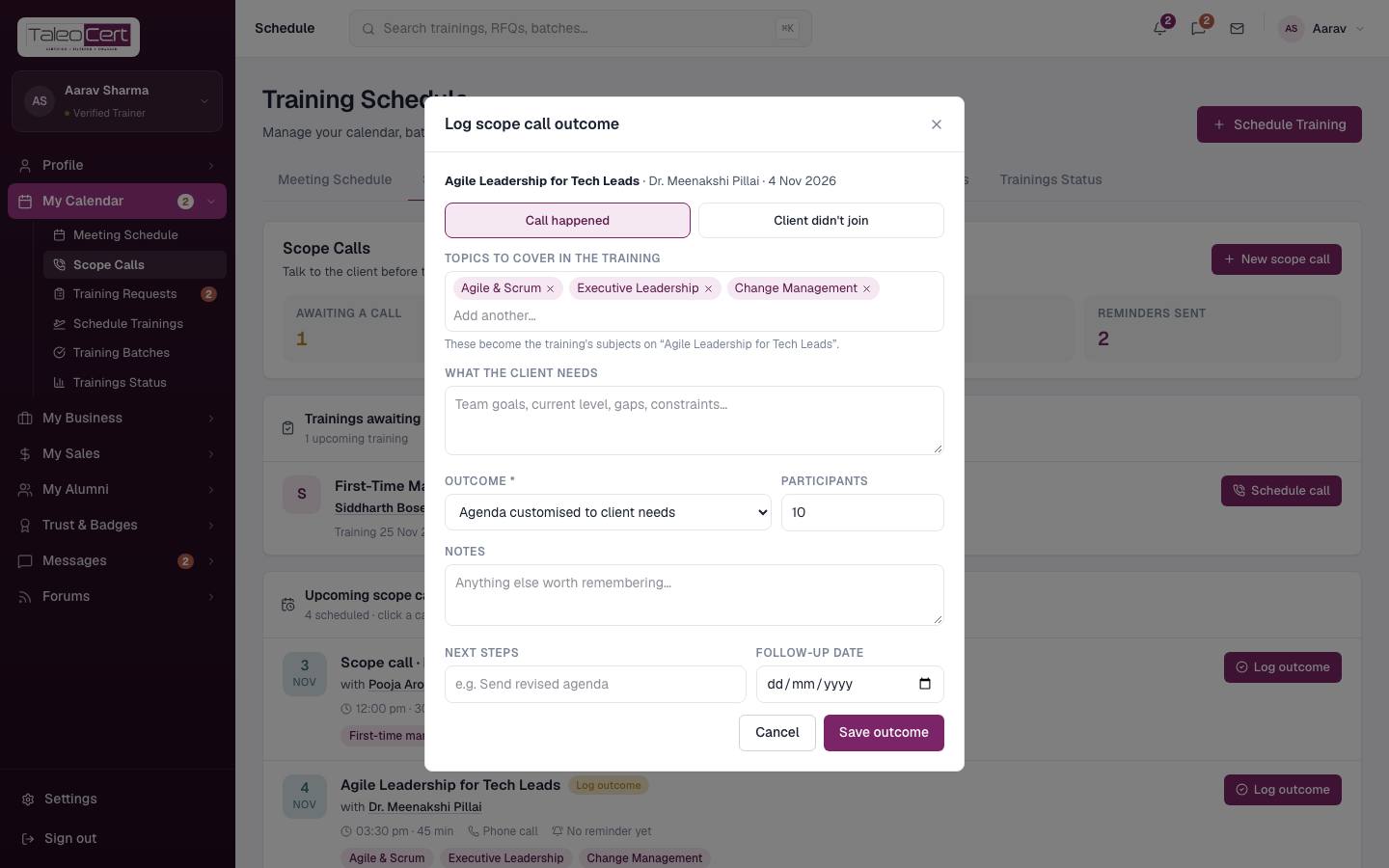
- 1Click Log outcomeChoose Call happened or Client didn't join. A missed call goes back to the awaiting list so you can book another.
- 2Topics to cover in the trainingConfirm the final list. For a call linked to a training, these become the training's subjects, shown on the request, to the client and on the timeline.
- 3What the client needs and the outcomeRecord their goals, level and constraints, the expected participants, and the outcome: Scope confirmed, Agenda customised, Send proposal / quote, Client to share more details, Not a fit, or Follow up later.
- 4Next steps and follow-up dateAdd what happens next and when. Save.
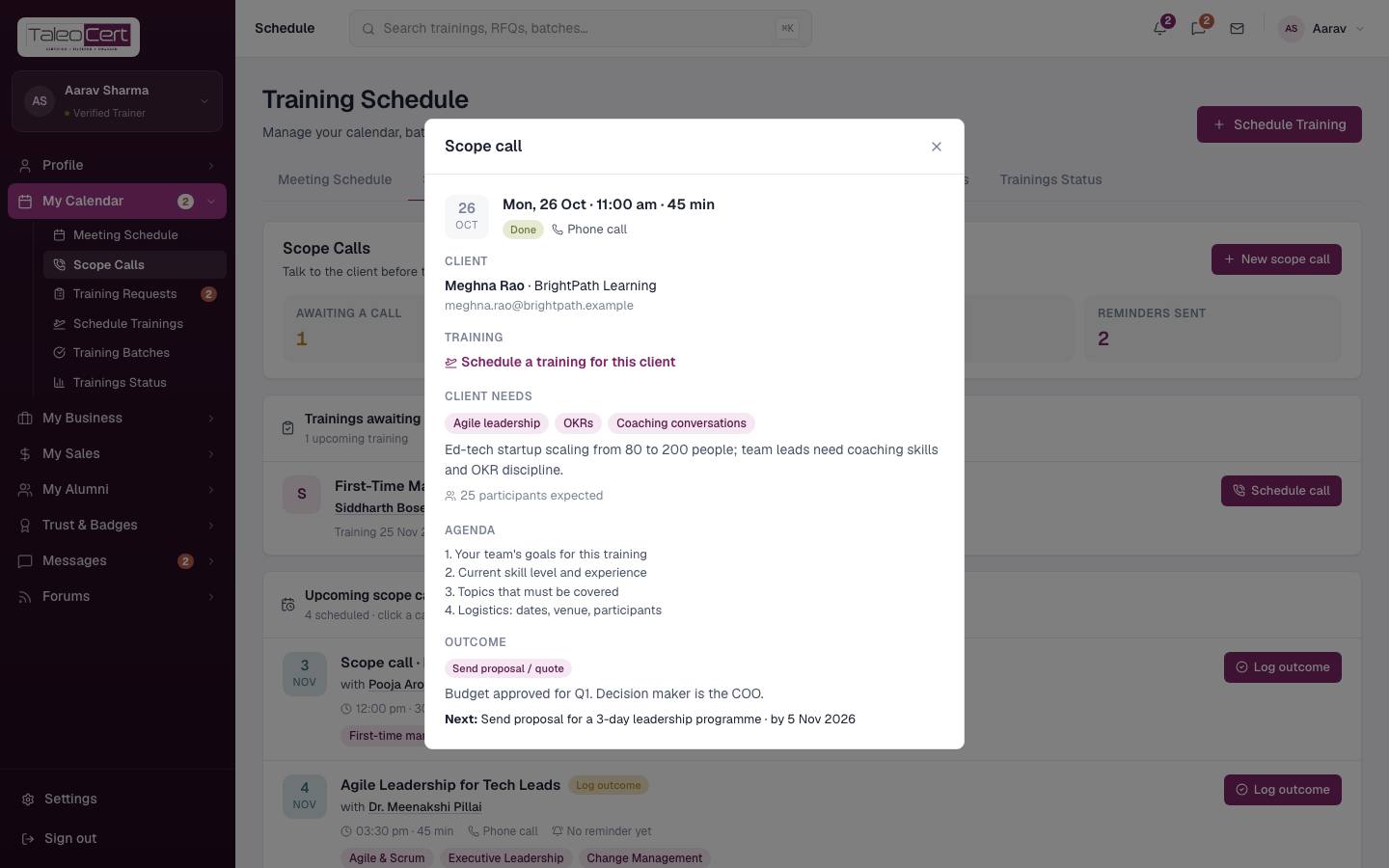
Logging the outcome of a scope call. - 5No booking yet? Schedule the trainingFor a call with a client who hasn't booked, the finished call offers Schedule training. It opens the Schedule Training wizard filled in with the client, topics and participants.
A completed call with BrightPath Learning, a prospect, offering to schedule their training.
Reschedule or cancel
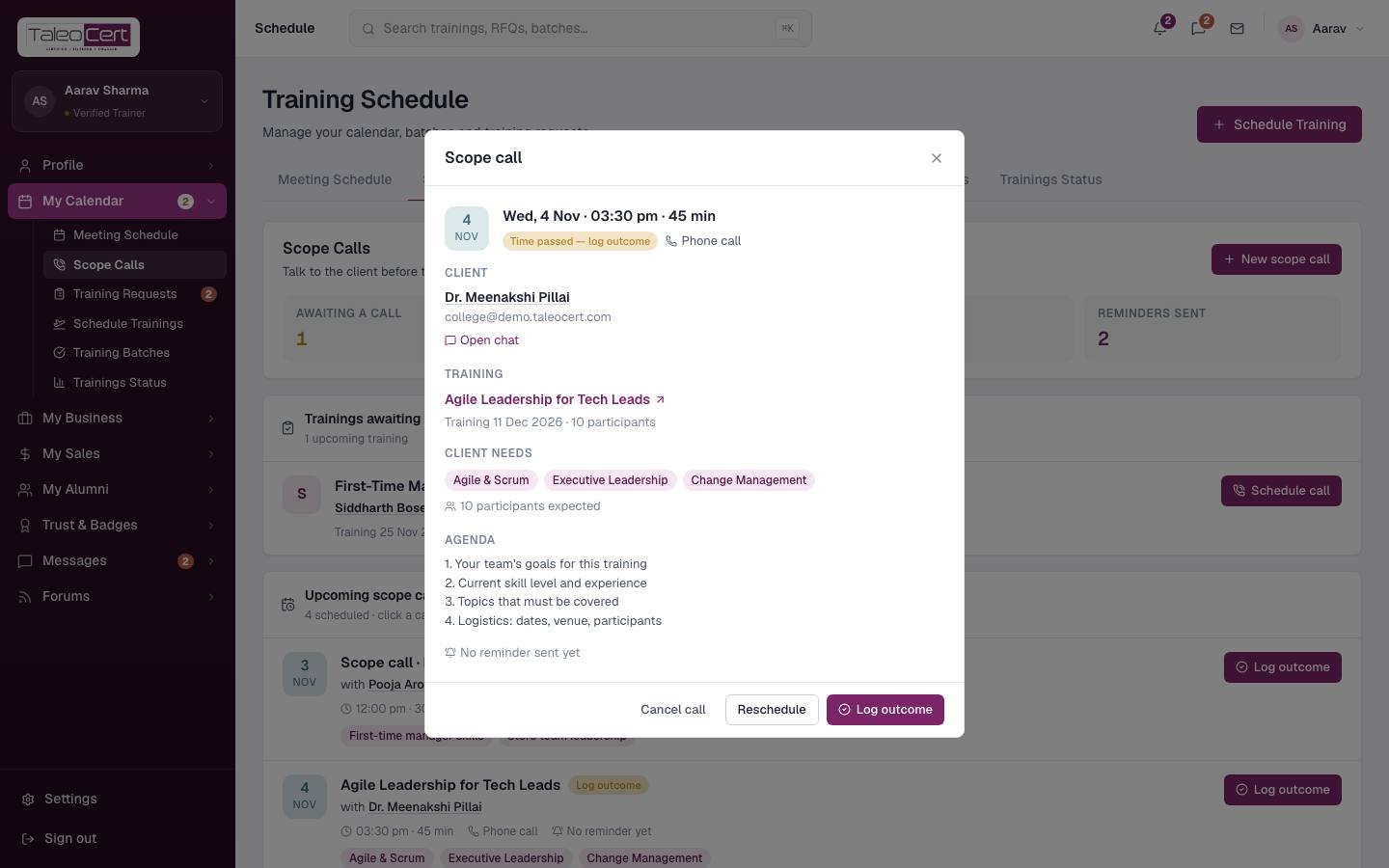
Open the call and choose Reschedule to change the time, mode, link, topics or agenda; if the time changes the client is emailed again. Cancel call notifies the client in chat and returns the training to the awaiting list.
Where else scope calls appear
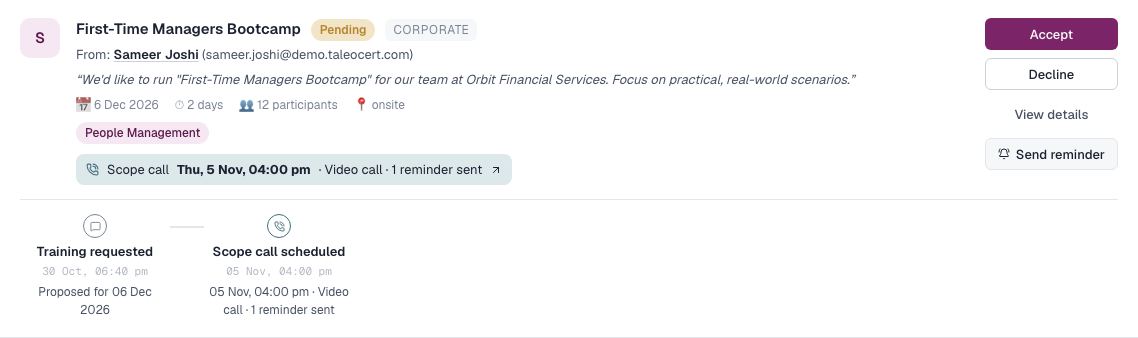
- On the training's request card as a status strip (time, mode, reminders sent) with Send reminder.
- On the timeline of the training in every portal: trainer, client and admin. On the trainer side, clicking the node opens the call.
- On your Meeting Schedule calendar, in green.
- In Messages, as system lines: scheduled, reminder, done, missed or cancelled.
Something not covered? Talk to us or open a ticket from Help & support in your portal.