
Docs Corporate portal
Find & book trainers
For CompaniesSearch verified trainers, compare profiles, message them and send a training request.
WhereFind Trainers
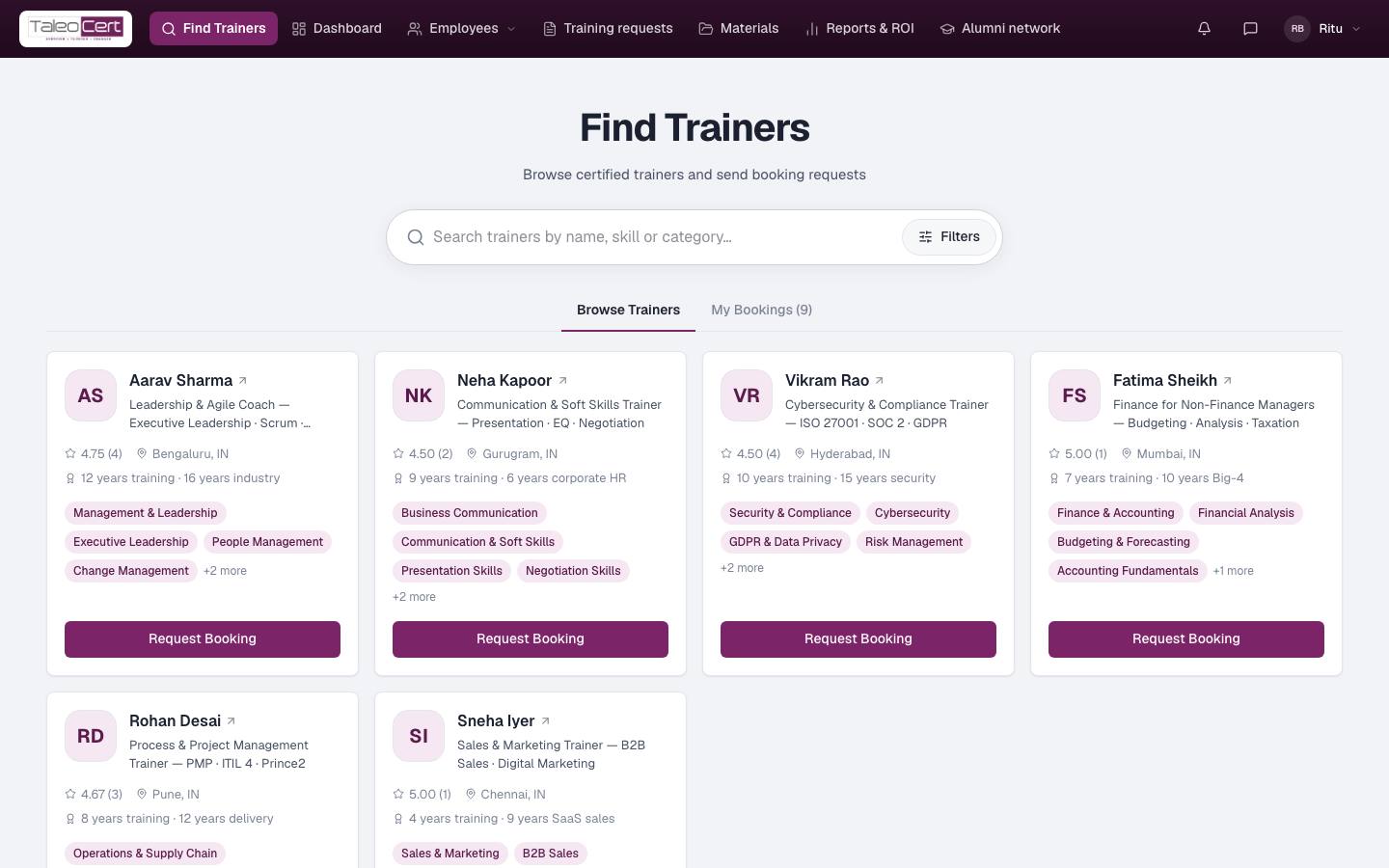
Search and filter
- Type a name, skill or category in the search box, e.g. *Agile*, *ISO 27001* or *Presentation skills*.
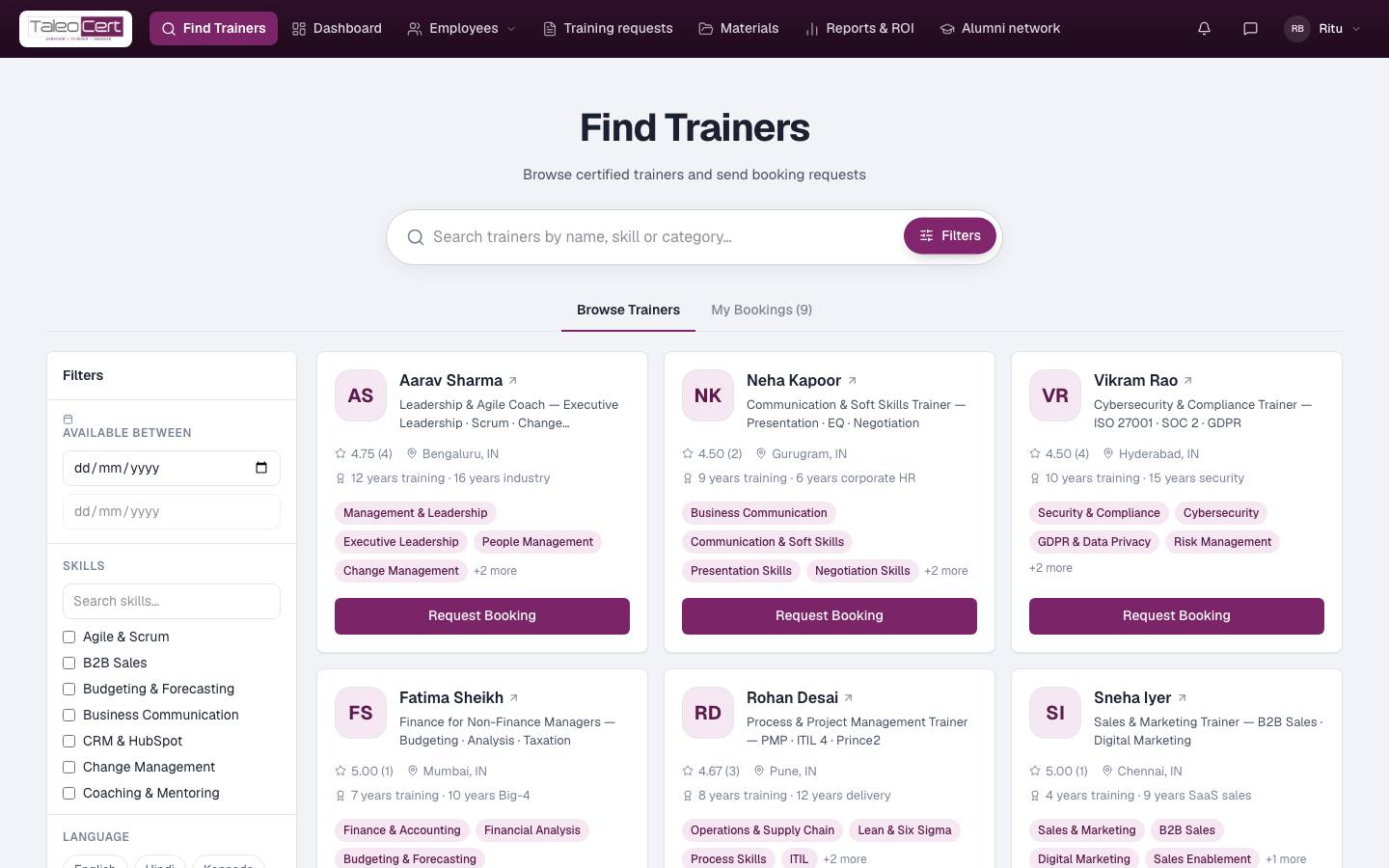
- Click Filters to narrow by availability dates, skills, language, location, training category and sub-category, and minimum rating.
- My Bookings (next to Browse Trainers) lists the requests you've already sent.
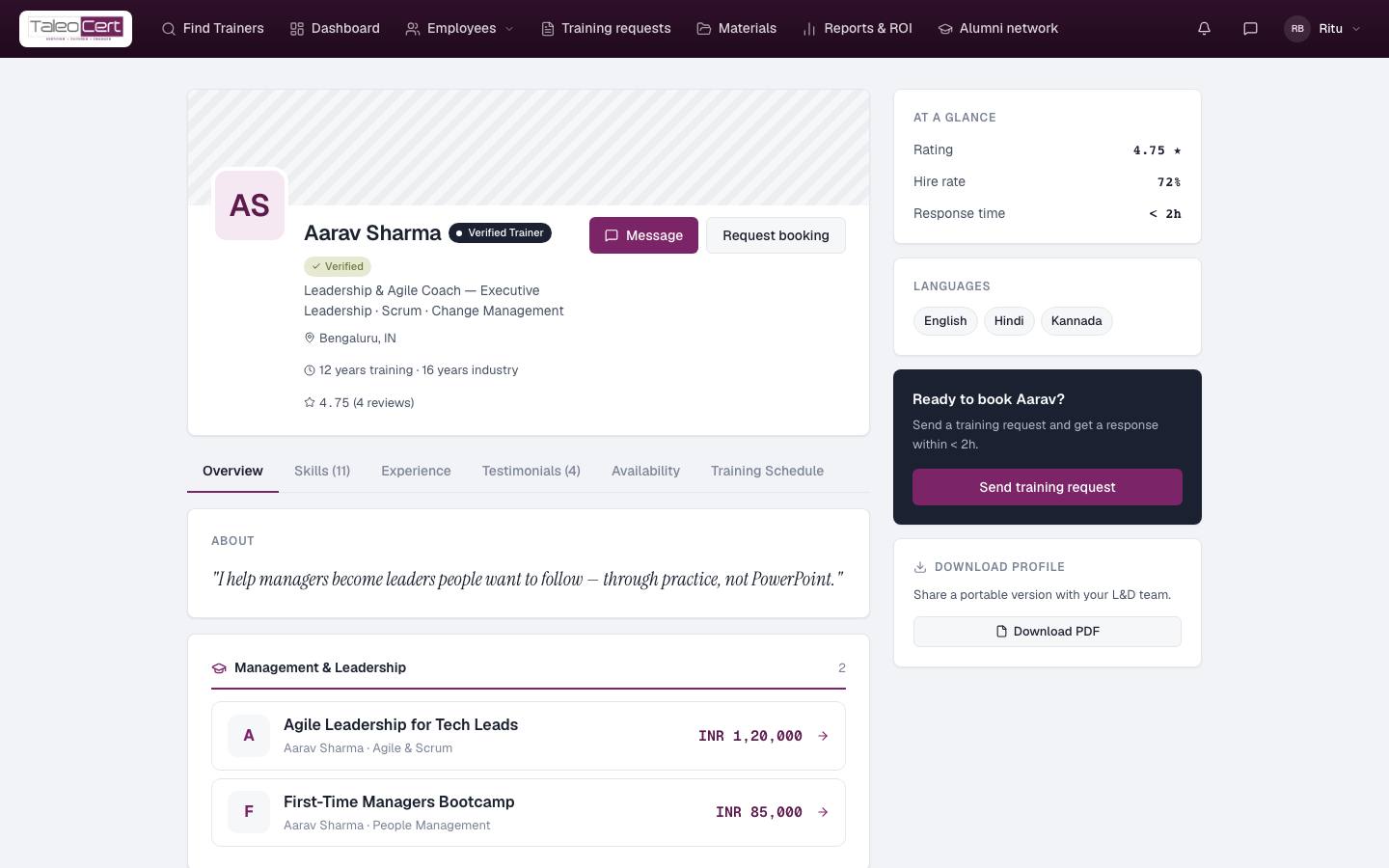
Look at a trainer's profile
Click a trainer's name to open their profile: headline, verification badge, rating and reviews, skills, experience, testimonials, availability for the next four weeks, training schedule, programmes with prices, and videos. Download PDF gives you a document version to share internally. Message starts a chat with the trainer before you commit.
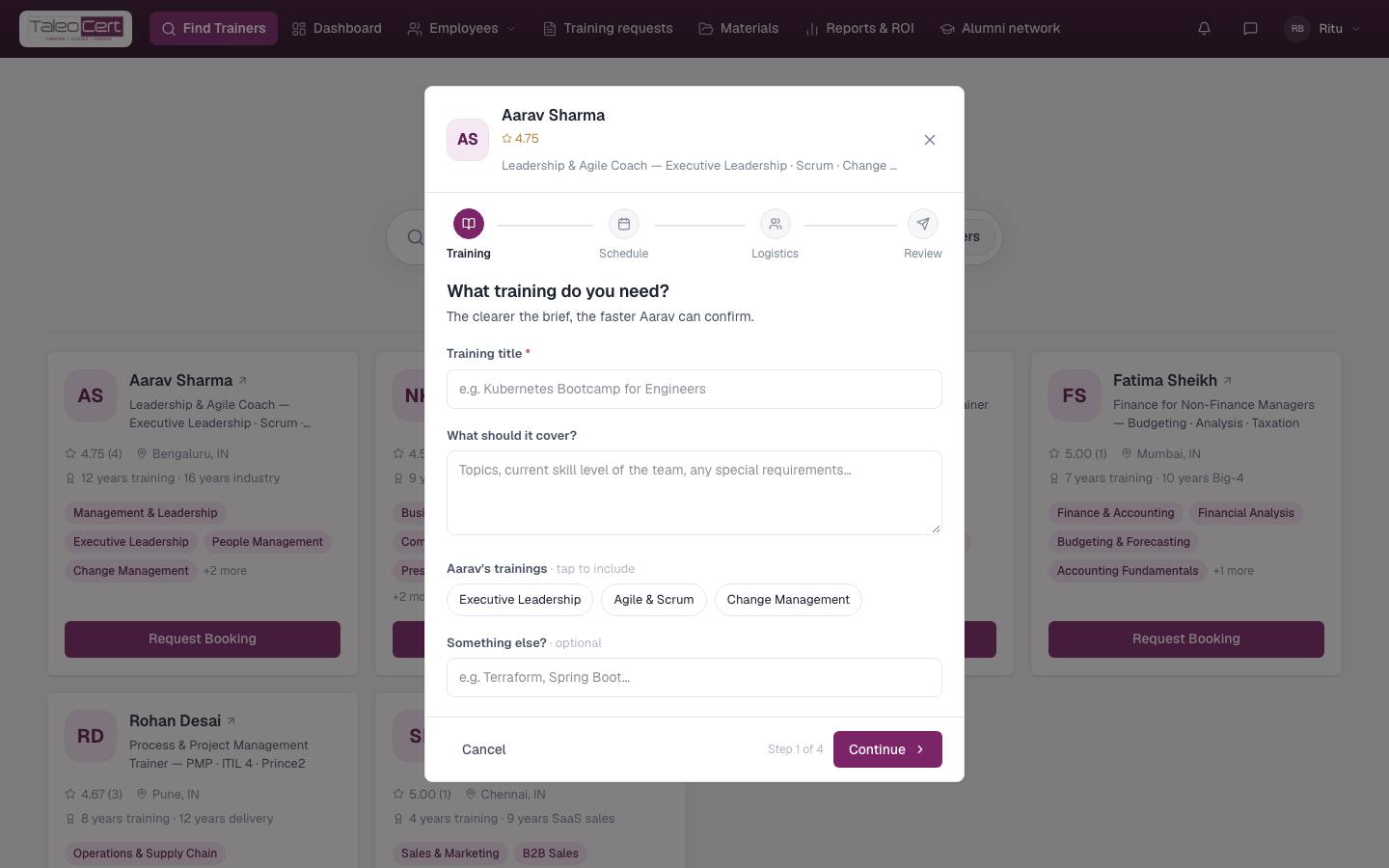
Send a training request
- 1Click Request BookingOn the trainer's card, or Request booking on their profile.
- 2TrainingA title (e.g. "Kubernetes Bootcamp for Engineers"), what it should cover (team, level, special requirements), and any of the trainer's own trainings to base it on.
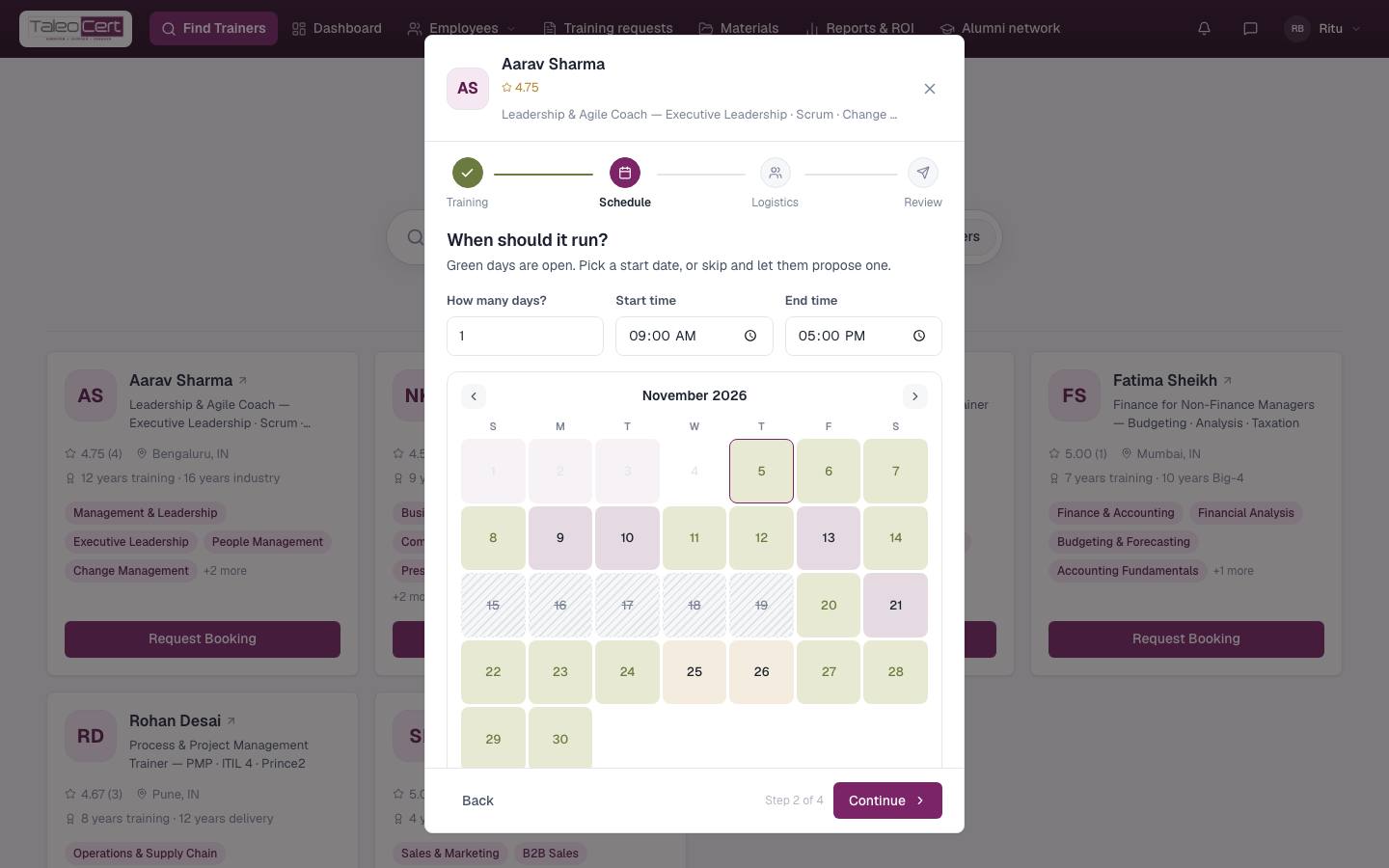
Step 1 of 4: what training you need. - 3SchedulePreferred start date, number of days, and the daily start and end time (9 am to 5 pm unless you change them). The calendar shows the trainer's busy days; days marked On leave are struck through and can't be picked, and a training that would run into them can't be sent.
Step 2: the trainer's leave days are greyed out and can't be chosen. - 4LogisticsParticipants, mode (online, onsite or hybrid), location, and your budget.
- 5Review and sendCheck everything and send. You're emailed a confirmation and the trainer is notified. The request appears in Training requests as Pending.
What happens next
- The trainer may invite you to a scope call, a short discovery call to understand your team's needs and agree the topics. You get an email invite and reminders; join with the link in the email.
- The trainer accepts (with a confirmed price and date) or declines. Either way you are emailed.
- On acceptance, a training agreement is ready for you to sign. See Requests, agreements & payment.
Something not covered? Talk to us or open a ticket from Help & support in your portal.