
Docs Step-by-step guides
Postpone or cancel a training
For EveryoneHow either side moves or cancels an accepted training, and what the other side sees.
- 1Open the trainingTrainer: My Calendar › Training Requests › View details. Company, college or learner: open the request from Training requests or My Bookings.
- 2Request cancellation or postponementClick the button at the bottom of the details. Choose Postpone (pick the new date) or Cancel, and give a reason.
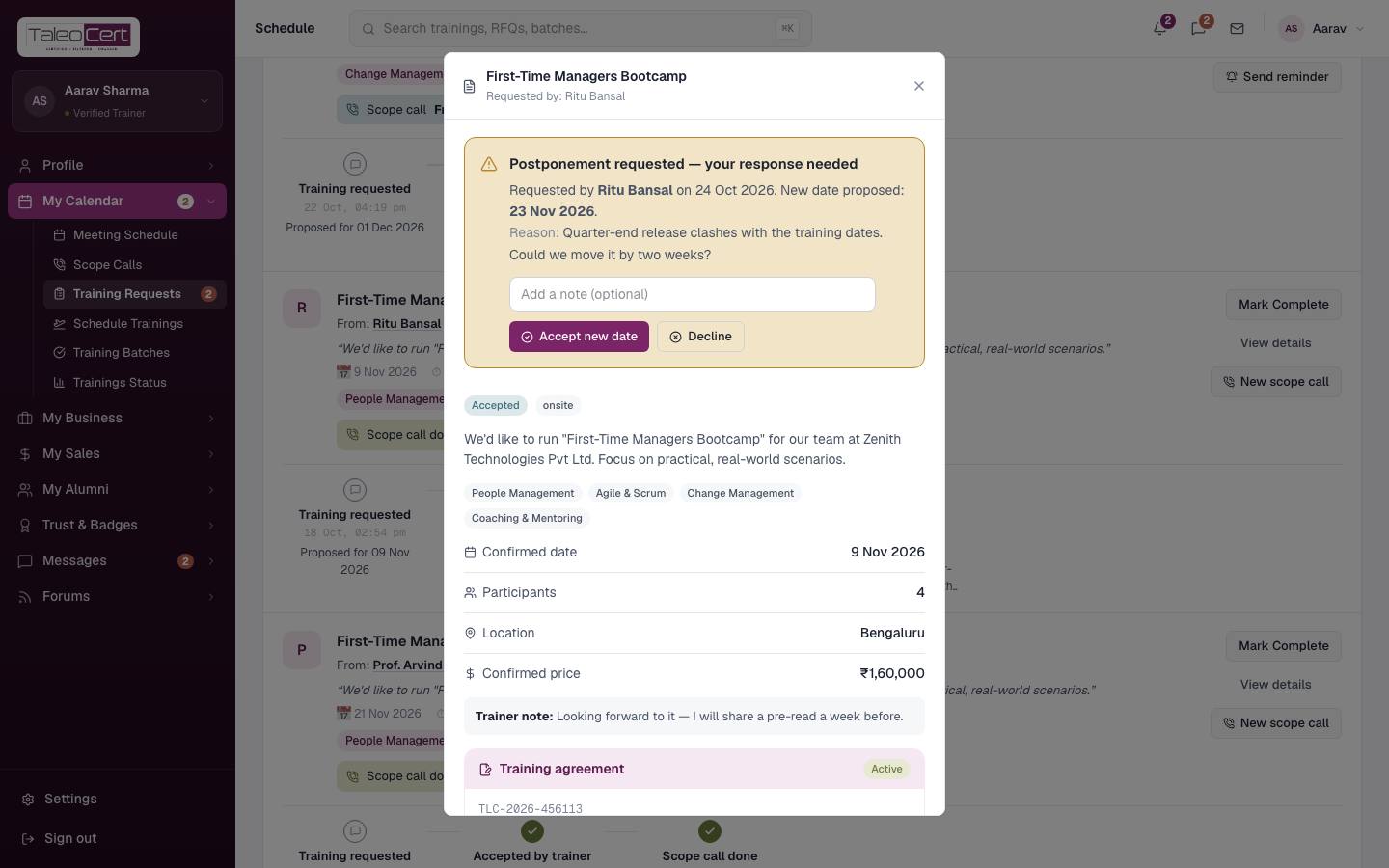
- 3The other side is askedThey're emailed and see a banner on the booking. The training stays as it is until they answer. You can Withdraw request meanwhile.
- 4They approve or declineAccept new date moves the training; approving a cancellation cancels it. Declining keeps everything unchanged. Either way you're emailed, and it's added to the timeline and chat.
The trainer's view of a postponement request.
Note.Only one change request can be open on a training at a time. Cancellation terms (and any refund) follow the training agreement and the Cancellation & Refunds policy.
Something not covered? Talk to us or open a ticket from Help & support in your portal.