
Profile & verification
Your profile is what a buyer judges you on. Everything here appears on your public page at taleocert.com/trainer/your-id, except your phone number, earnings and internal notes, which are never public.
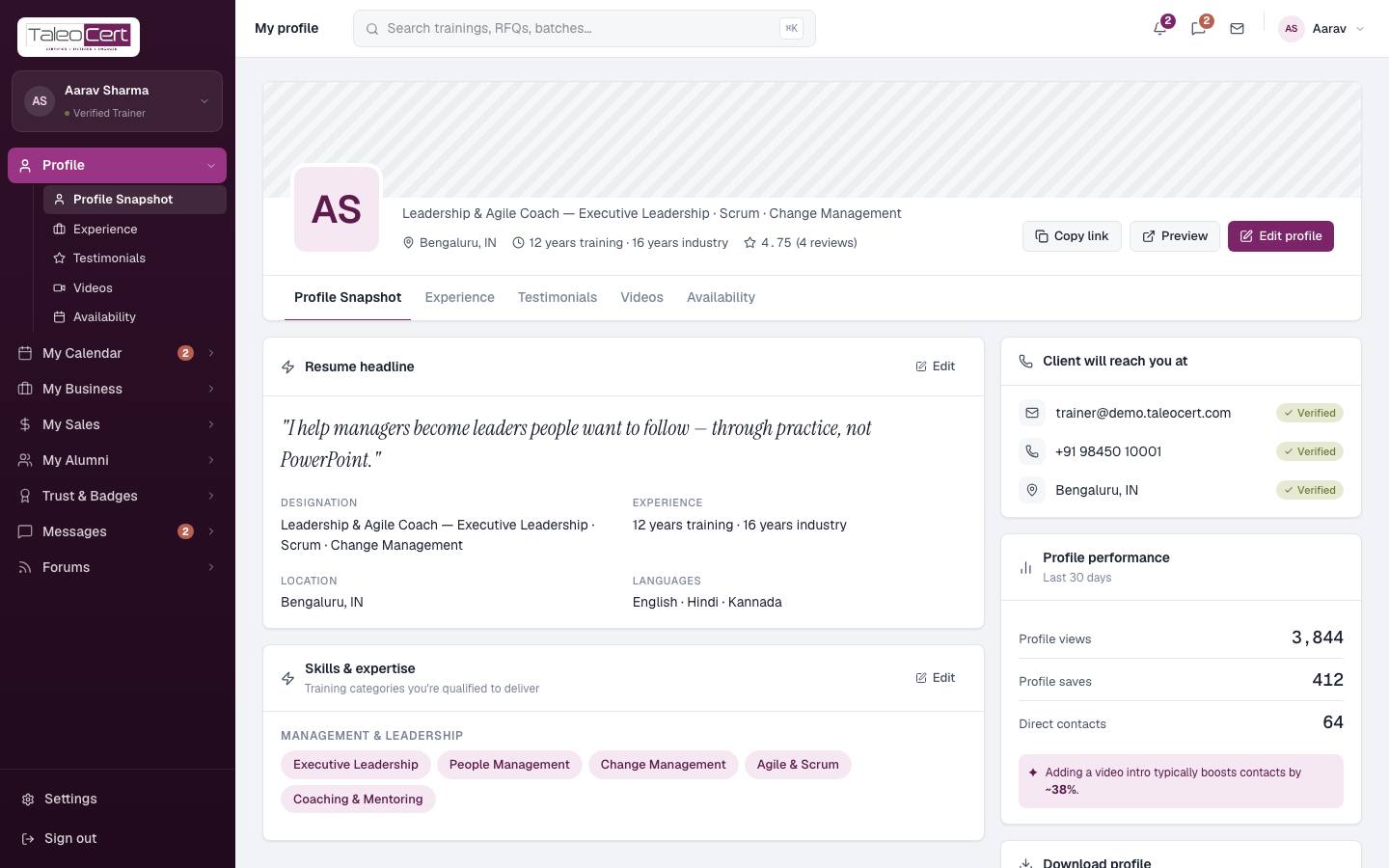
Edit your profile
- 1Open the editorClick Edit profile at the top right of your profile.
- 2Basic infoFull name, designation/title, location, experience (e.g. "12 years training · 16 years industry") and phone. Your phone is only shared with a client once you accept their request.
- 3Professional headlineOne or two sentences on what you help teams achieve. This is the quote shown at the top of your public profile.
- 4Skills & expertiseSearch for training categories and tick them. Picking sub-categories (for example Agile & Scrum under Management & Leadership) puts you in front of clients who filter by them.
The Edit profile panel. Category chips you pick appear on your profile and drive search. - 5Photo and coverUpload a profile photo and a cover image. Both count towards profile completion.
- 6SaveChanges go live on your public profile immediately.
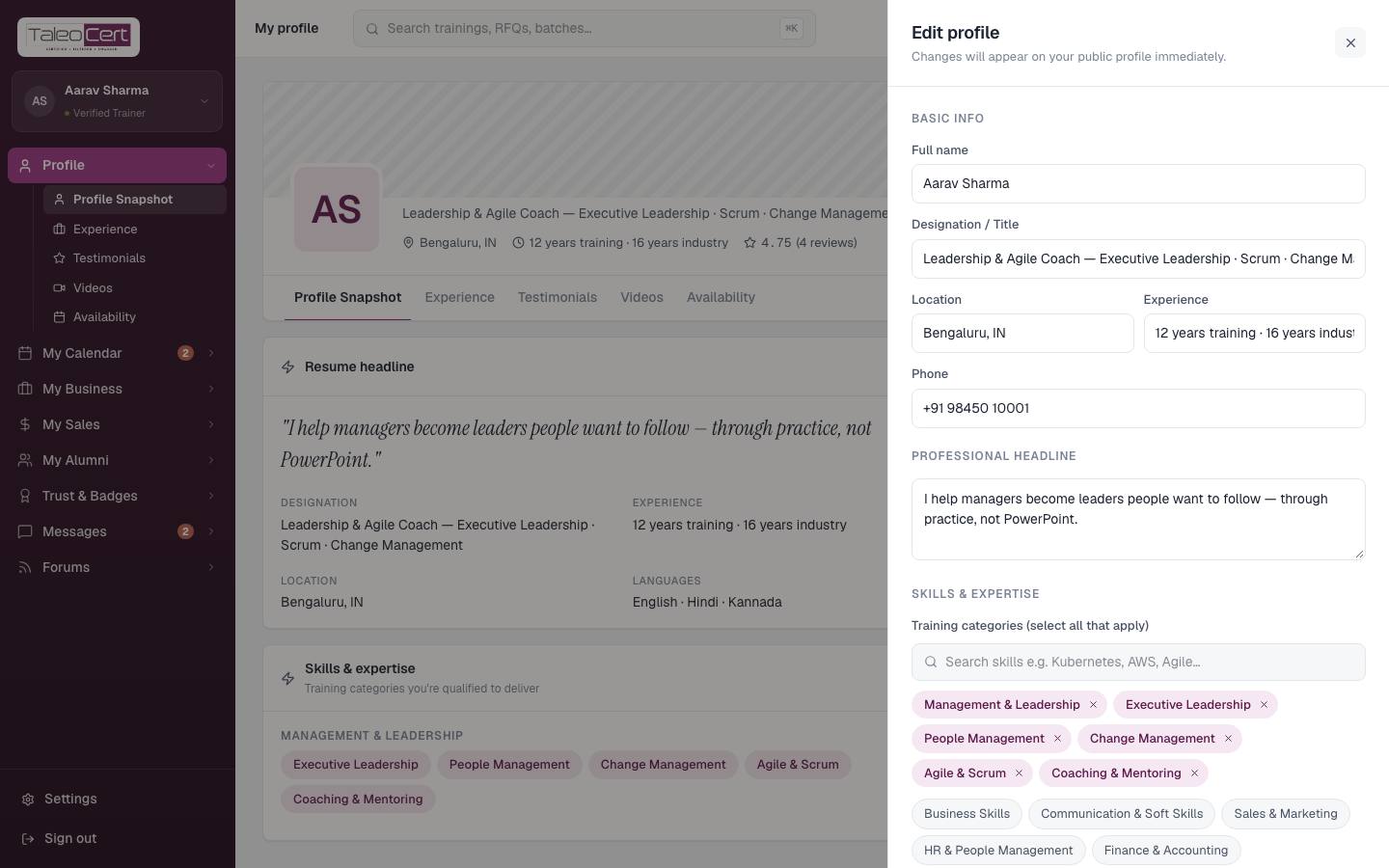
Copy link, Preview and Download profile
- Copy link copies your public profile address to share with clients.
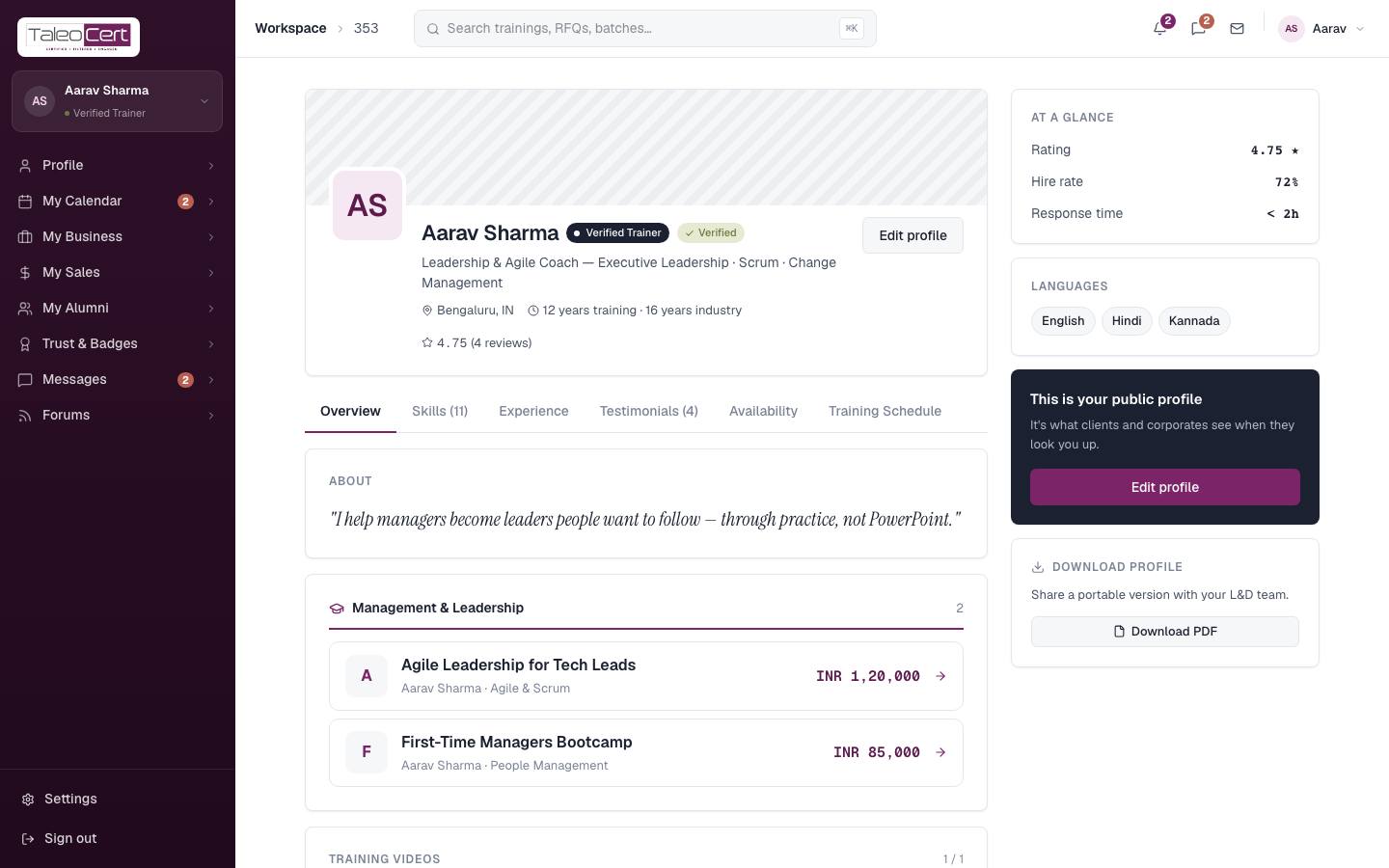
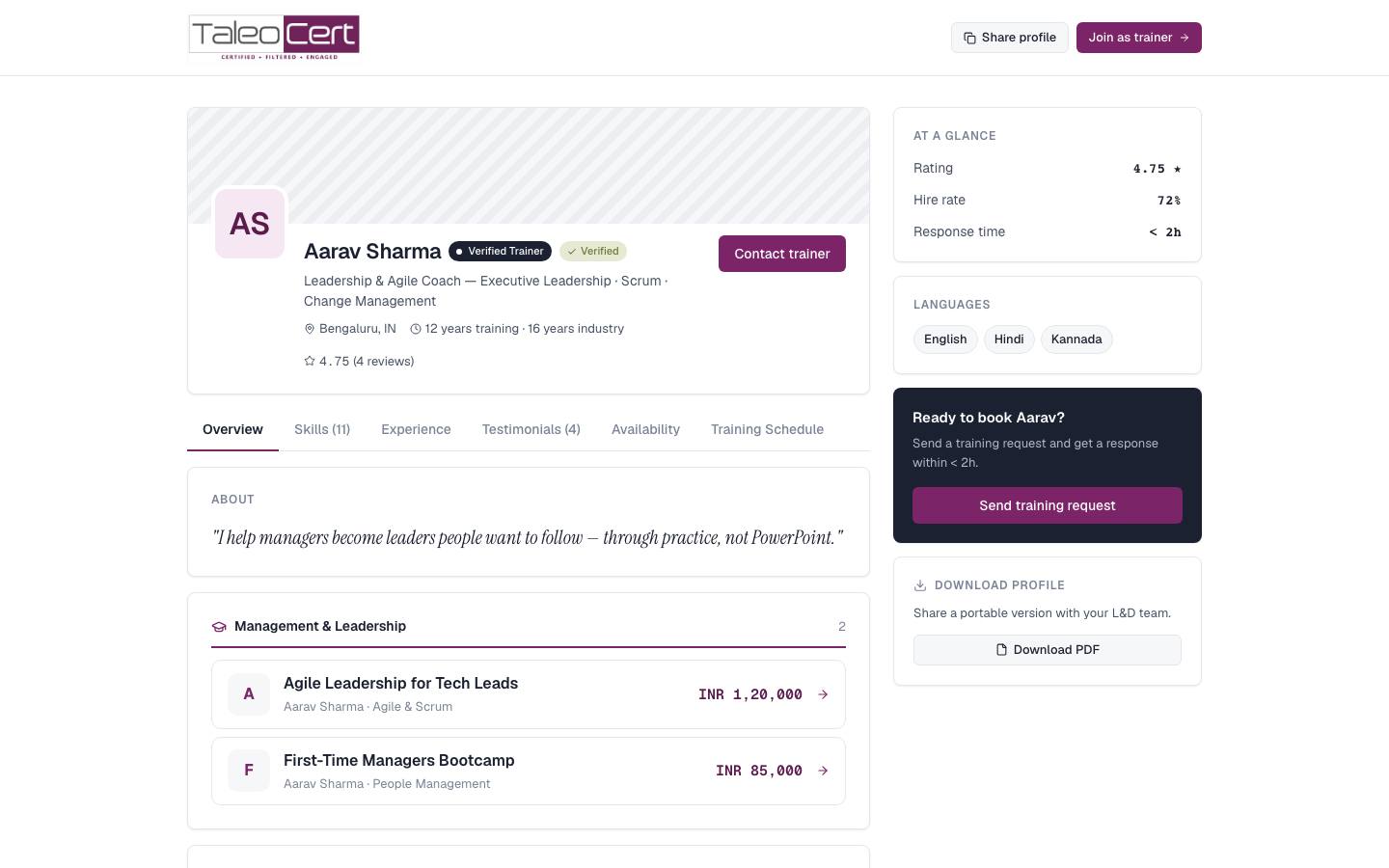
- Preview opens the public page exactly as a client sees it.
- Download profile (right rail) creates a polished PDF version of your profile for L&D teams who want a document.
Experience, Testimonials, Videos and Availability
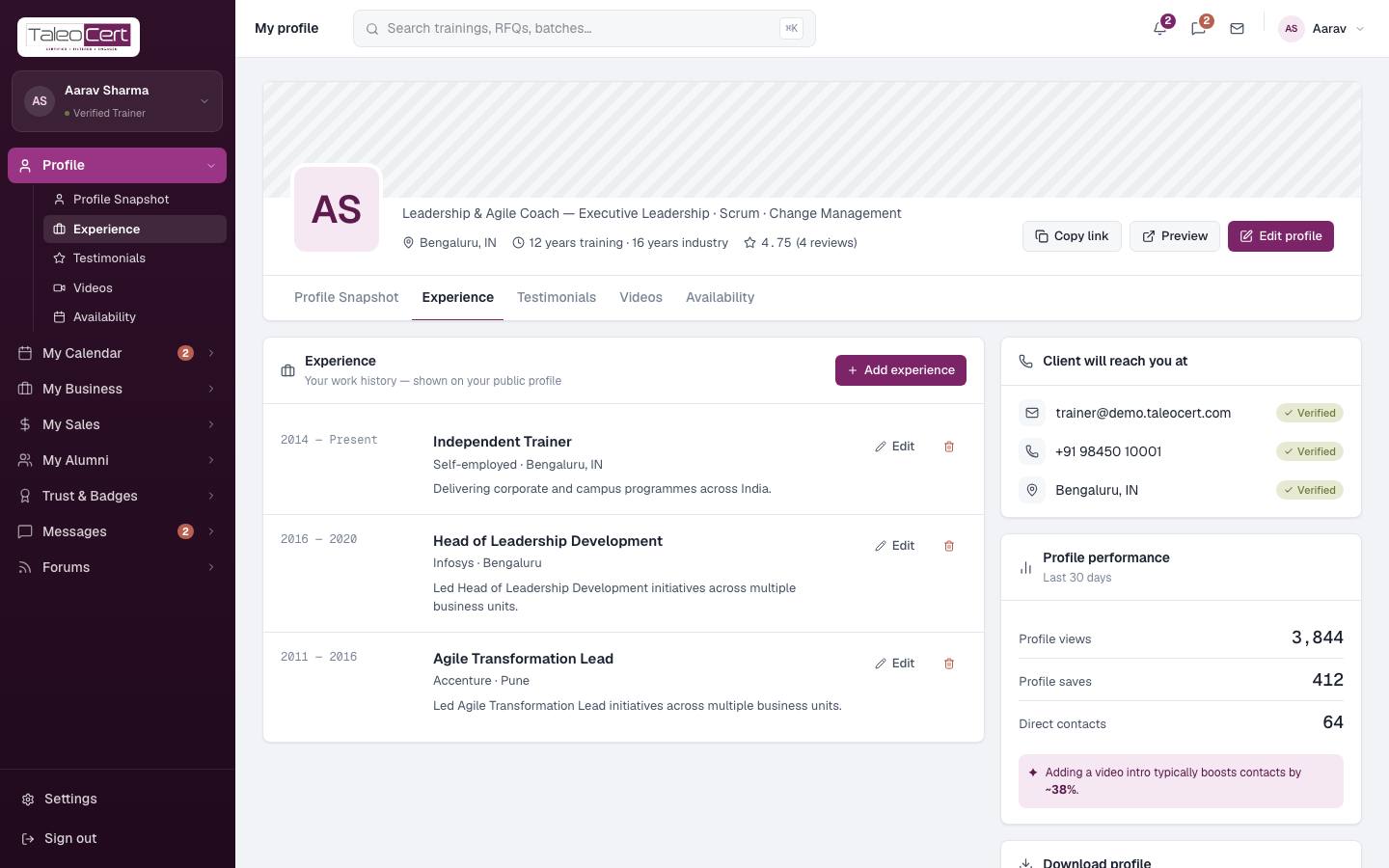
Experience
Click Add experience to add a role: title, company, location, start and end year, and a description. Edit or delete with the icons on each entry. Entries are shown newest first.
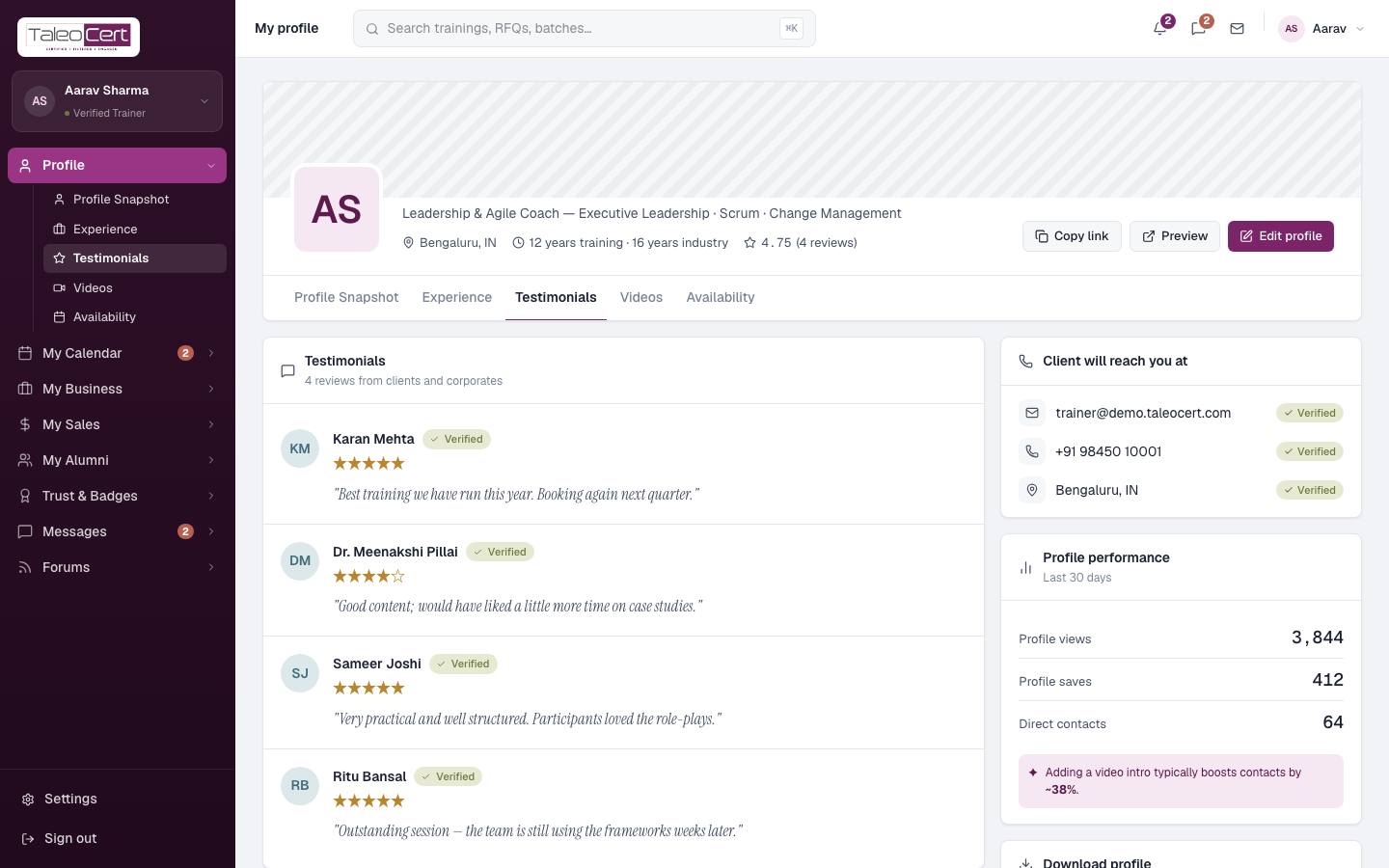
Testimonials
Reviews clients leave after a completed training appear here automatically, marked Verified, with the star rating. You cannot write or edit them, which is what makes them credible.
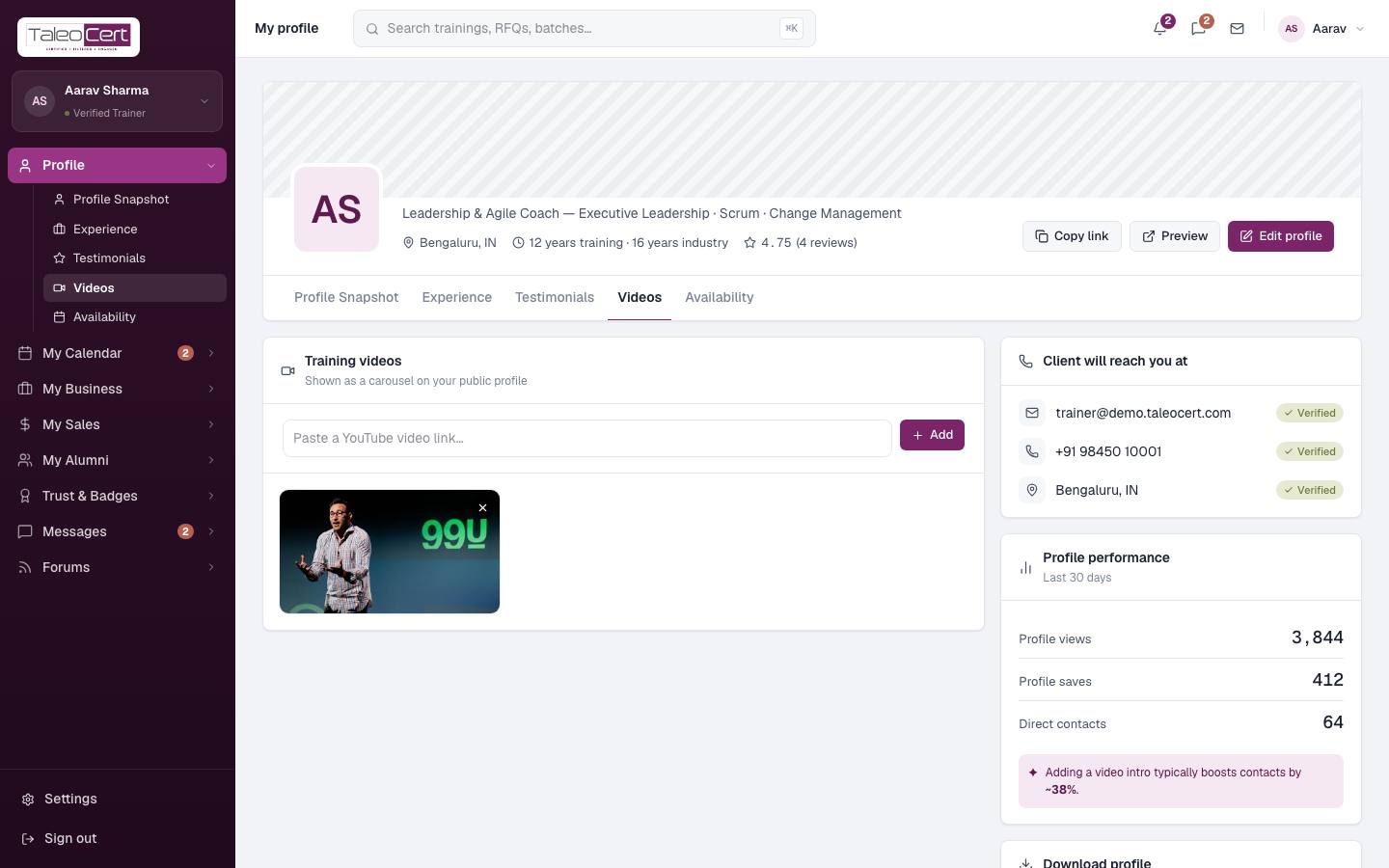
Videos
Paste a YouTube link and click Add. Videos appear as a gallery on your public profile. A short intro video typically lifts direct contacts noticeably.
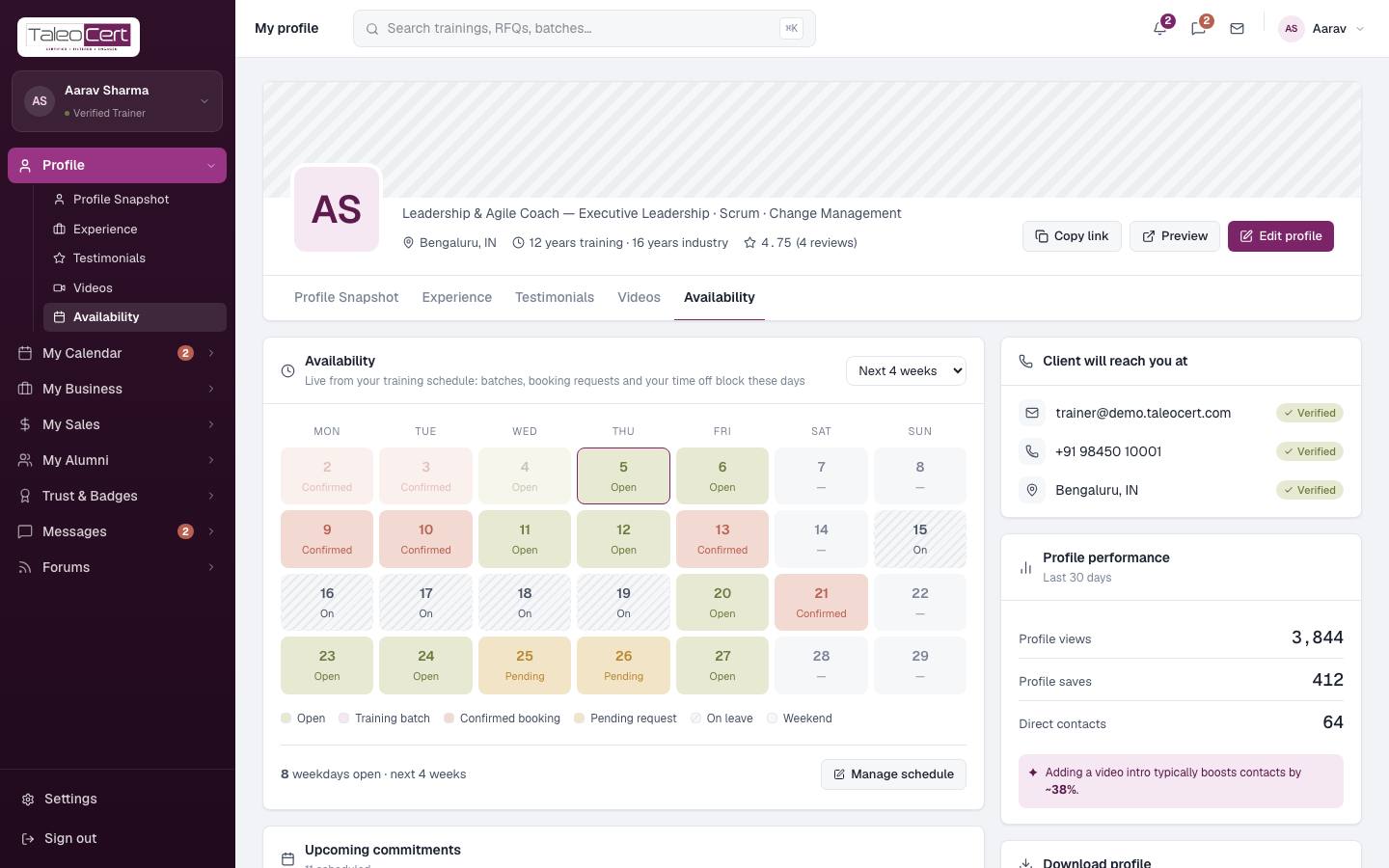
Availability
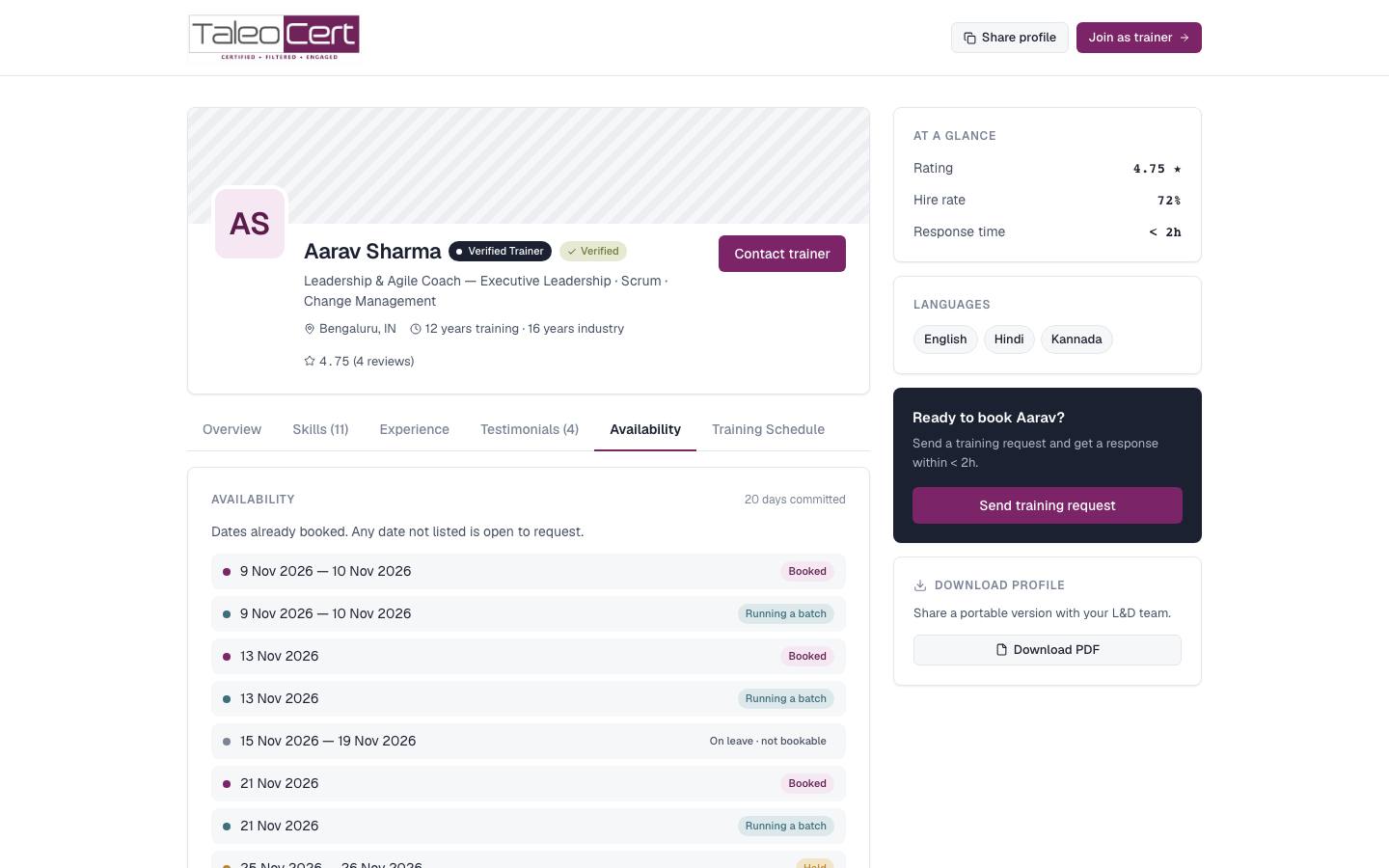
A four-week view of your working days: Open, Training batch, Confirmed booking, Pending request, On leave (your time off) and weekend. It is built from your calendar and bookings, so it is always current. Clients see it on your profile when choosing dates. Use Manage schedule to jump to your calendar.
Get verified
Only verified trainers carry the Verified Trainer badge and can be booked with full trust. Verification has two parts: completing your profile, and proving your identity.
The profile checklist
| Item | Where |
|---|---|
| Profile photo, Cover image | Profile › Edit profile |
| Headline / title, Location, Experience | Profile › Edit profile |
| At least 3 skills, Languages you teach | Profile › Edit profile |
| Verify email | Trust & Badges › Verifications (a 6-digit code is emailed to you) |
| Verify phone | Trust & Badges › Verifications |
| Verify government ID | Trust & Badges › Verifications: upload Aadhaar or PAN (clear photo or PDF) |
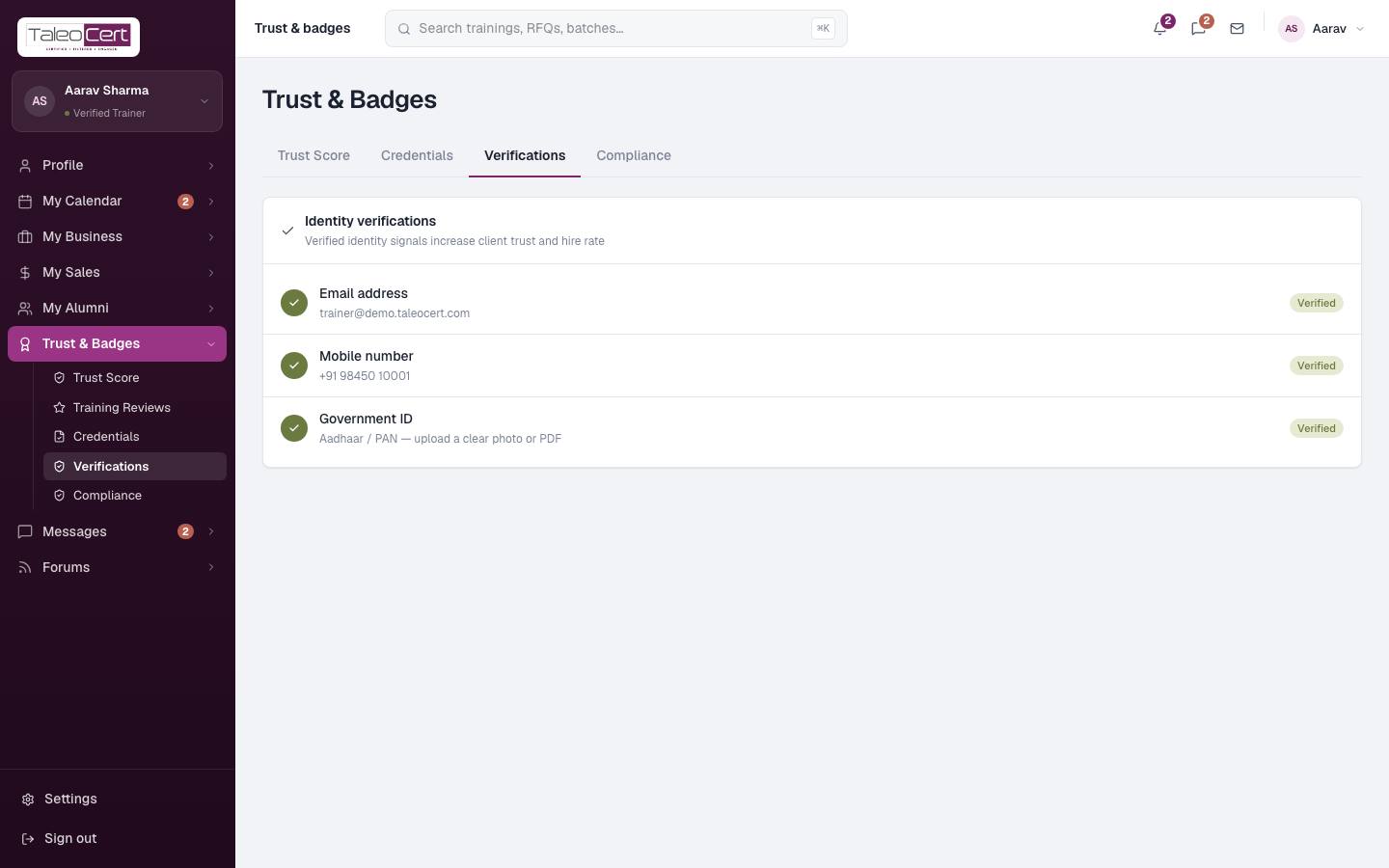
- 1Complete the checklistThe sidebar bar and the locked-menu popup show exactly which items remain.
- 2Submit your IDUpload your Aadhaar or PAN. It goes into the admin verification queue.
- 3An admin reviews itUsually within 2–3 working days. You are emailed when it is approved or, if not, the reason (for example a blurred document) so you can re-upload.
- 4You're verifiedThe badge appears on your profile and every locked menu opens.
Credentials (certification badges)
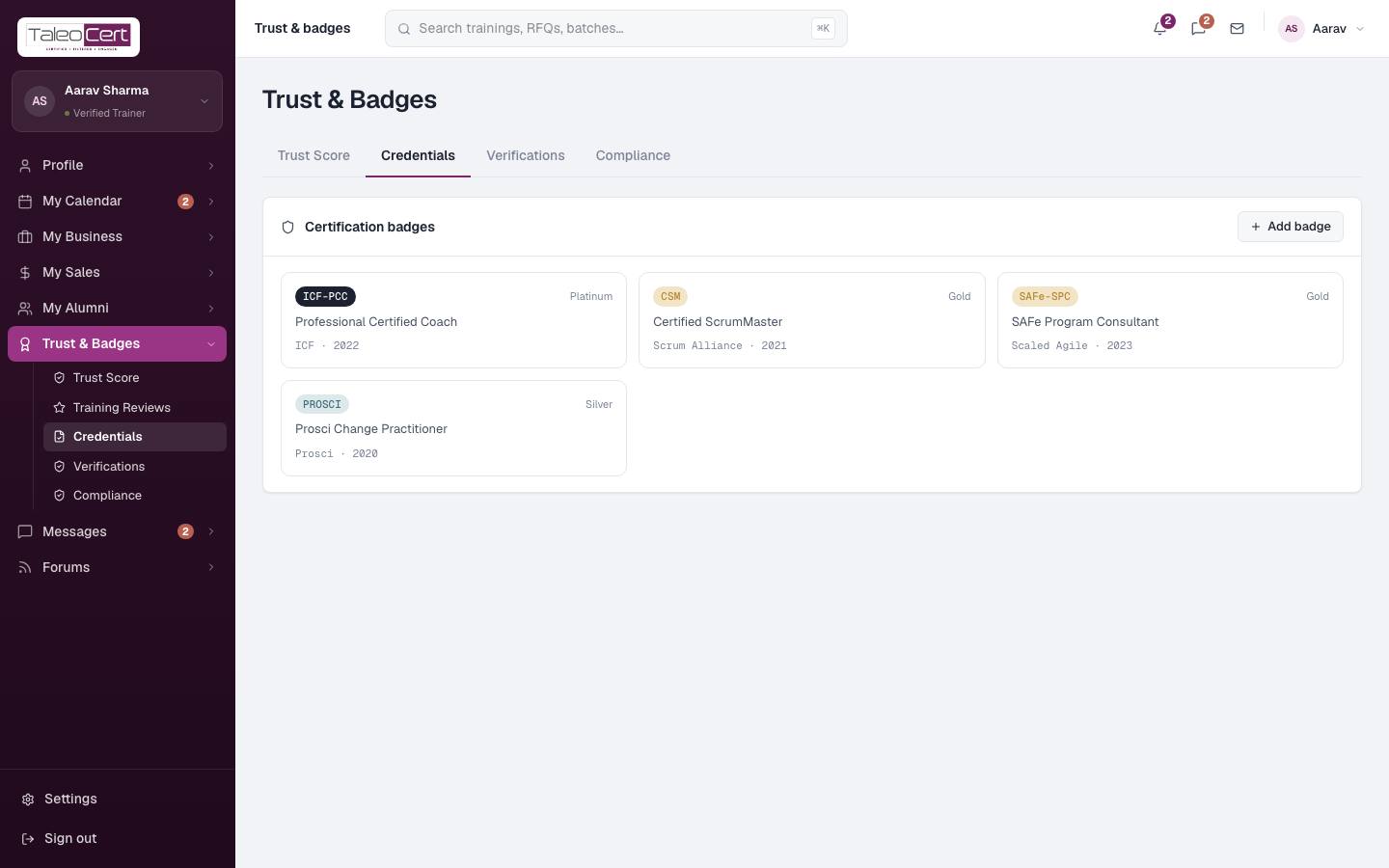
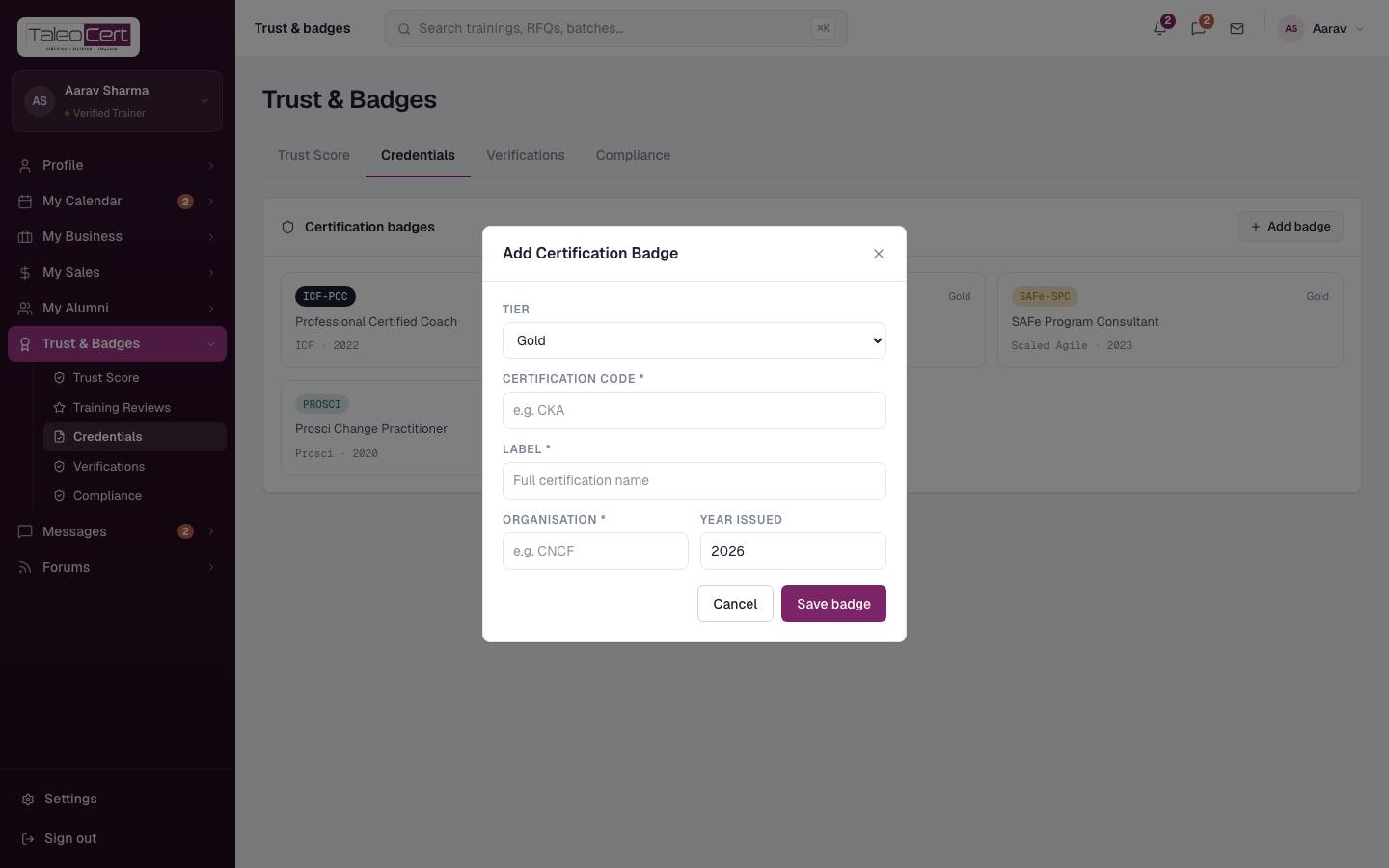
Under Trust & Badges › Credentials, click Add badge to list a certification: tier (Platinum, Gold, Silver, Bronze), code (e.g. CKA), full name, issuing organisation and year. Badges show on your profile and add to your Trust Score.
Something not covered? Talk to us or open a ticket from Help & support in your portal.