
Training requests, agreements & completion
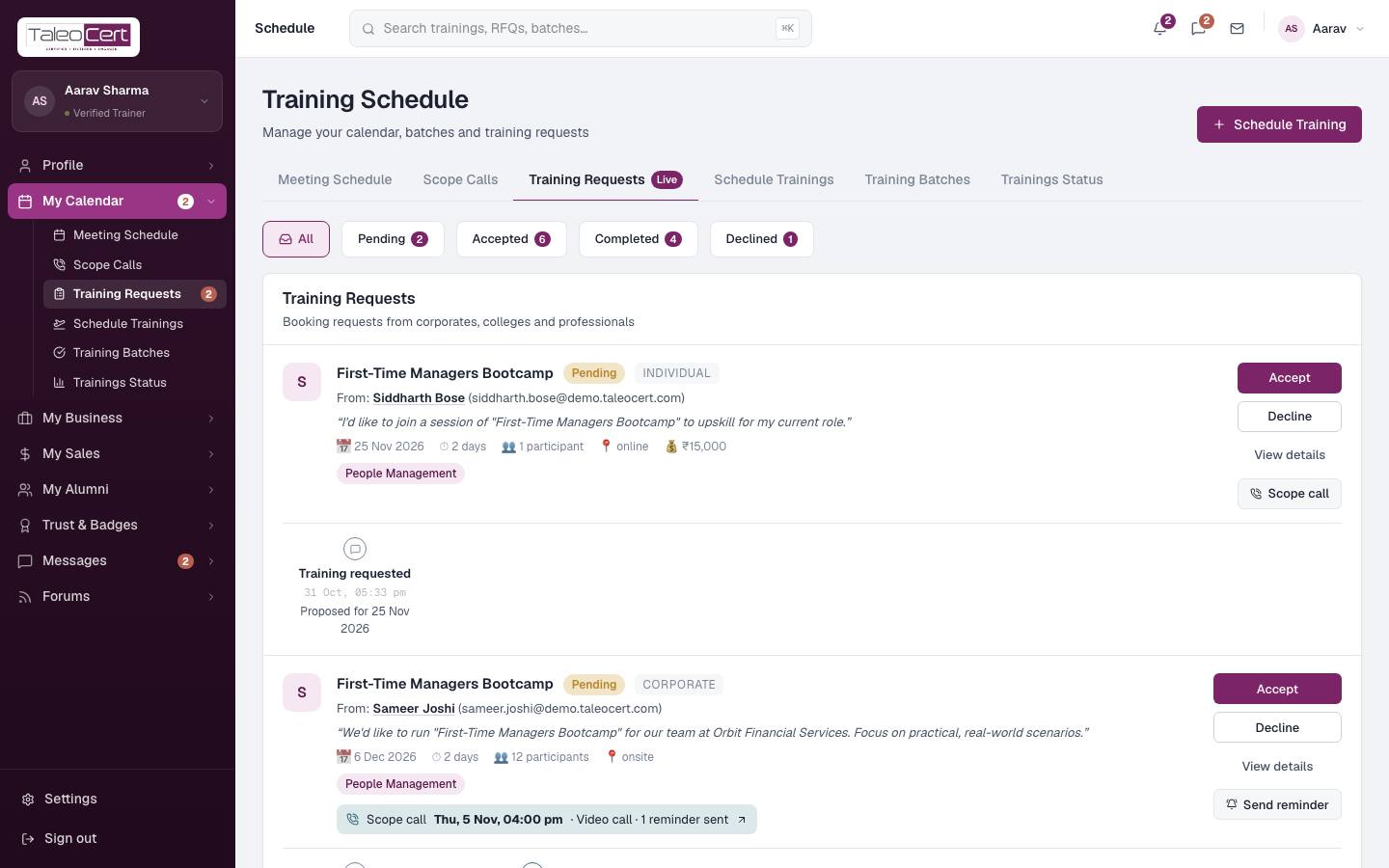
Reading a request card
- Title and status: Pending, Accepted, Completed, Declined or Cancelled, plus a badge if a postponement or cancellation is waiting.
- From: the client. Click their name to open your chat with them.
- Their message, proposed date, days, participants, mode, budget and the subjects they asked for.
- The scope call strip, if a call is scheduled or done. Click it to open the call.
- The timeline along the bottom: requested, accepted, scope call, change requests, completed.
- Click the title, or View details, to open the full booking.
Accept or decline
- 1Scope it first (recommended)Click Scope call to book a discovery call before you commit. See Scope calls.
- 2AcceptClick Accept. The booking becomes Accepted, the client is emailed, and a training agreement is generated from the confirmed price and date.
- 3Or declineClick Decline. The client is emailed and can book someone else.
Sign the training agreement
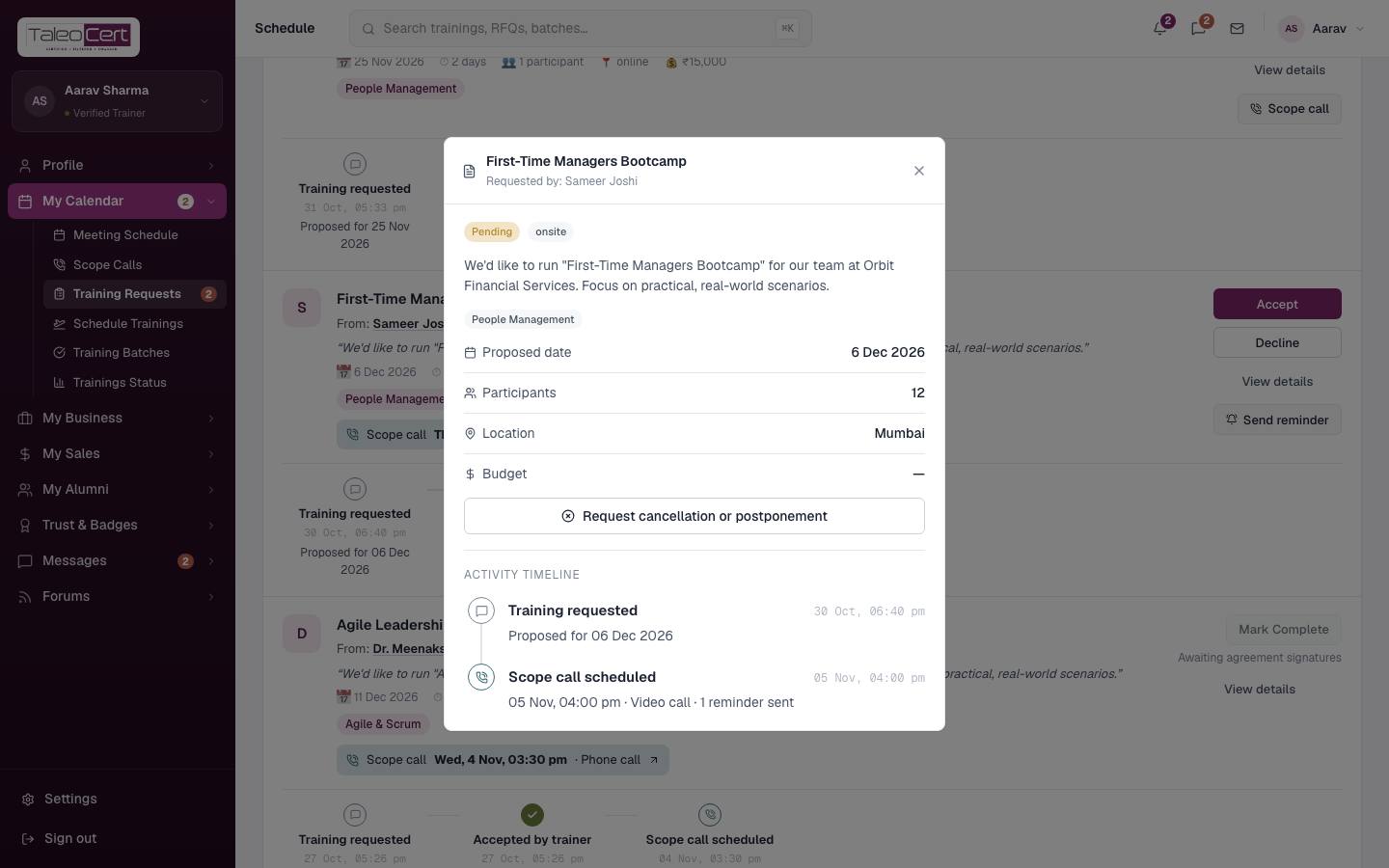
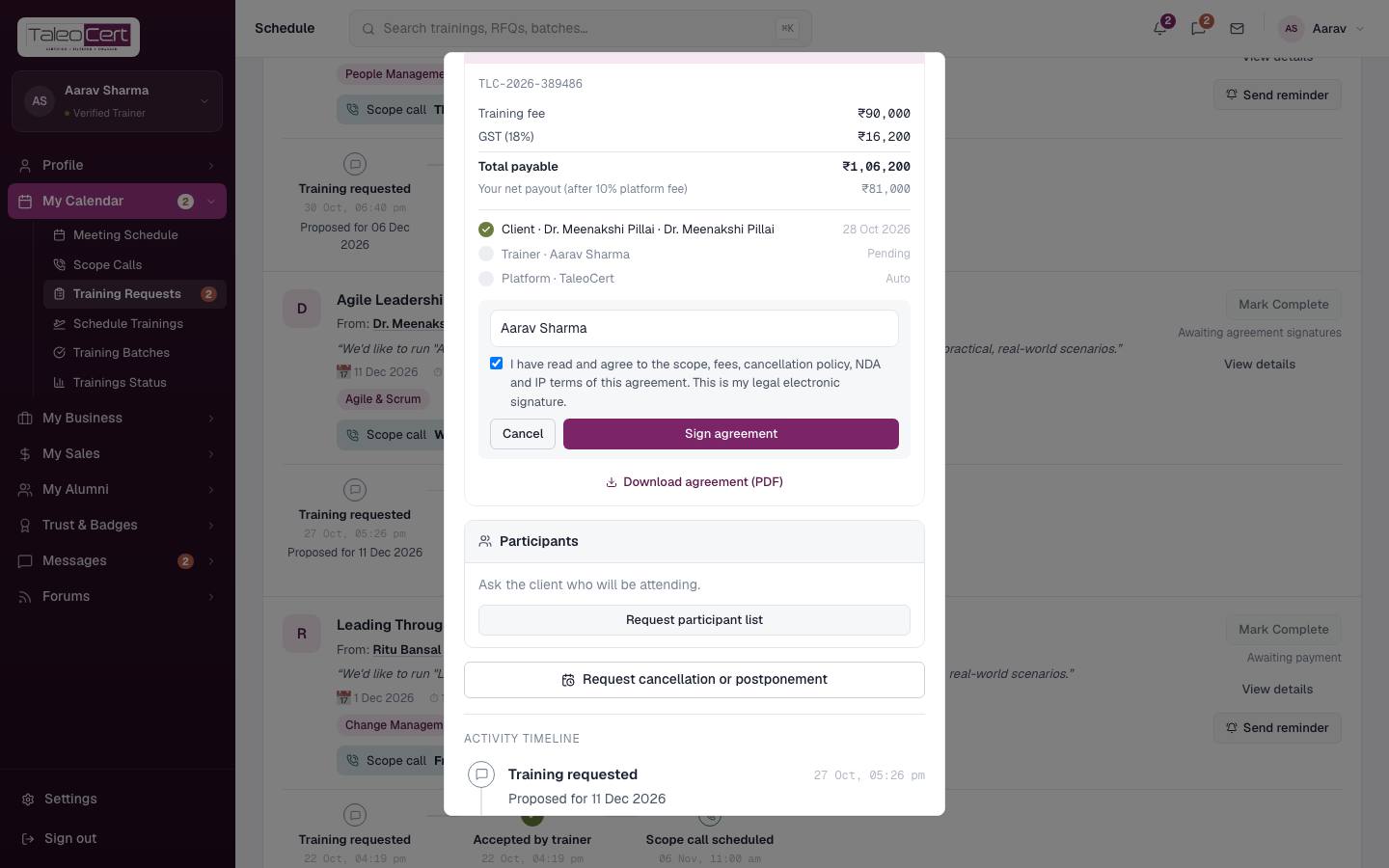
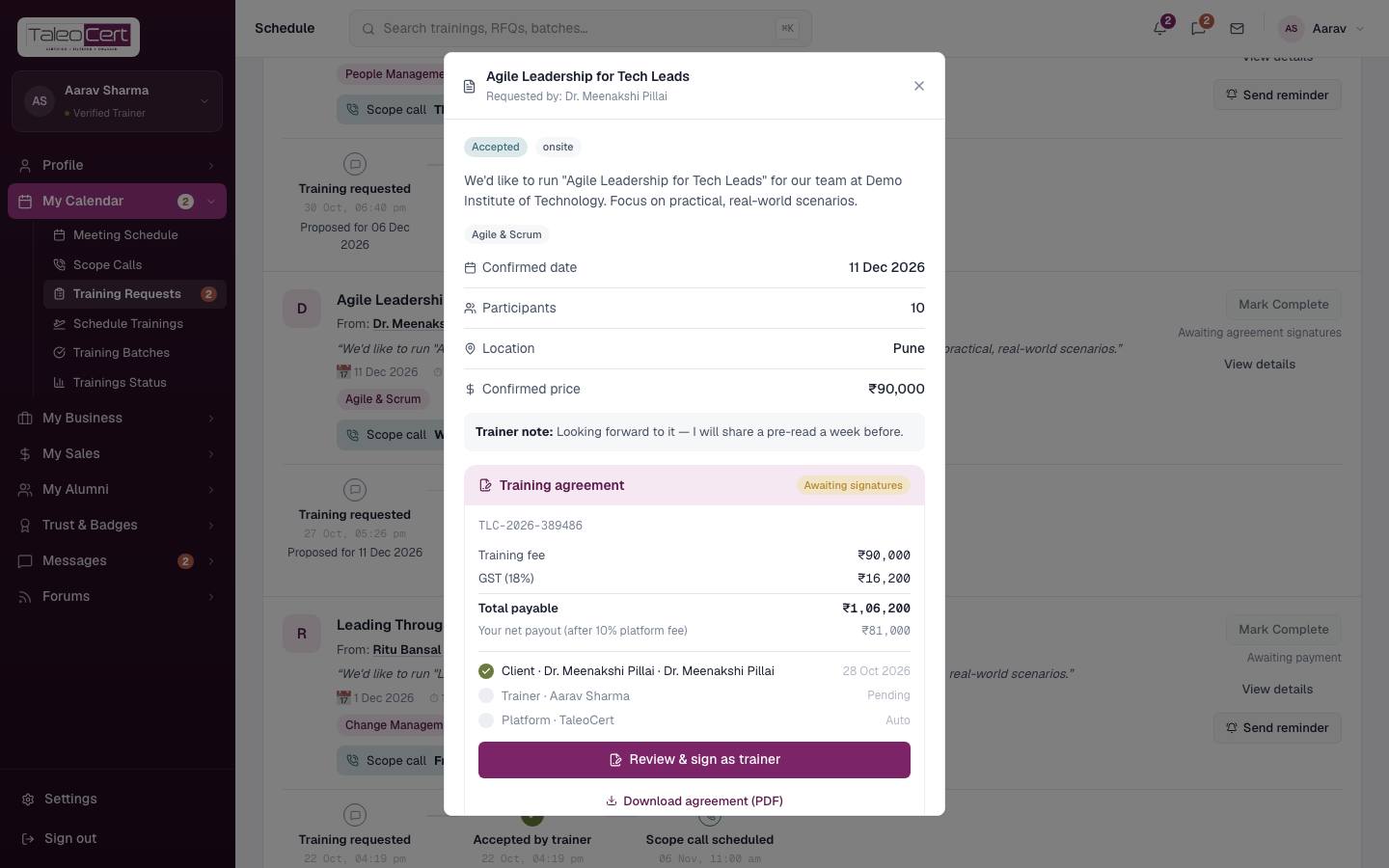
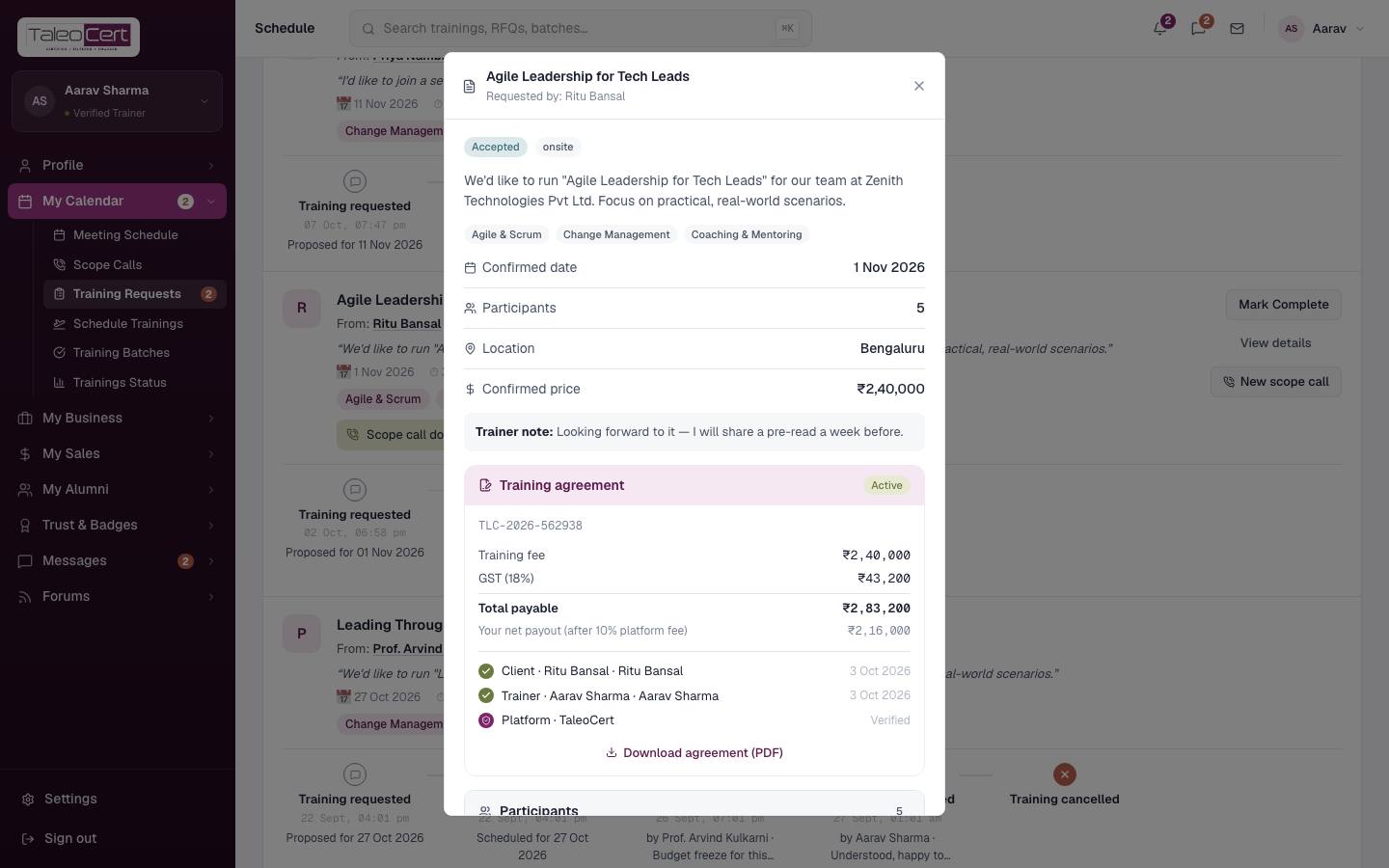
Every accepted booking has an agreement with a number like TLC-2026-386488. It sets out the training fee, GST, total payable and your payout after the platform fee, and the cancellation, NDA and IP terms.
- 1Open the bookingClick View details on the request card. The Training agreement panel shows who has signed.
- 2Review & sign as trainerClick it, type your full legal name, tick the declaration, and click Sign agreement.
Signing as the trainer. The client has already signed. - 3It goes activeOnce both sides have signed, TaleoCert counter-signs and the agreement becomes Active. Both of you are emailed, and the client can now pay.
- 4DownloadDownload agreement (PDF) at any time for your records.
Participants and briefing
- 1Request the listIn the booking's Participants panel click Request participant list. The client is emailed and sees Add participants in their portal. Use Send reminder for participant list if it hasn't arrived.
- 2Review the rosterWhen the client submits, you are emailed and the roster appears: name, email, employee code, department, batch, session, timing and date.
- 3Brief everyoneClick Email participants the details to send each attendee the training date, mode, location and your note (for example "Bring your laptop with Docker installed"). Each person shows Briefed or Not briefed. Use Send briefing again after changes.
Mark a training complete
Click Mark Complete on the request card when delivery is done. It is only available when:
- the booking is Accepted,
- the agreement is Active (both sides signed), and
- payment has been received, or the client chose Pay later.
If something is missing, the card says what. The client is emailed and asked for a review.
Certify the cohort
On a completed booking, open the details and click Issue & email certificates (N) in the Participants panel. Every participant on the roster gets a PDF certificate by email; each has a unique number such as TCERT-XXXXXXXX-2026. Added someone later? Issue for any new participants only certifies people who don't have one yet. Download any certificate with its PDF icon.
Postponement and cancellation requests
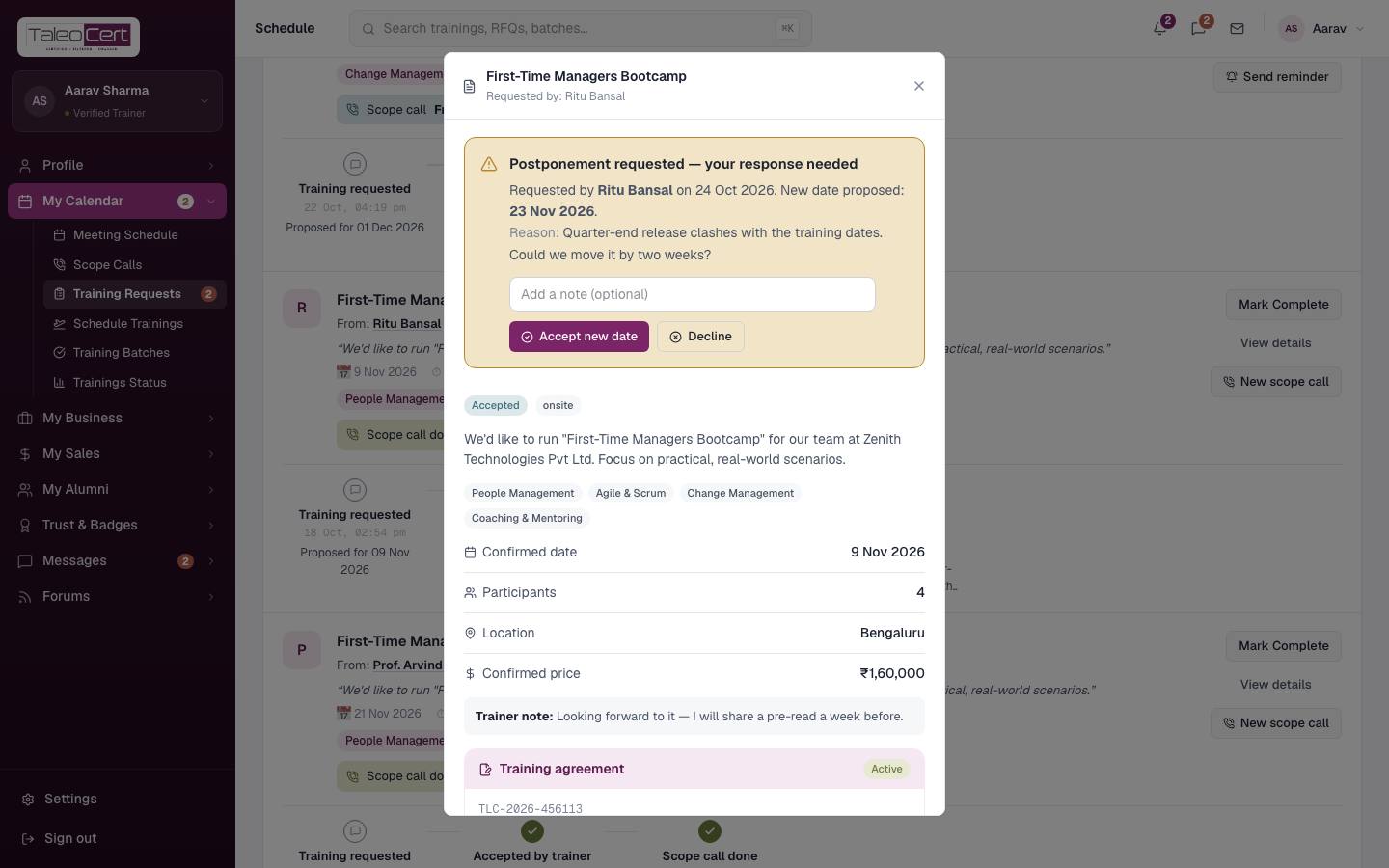
When a client asks to move or cancel an accepted training, a banner appears on the booking: Postponement requested, your response needed, with the reason and proposed date. Add a note and choose Accept new date or Decline. You can raise one yourself with Request cancellation or postponement. See Postpone or cancel.
Something not covered? Talk to us or open a ticket from Help & support in your portal.