
How a training engagement works
Every booking moves through the same steps, whoever the client is. The platform will not let a step be skipped: a training cannot be marked complete before the agreement is active and payment has been received or explicitly deferred.
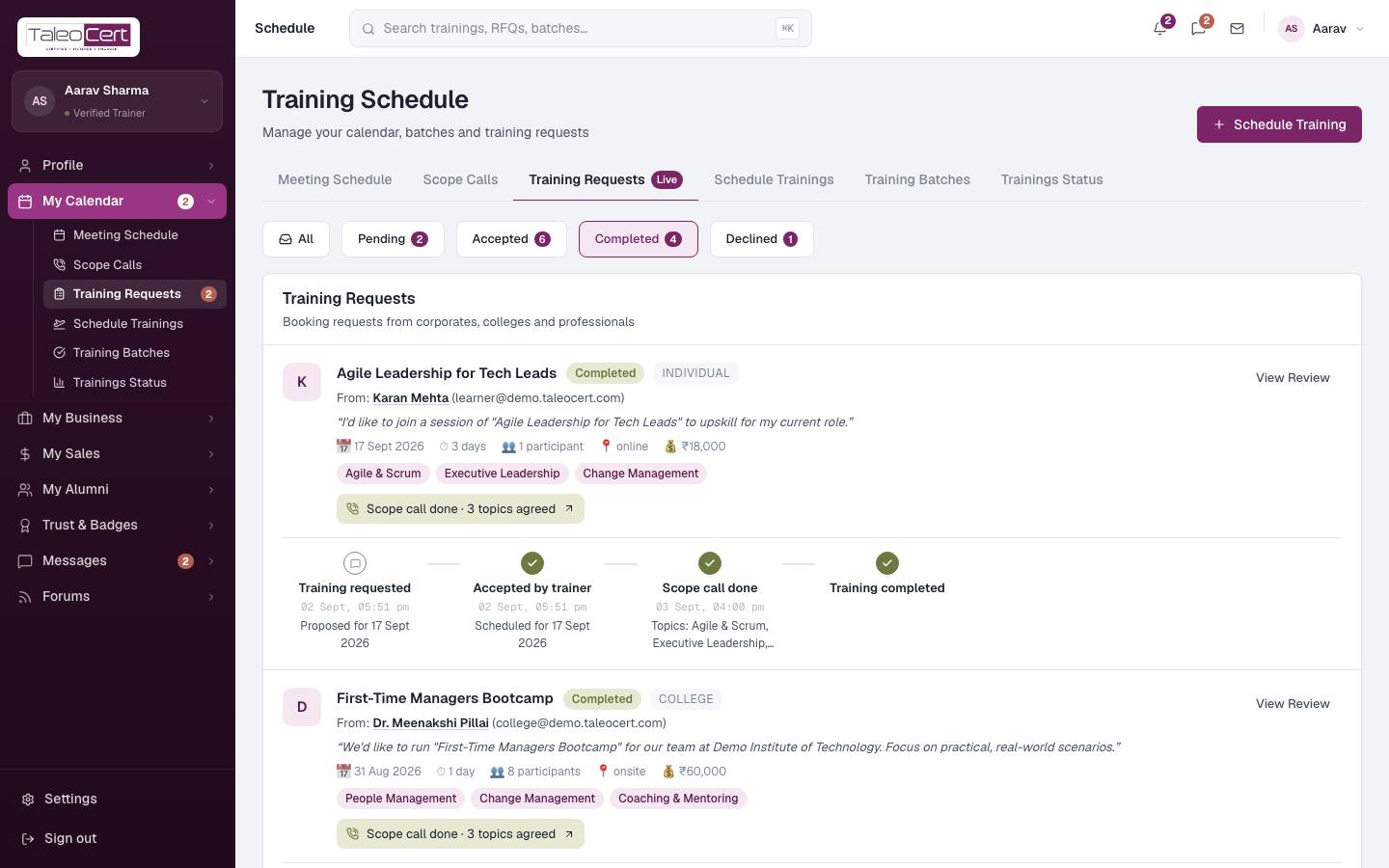
The lifecycle, step by step
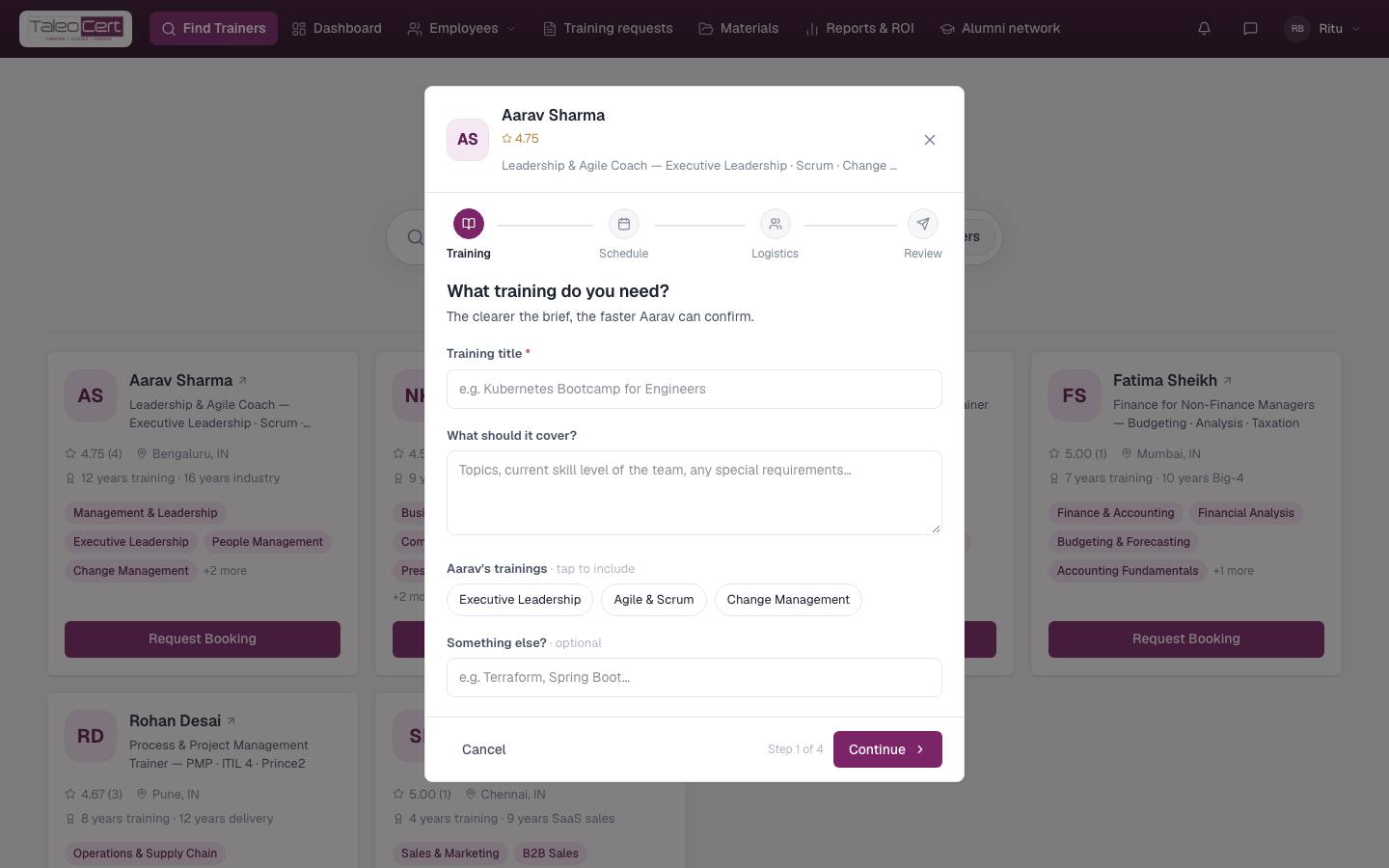
- 1The client sends a requestA company, college or learner opens a trainer's profile and sends a request: what they need covered, preferred dates, participants, mode (online, onsite, hybrid), location and budget. The trainer is emailed and the request appears in My Calendar › Training Requests.
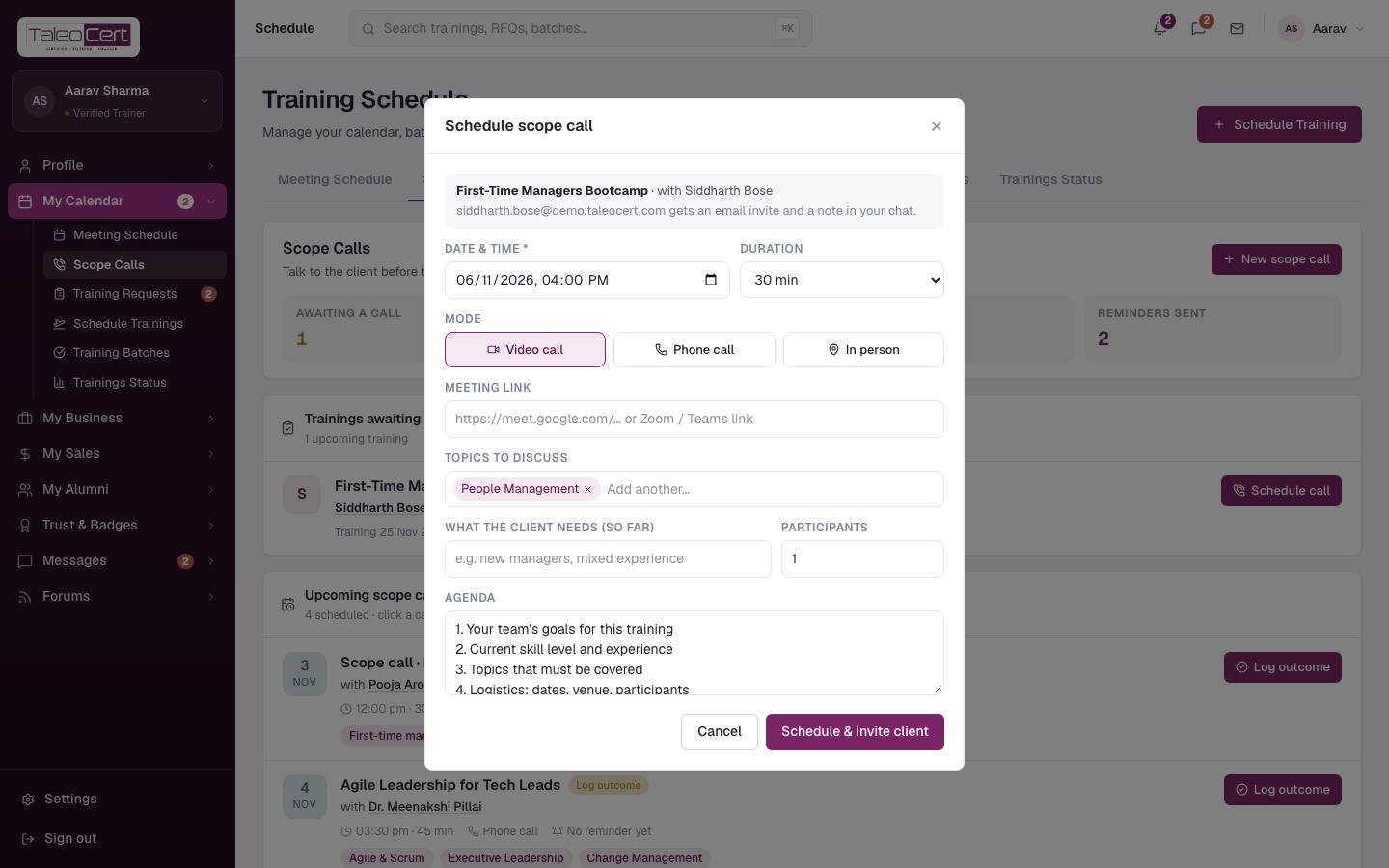
The request form runs in four steps: Training, Schedule, Logistics, Review. - 2The trainer holds a scope callBefore committing, the trainer books a scope call, a short discovery call (like an interview) to understand the team, its level and the topics the training must cover. The client gets an email invite and reminders. The agreed topics are written back onto the booking. See Scope calls.
Scheduling a scope call against a new request. - 3The trainer accepts or declinesA trainer can't accept a request that falls in their own vacation. Accepting confirms the price and date and automatically generates a training agreement. Declining closes the request with a note to the client.
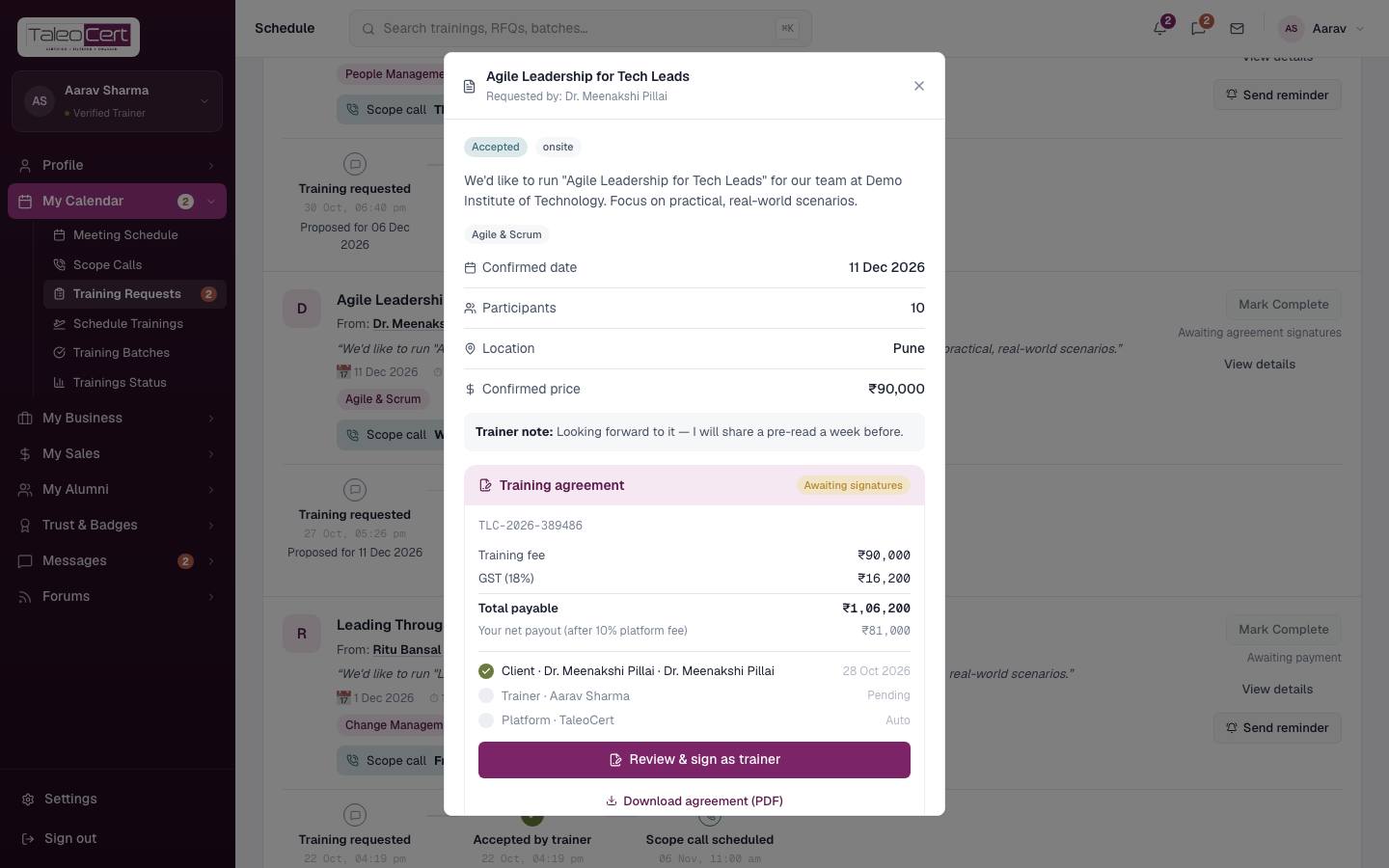
- 4Both sides e-sign the agreementThe agreement shows the training fee, 18% GST, the total payable, and the trainer's payout after the 10% platform fee. The client and the trainer each type their name and sign. Once both have signed, TaleoCert counter-signs and the agreement becomes Active.
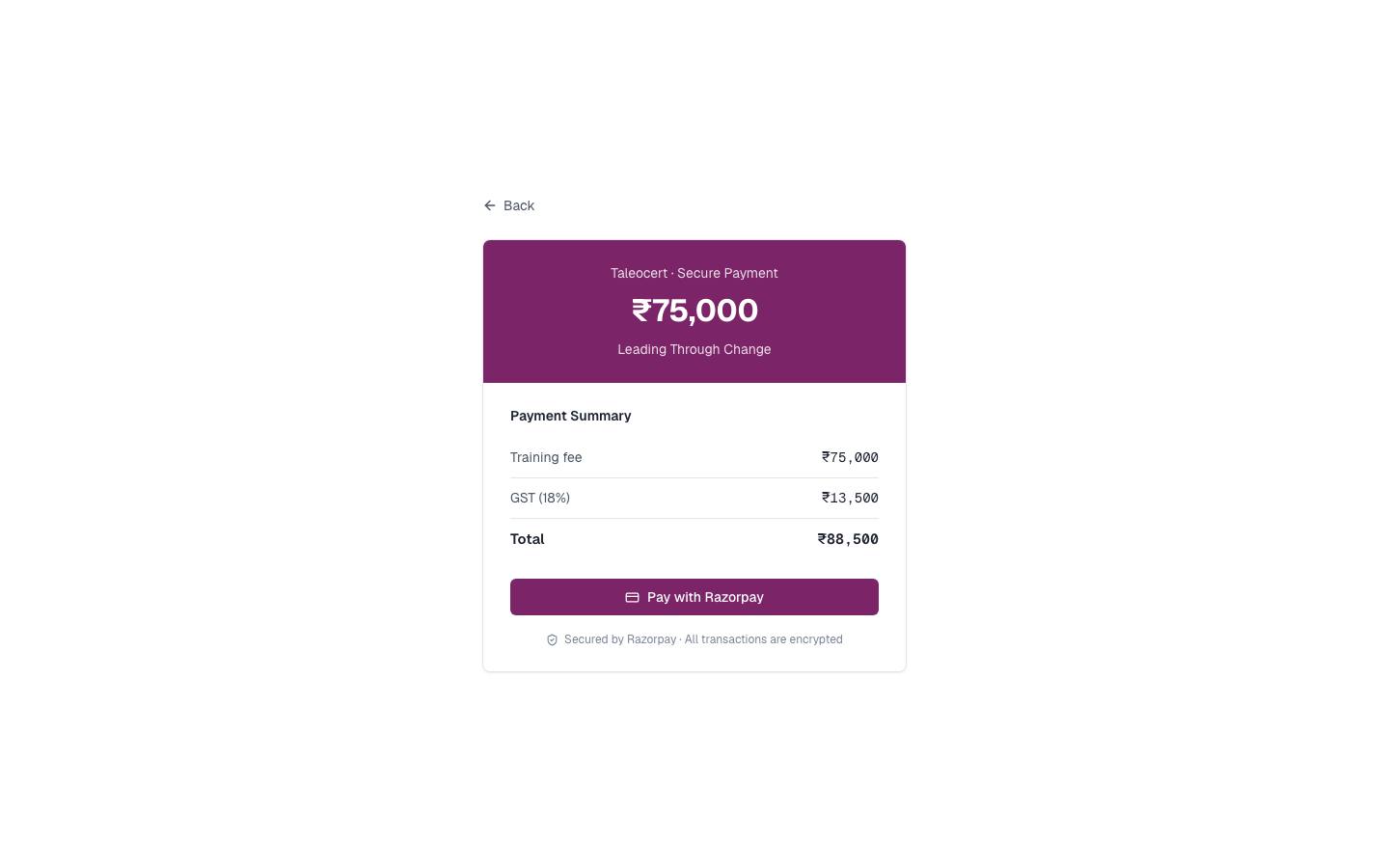
An agreement the client has signed, waiting for the trainer. - 5The client pays (or pays later)Against an active agreement the client pays through Razorpay: card, UPI, net-banking or wallet. Where a pay-later arrangement is agreed, the client chooses Pay later and the booking can go ahead.
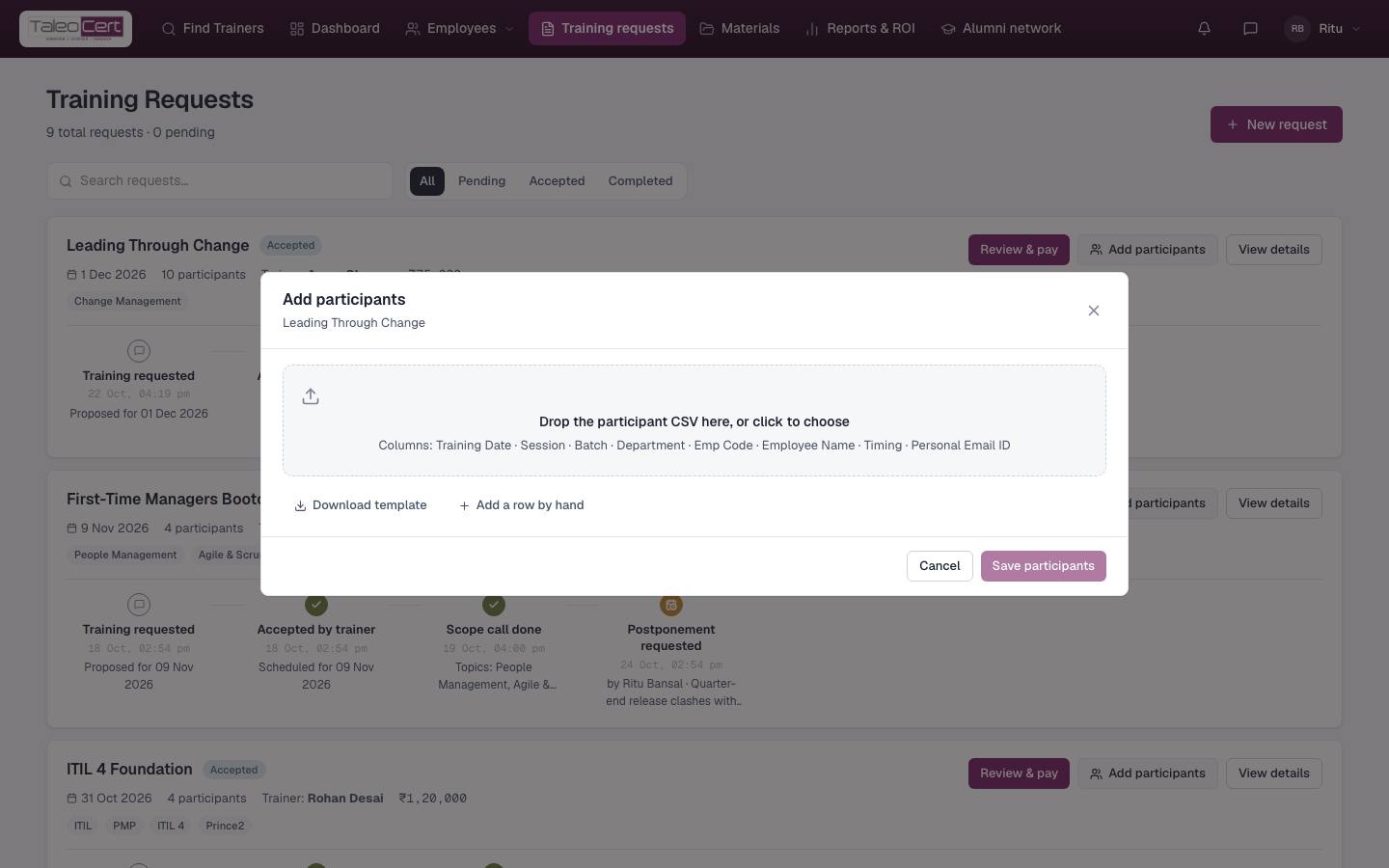
Checkout shows the training fee, GST and total before Razorpay opens. - 6The client submits participantsThe trainer can request the attendee list. The client uploads a CSV or adds people by hand: name, email, employee code, department, batch, session and timing. The trainer can then email everyone a briefing.
Adding participants: drop a CSV, download the template, or add rows by hand. - 7DeliveryThe training sits on the trainer's calendar and in Training Batches, and the client sees it in their batches and dashboard.
- 8The trainer marks it completeAllowed only when the booking is accepted, the agreement is active, and payment is received or deferred. The card explains what is still missing if it is not.
- 9CertificatesThe trainer issues certificates for the whole roster in one action. Each participant is emailed a PDF, and the certificates appear in the client's portal, the learner's portal and the admin panel.
- 10ReviewThe client is asked to review the trainer and the platform. Reviews feed the trainer's rating and Trust Score.
Postponing or cancelling
An accepted training is never silently removed. Either side opens the booking and chooses Request cancellation or postponement, gives a reason (and a new date for a postponement), and the other side approves or declines. Both steps are emailed and appear on the timeline. See Postpone or cancel a training.
Everything is mirrored in chat
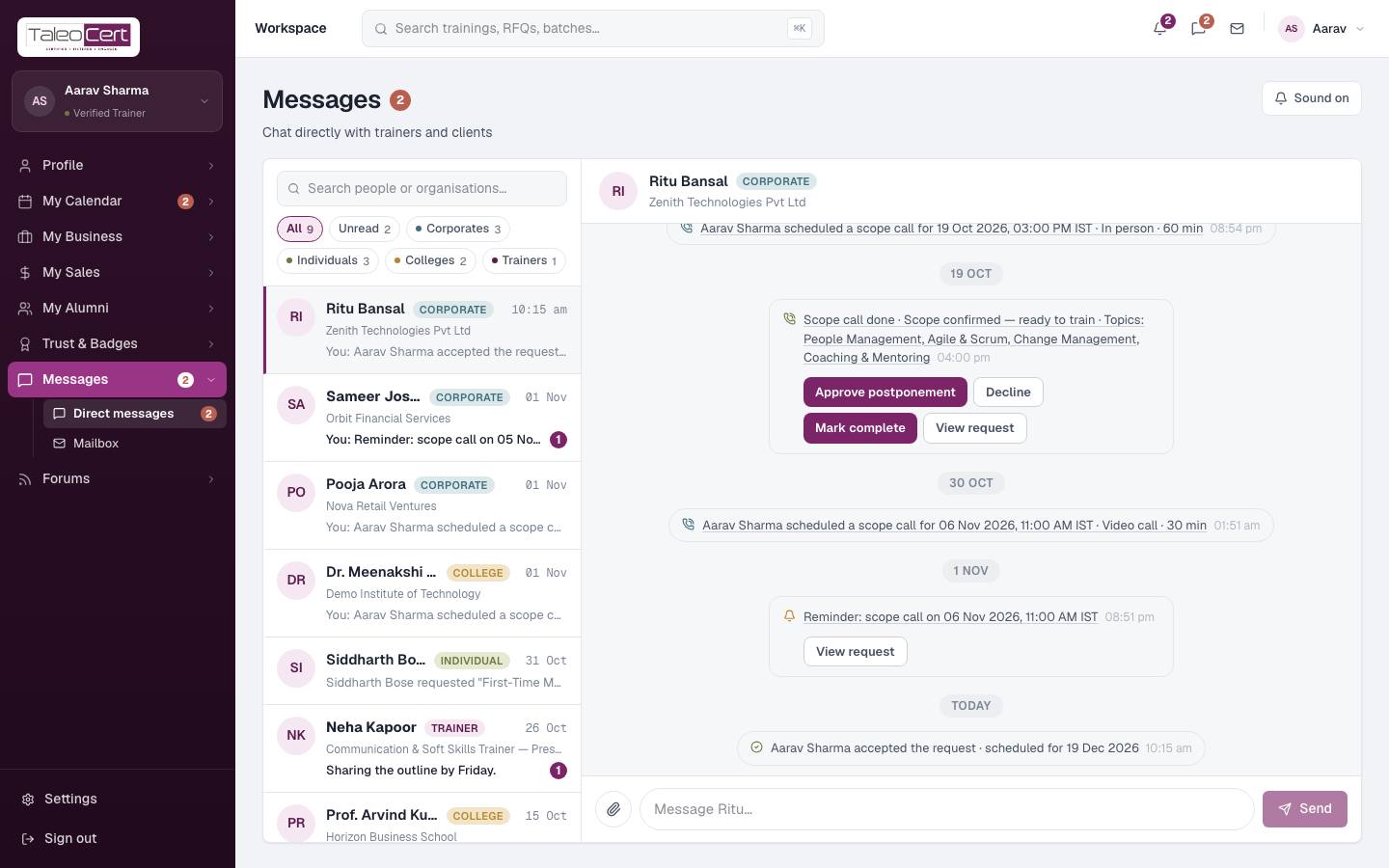
Each step is also posted into the client–trainer conversation in Messages as a system line: requested, accepted, agreement ready, signed, active, paid, scope call scheduled, reminder sent, scope call done, completed and certificates issued. Clicking one of these lines opens that training, and the next action (for example Add participants or Pay) is offered right in the thread.
How the money works
Something not covered? Talk to us or open a ticket from Help & support in your portal.