
Calendar, schedule & batches
Meeting Schedule (your calendar)
A month view of everything booked in your time: training days, RFQ meetings, office hours and scope calls, colour-coded. It opens on the current month. Use the arrows to move, and Today to come back.
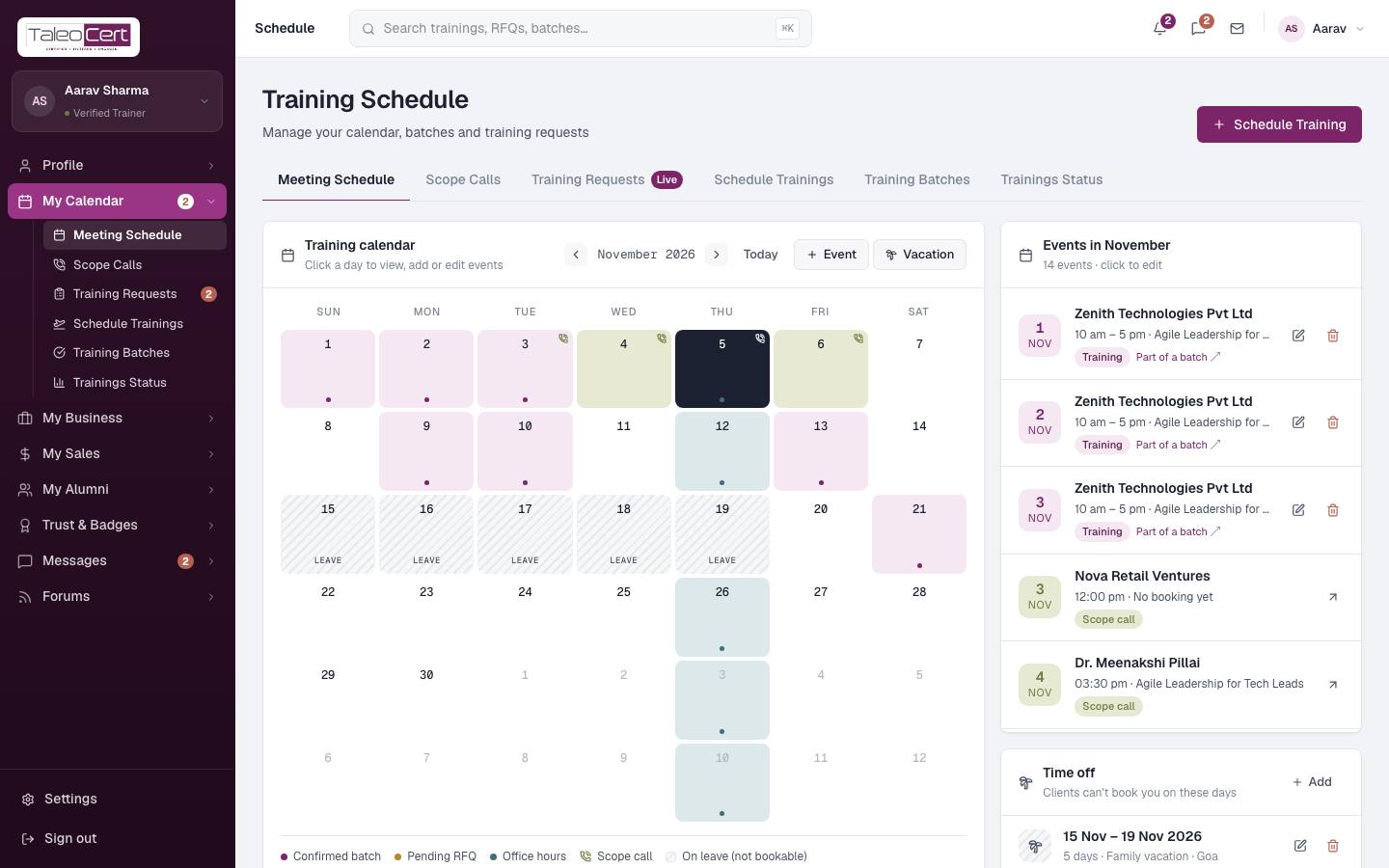
| Colour | Meaning |
|---|---|
| Purple | Confirmed training (batch days) |
| Gold | Pending RFQ / meeting about a request |
| Teal | Office hours |
| Green | Scope call (scheduled or held) |
| Phone icon (top-right of a day) | A scope call that day: green when it's coming up, grey once held. A number shows when there are several. |
| Grey stripes (LEAVE) | Your time off: clients can't book these days |
See, add, edit or delete events
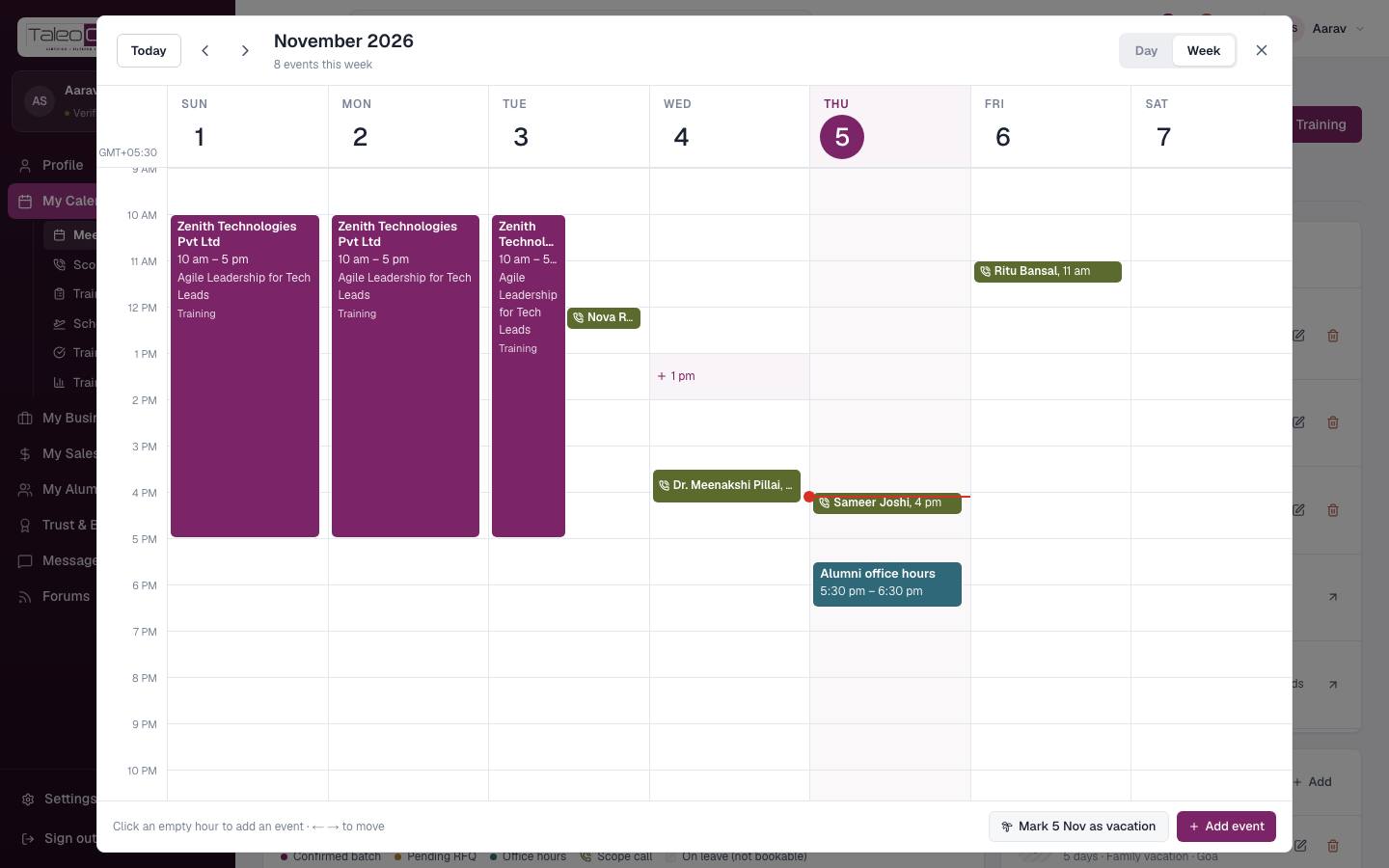
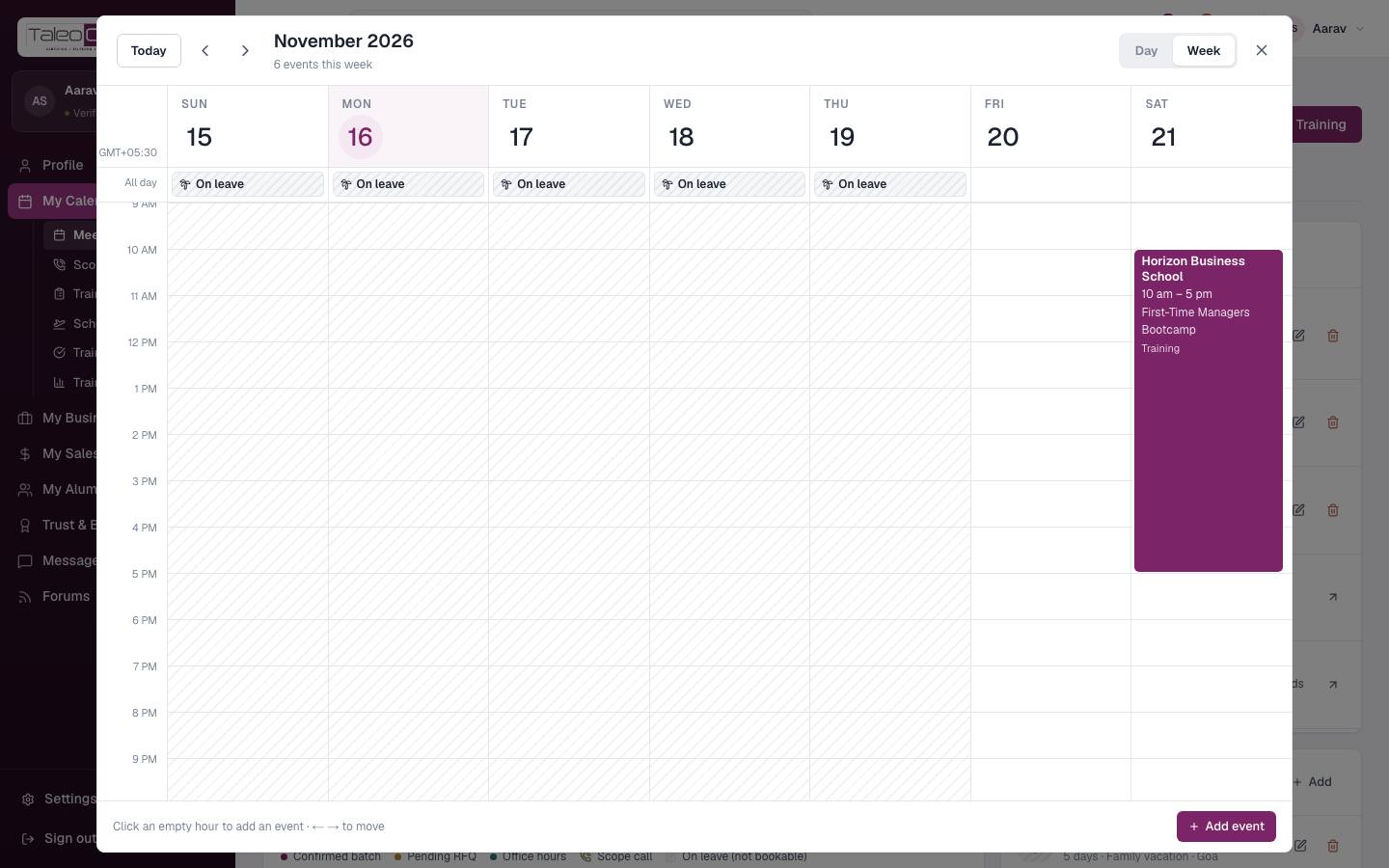
- 1Click a dayThe week view opens, like Google Calendar: the whole week with one column per day. Meetings with a time (scope calls, office hours, training sessions) are coloured blocks at their start time, as long as they last, side by side when they overlap. Leave and anything without a time sit in the All day row at the top, and a red line marks the current time in today's column. Use the arrows (or ← →) to move week by week and Today to come back. Switch to Day (or click a date) for one wide day. Click any block to open it.
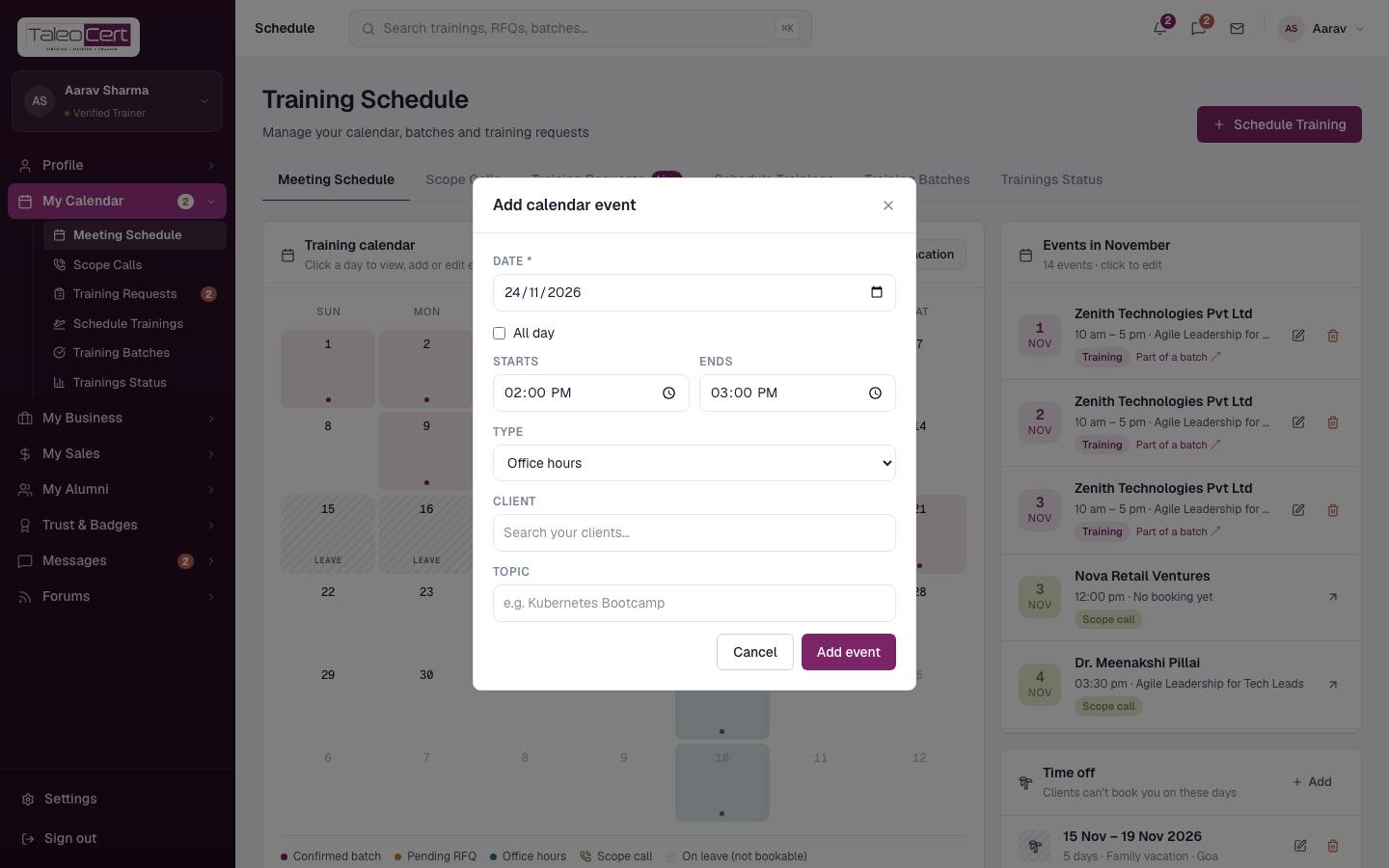
The week view: training days, scope calls and office hours at their times, with the red now line on today. - 2Add an eventClick an empty hour in the week or day view to add an event on that day, starting then, or use + Event / Add event. Pick the date, a start and end time (or tick All day), the type (Training, RFQ or Office hours), the client (a picker of clients you've worked with, or type a new one) and a topic.
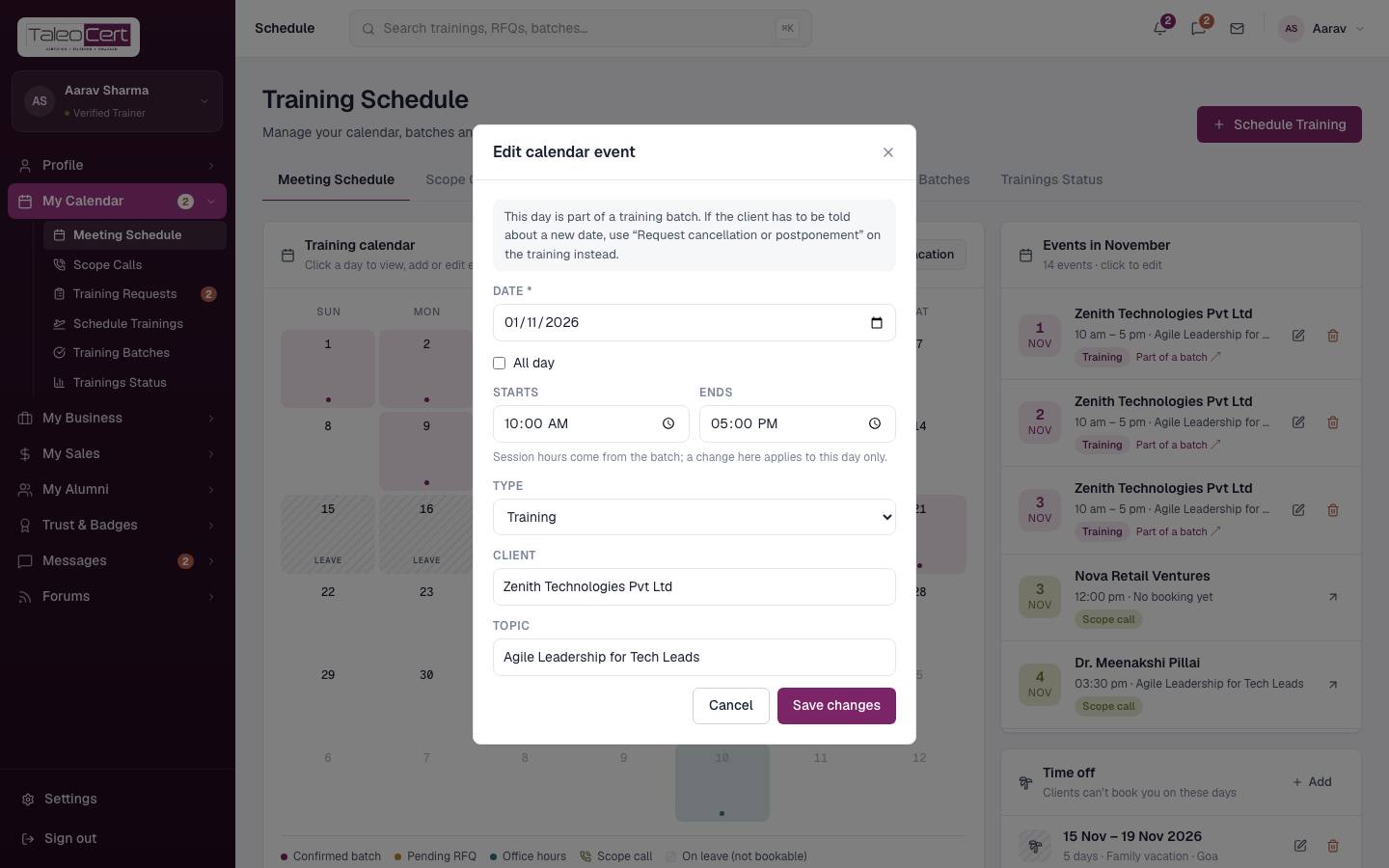
Add calendar event, started from 2 pm in the week view. - 3Edit an eventClick an event, or its pencil icon, to change the date, type, client or topic. Days that belong to a training batch show a note: if the client needs to know about a new date, use Request cancellation or postponement on the training instead.
Editing a batch day, with the reminder to use a change request for client-facing date changes. - 4Delete an eventUse the bin icon. You are asked to confirm. Scope calls can't be deleted here; clicking one opens it in Scope Calls.
Vacation / time off
Going on holiday or blocking days for yourself? Add time off and those days are protected everywhere: clients can't request them, you can't accept a request or schedule a batch on them, and a postponement can't be moved into them. Clients only see On leave; your note stays private.
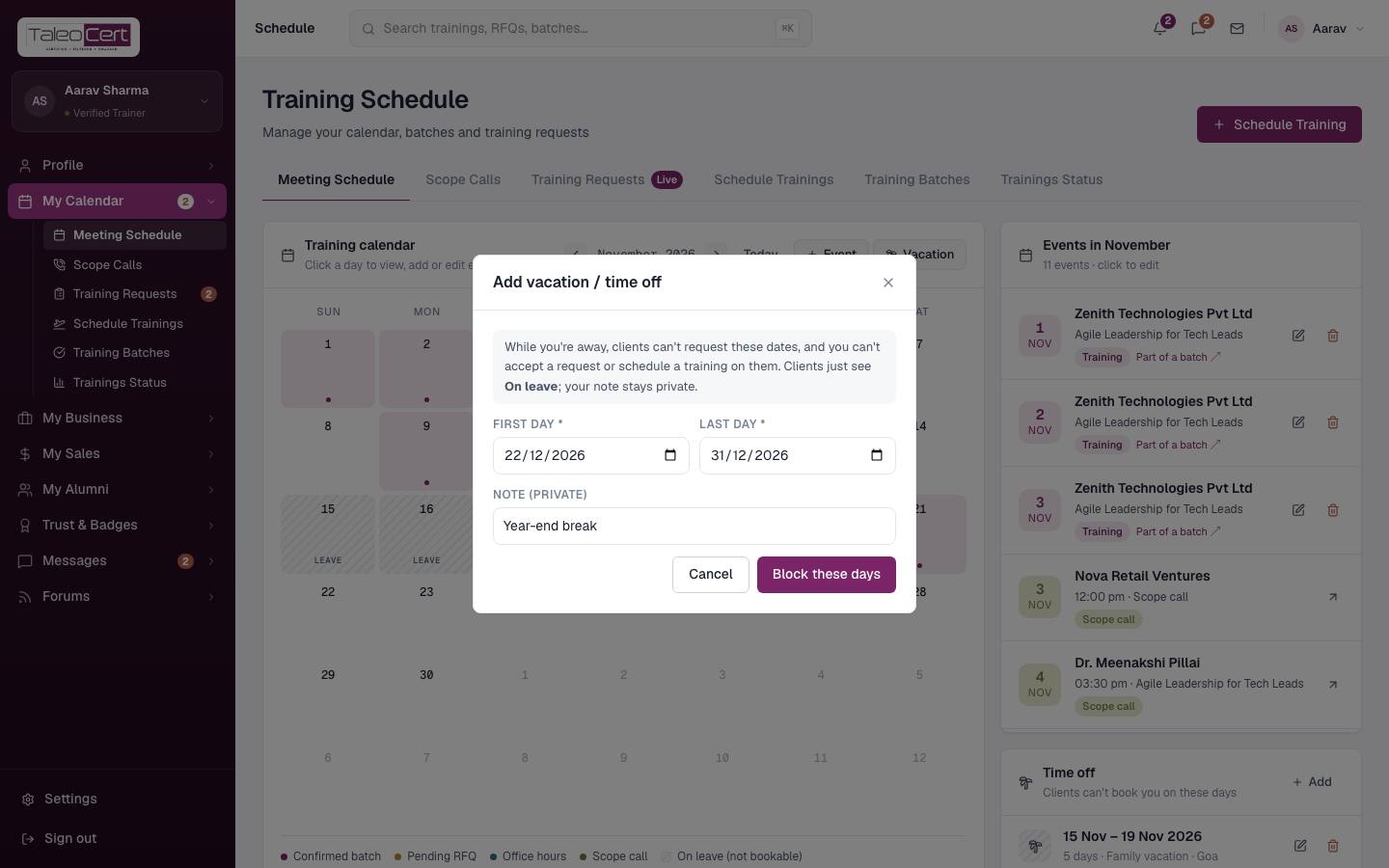
- 1Add a vacationClick Vacation at the top of the calendar (or Mark as vacation in a day's popup). Pick the first and last day and add an optional private note, then Block these days.
Adding time off: first day, last day and a private note. - 2See it on the calendarLeave days show with grey stripes and the word LEAVE. Clicking one shows the period, your note and an Edit button. Your upcoming time off is also listed under Time off next to the calendar.
A day inside a vacation. - 3Edit or remove itUse the pencil or bin in Time off, or Edit from the day popup. Removing it opens the days to bookings again.
What happens to existing work
- Confirmed trainings or batches in those dates block the vacation. You're shown exactly which ones, with links: postpone them with the client first (see Postpone or cancel).
- Pending requests in those dates don't block it. After saving you're shown the requests that fall inside, so you can decline them or ask the client to move the date.
- Your Availability tab, your public profile and the booking form all show the days as On leave, and the trainer search's date filter leaves you out for those dates.
Schedule a training
Use this when you run a batch that did not come in as a booking request: an open public batch, a repeat client, or a client you scoped on a call.
- 1Open the wizardClick Schedule Training (top right of My Calendar, or on Schedule Trainings / Training Batches).
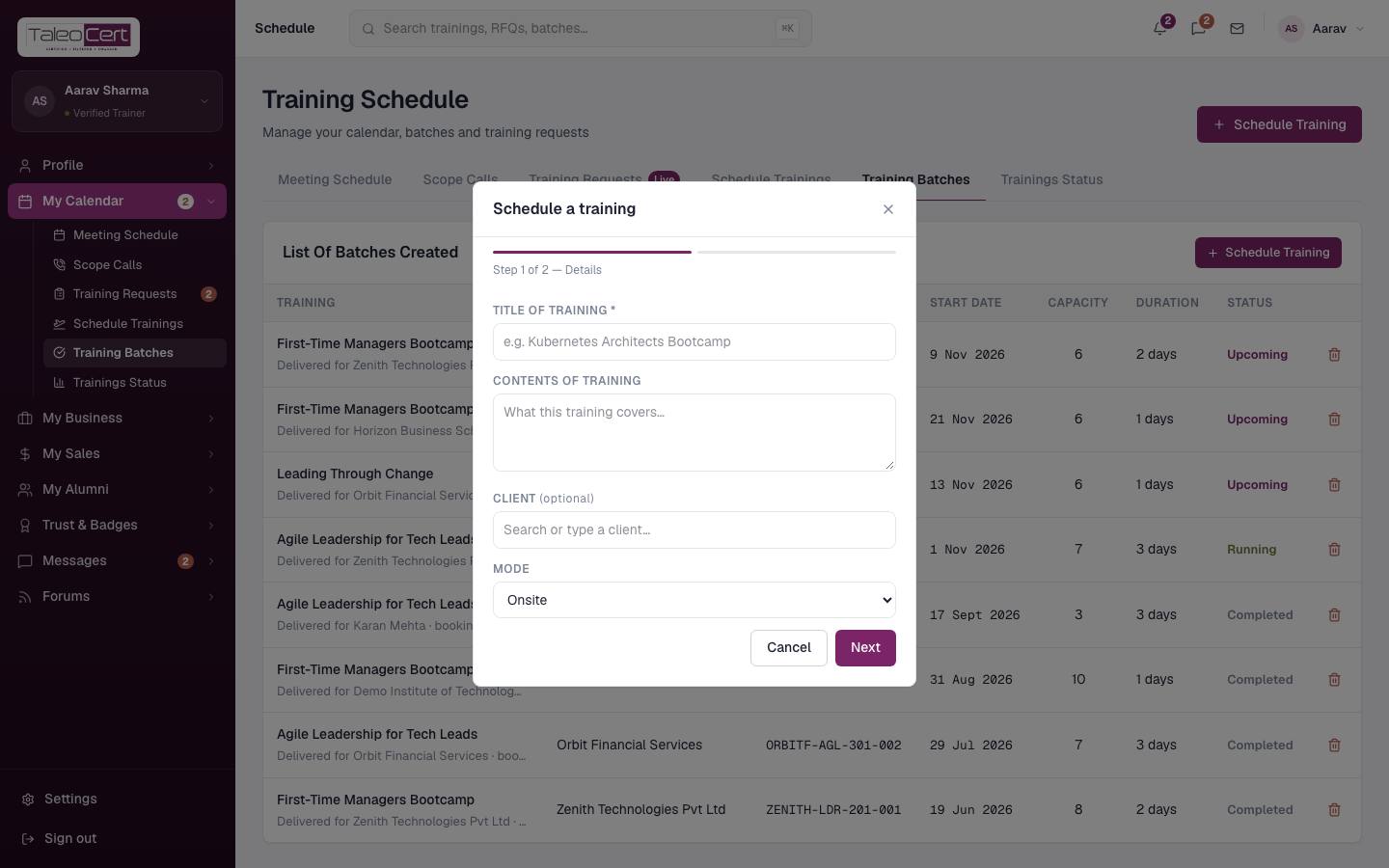
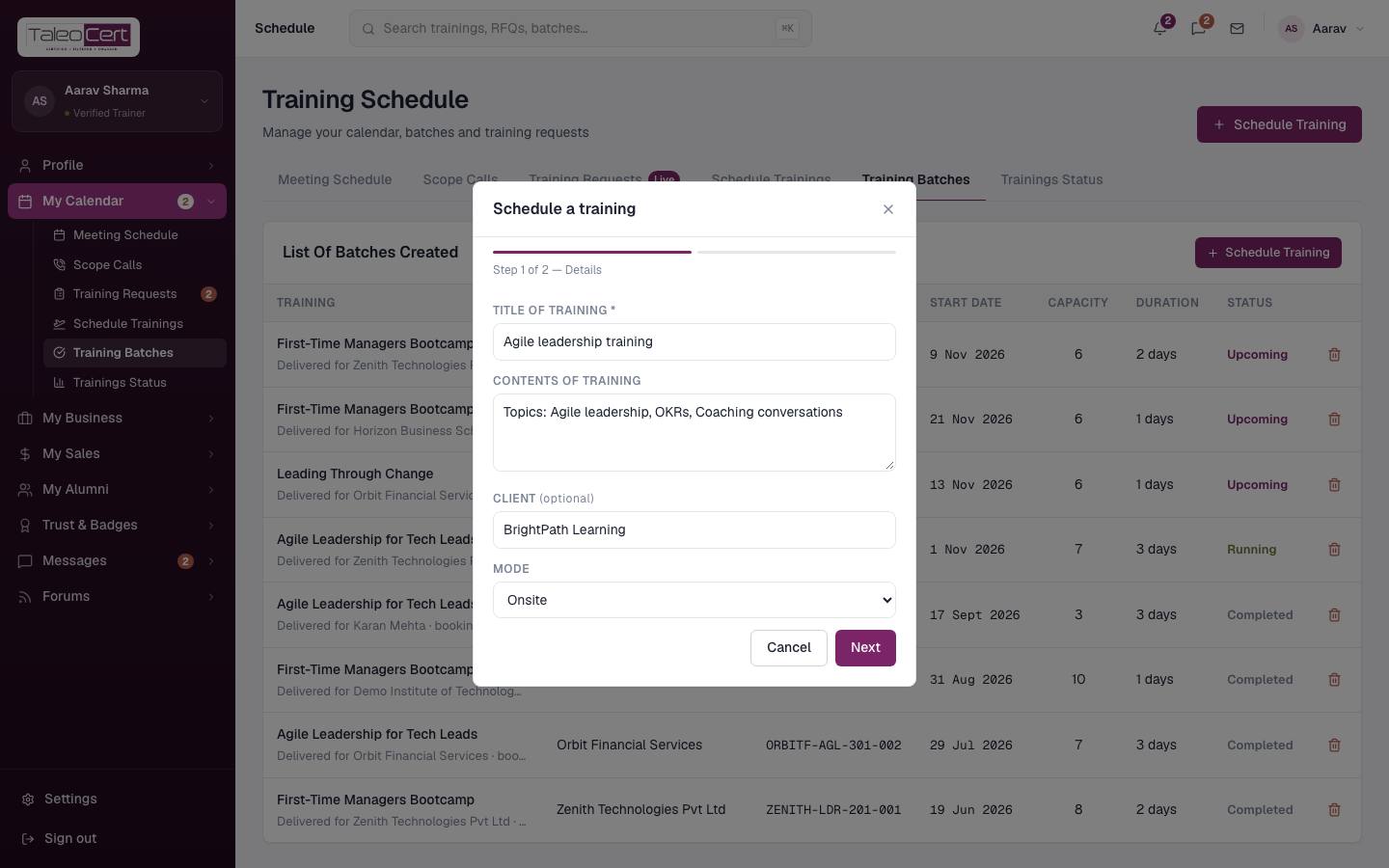
- 2Step 1: DetailsTitle of training, contents, the client (picked from your clients or typed in), and mode: Onsite, Online or Hybrid.
Schedule a training: step 1 of 2. - 3Step 2: Dates & capacityStart date, daily start and end time (10 am to 5 pm unless you change it), number of days, capacity and enrolment. Saving creates the batch and puts every training day on your calendar at those hours.
Training Batches and Trainings Status
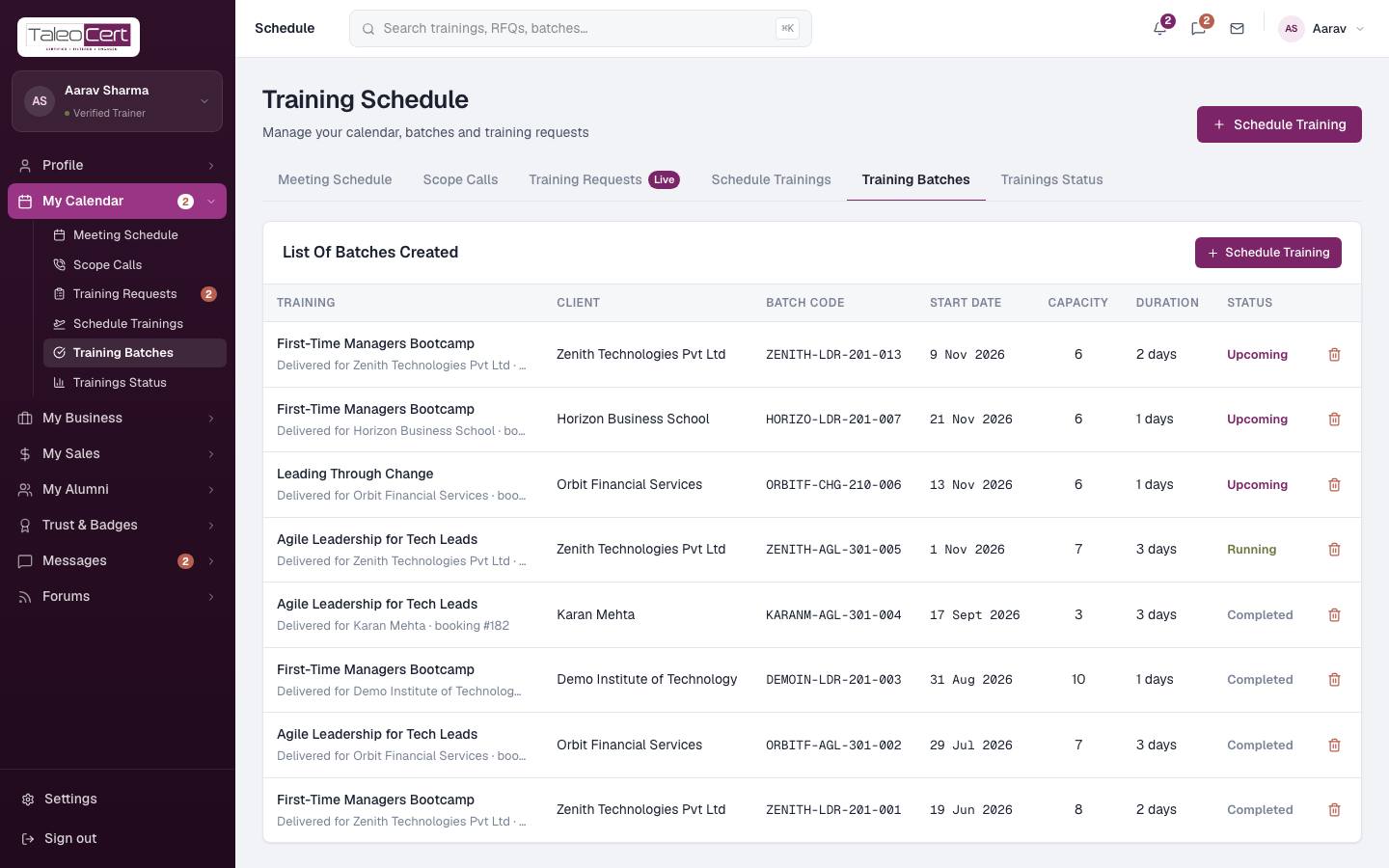
Training Batches lists every batch you have created or that came from a booking: training, client, batch code, start date, capacity, duration and status (Upcoming, Running, Completed). Remove a batch with the bin icon.
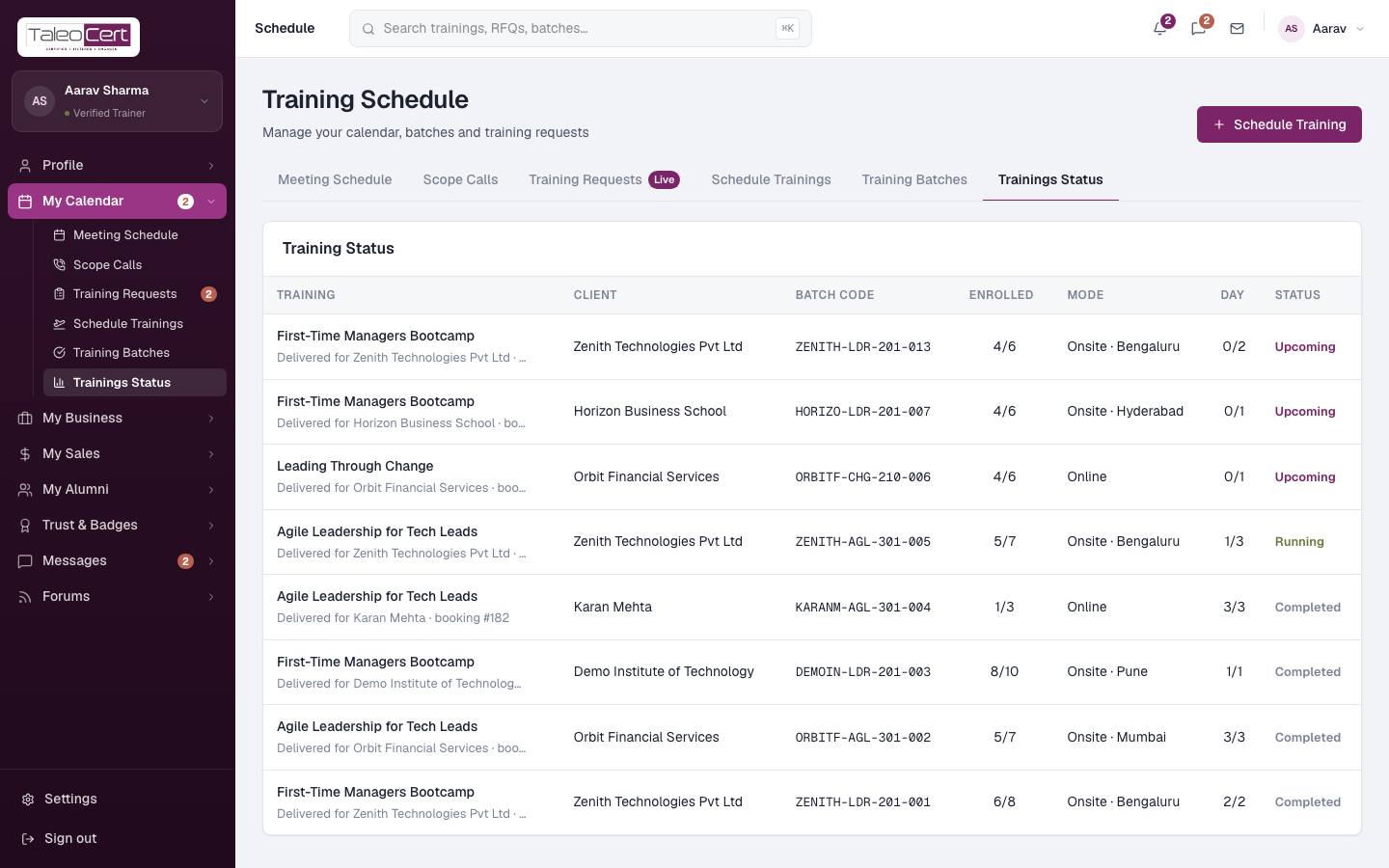
Trainings Status is the delivery view: enrolled versus capacity, mode, which day of the batch you are on (for example 1/3), and status.
Something not covered? Talk to us or open a ticket from Help & support in your portal.