
Docs Step-by-step guides
Book your company's first training
For CompaniesFrom registration to certificates in your employees' hands, end to end.
- 1Register your companytaleocert.com/join/company: work email, verify it, organisation profile, then sign the MSA and NDA and add tax details. Details.
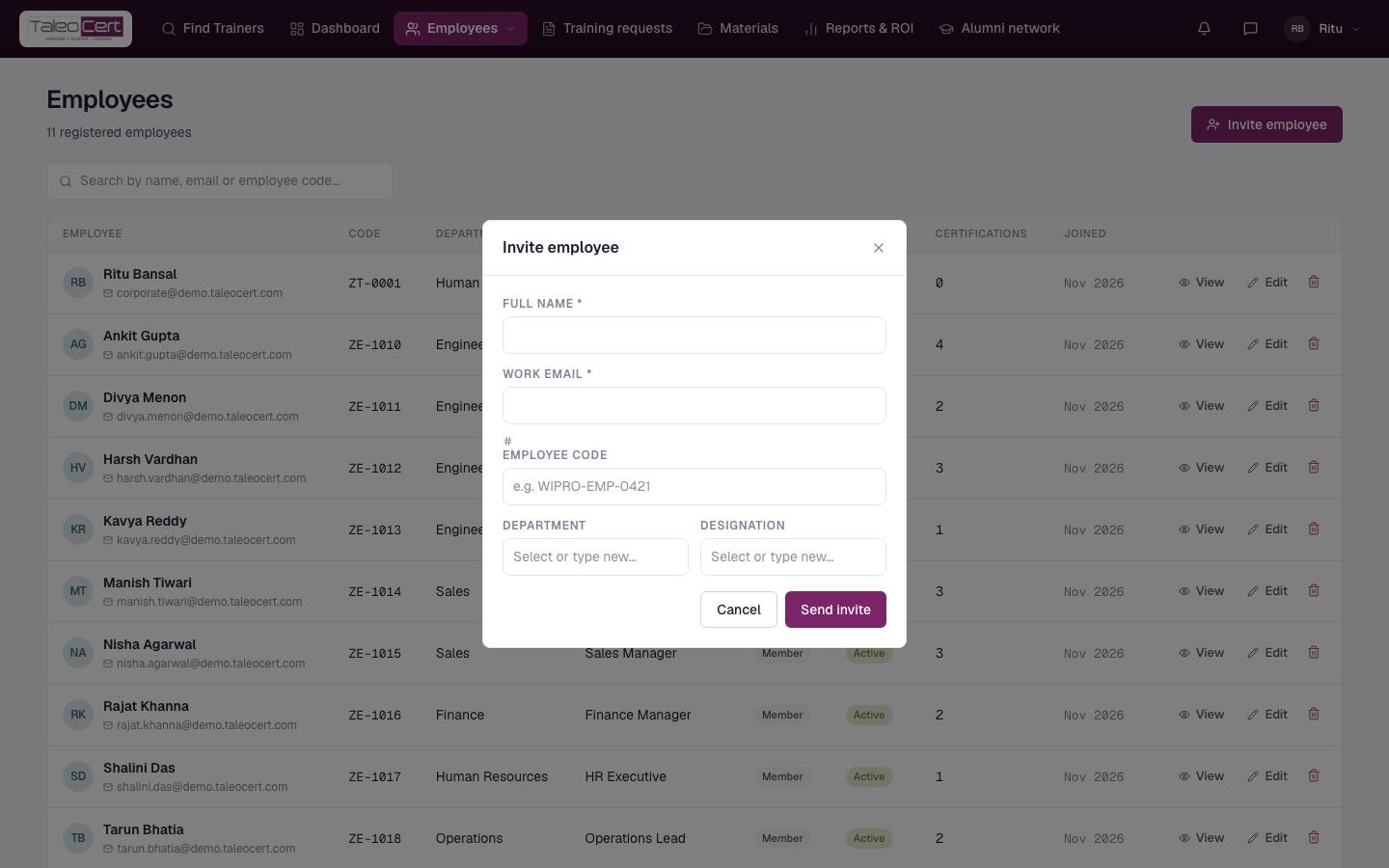
- 2Invite your teamEmployees ▾ › Employees › Invite employee for the people you'll train. Optional now; you can also just list participants per training.
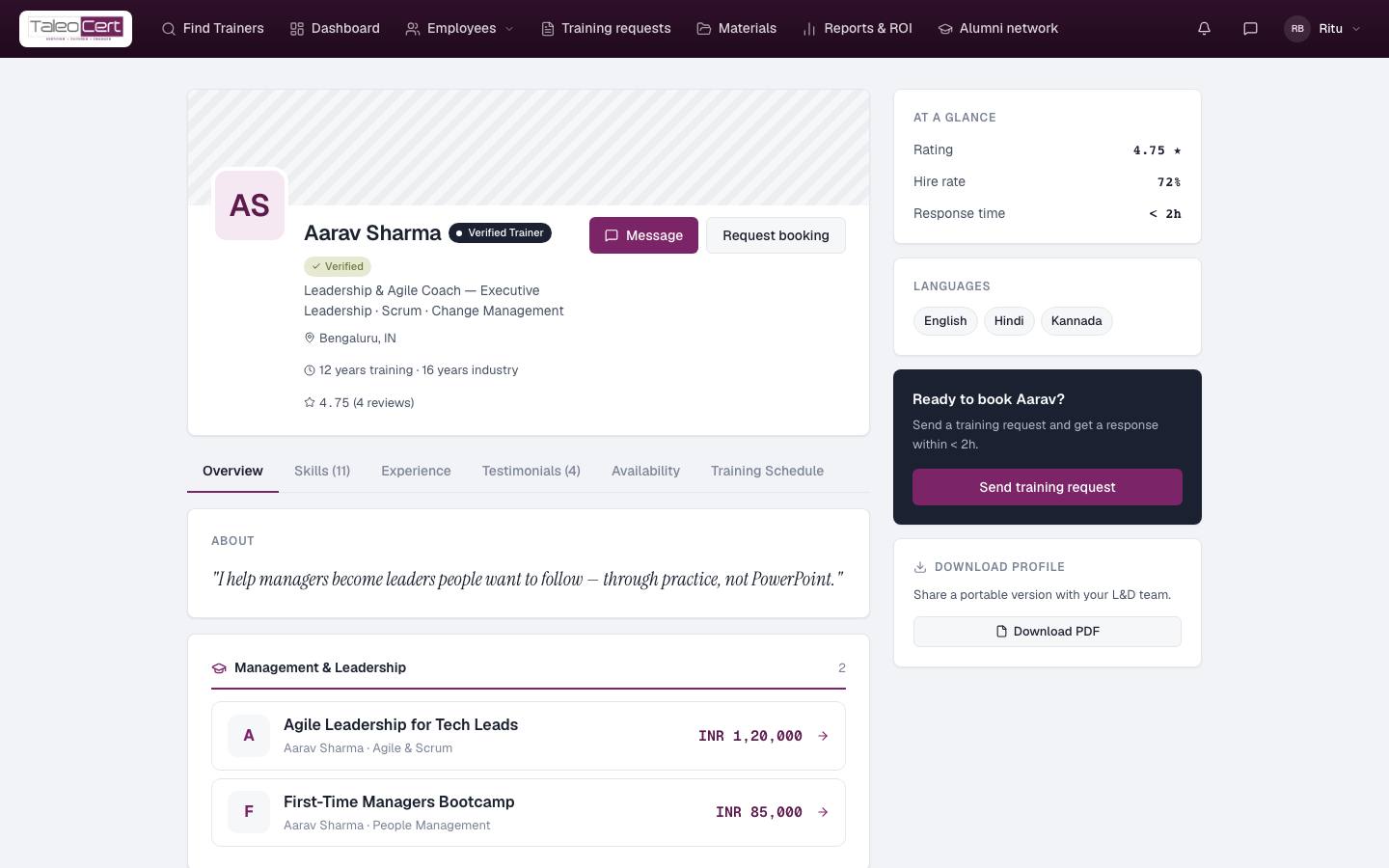
Invite employee. - 3Find the right trainerOn Find Trainers, search a skill and use Filters. Open profiles to compare experience, reviews, programmes and availability. Message a trainer if you have questions.
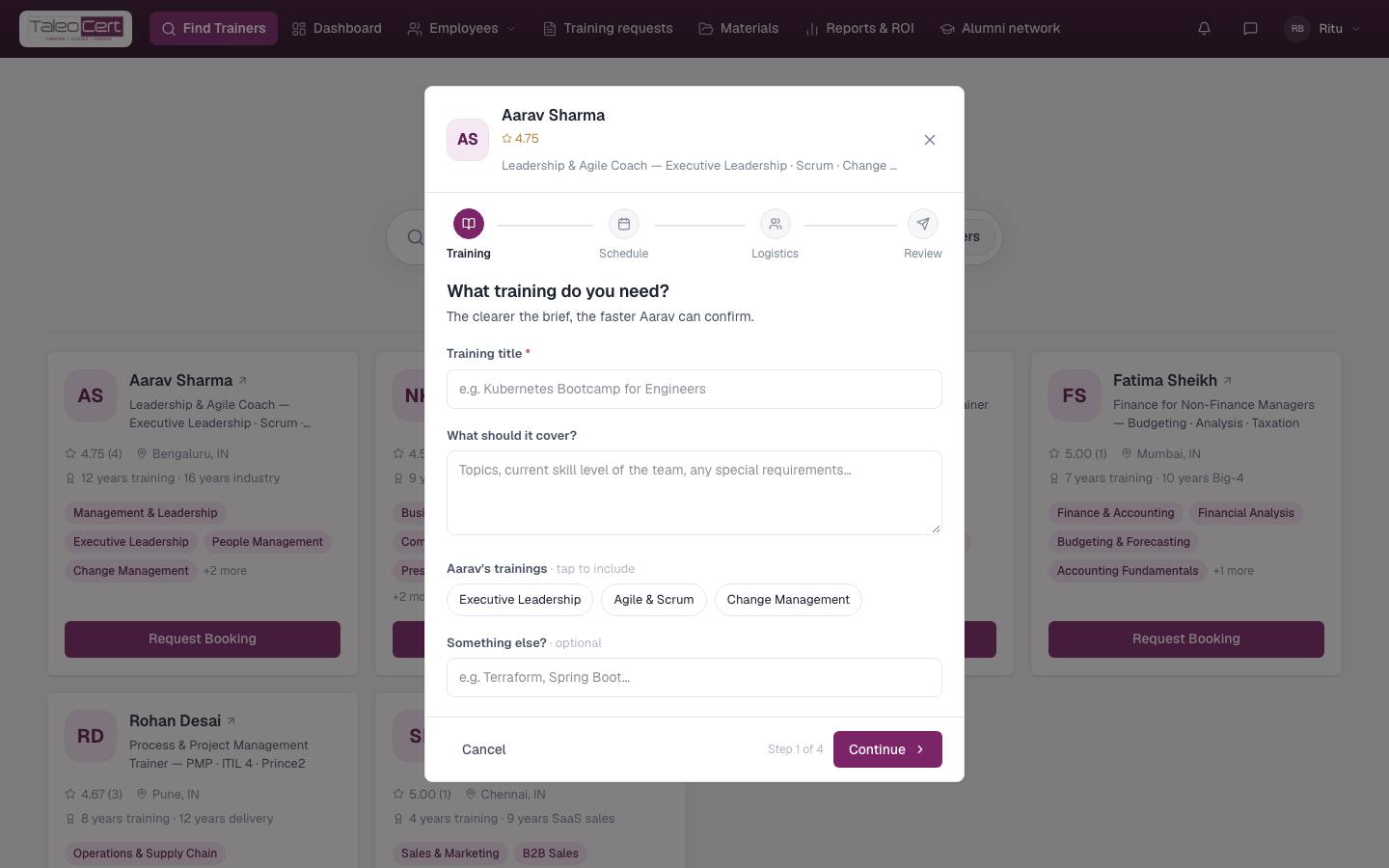
Comparing a trainer's profile. - 4Send the requestRequest booking: what you need, dates, participants, mode, location and budget. Details.
The four-step request. - 5Join the scope callThe trainer emails you an invite to a short scope call. Join with the link, share your team's level and goals, and agree the topics. You may get a reminder before it.
- 6Sign the agreementWhen the trainer accepts, open the request in Training requests and click Review & sign as client. Details.
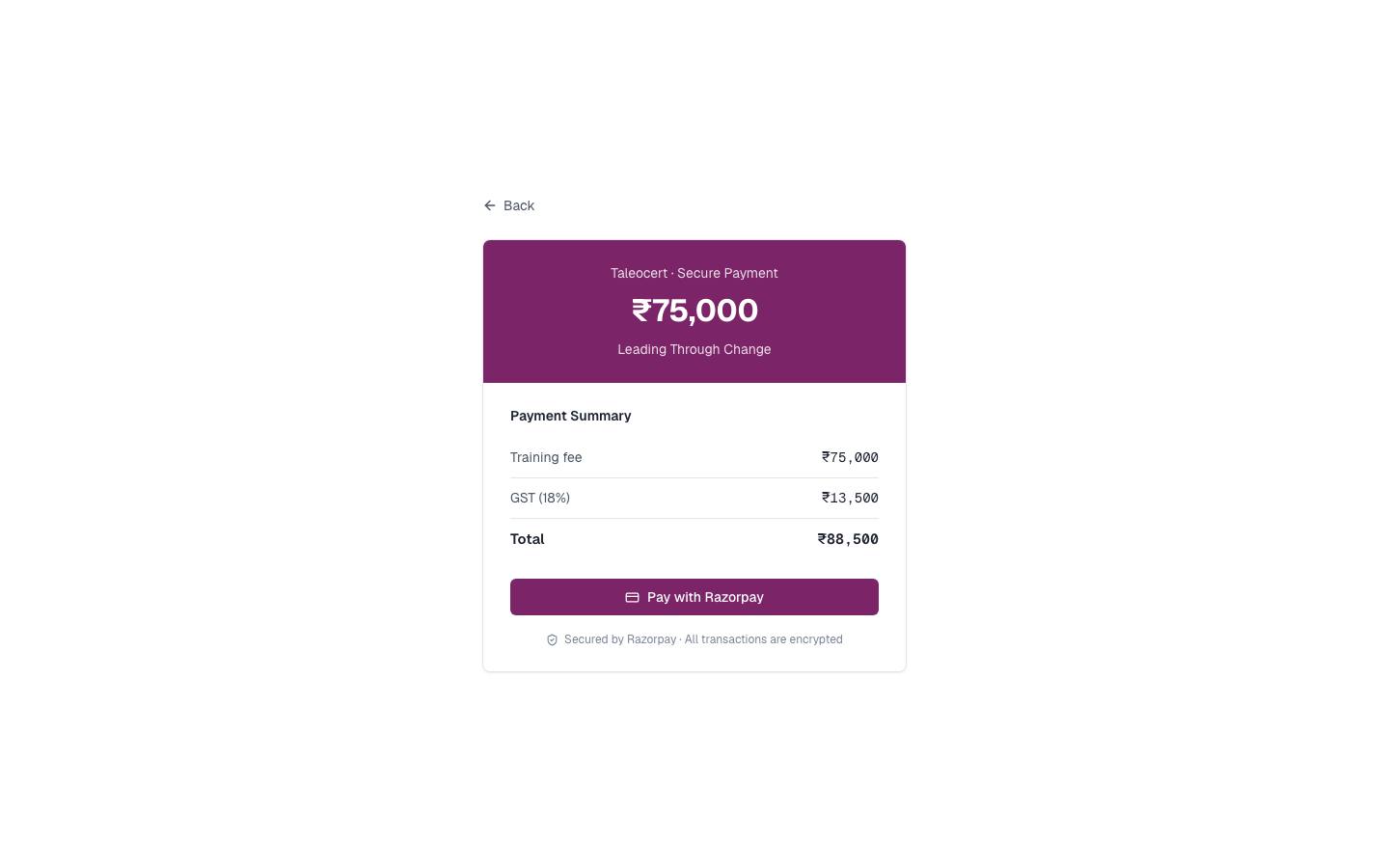
- 7PayPay now through Razorpay, or Pay later if agreed.
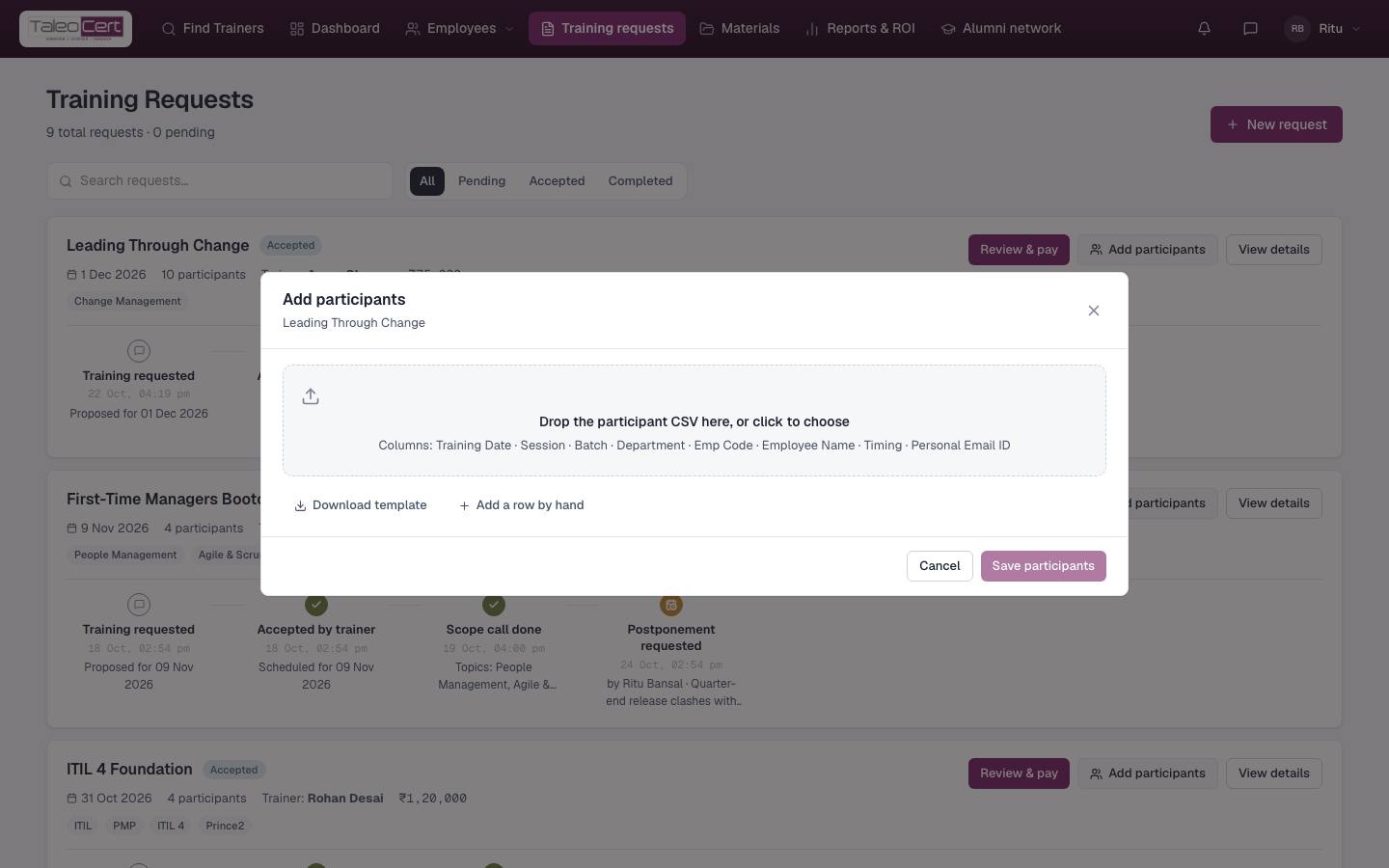
Checkout. - 8Send participantsAdd participants: upload the CSV template or add people by hand. They'll get the trainer's briefing.
Add participants. - 9Track the trainingFollow it on your Dashboard and in Employees ▾ › Batches.
- 10Collect certificates and reviewAfter delivery each participant is emailed their certificate; all are in Employees ▾ › Certificates. Leave the trainer a review.
Something not covered? Talk to us or open a ticket from Help & support in your portal.